
Product customizer overview
Understand the main areas of the Chamevo product customizer — canvas, elements, views, and configuration options.
The product customizer is where your customers design, personalize, and preview products before adding them to the cart. This article explains its main areas so you can make better decisions when setting up products.
Overview
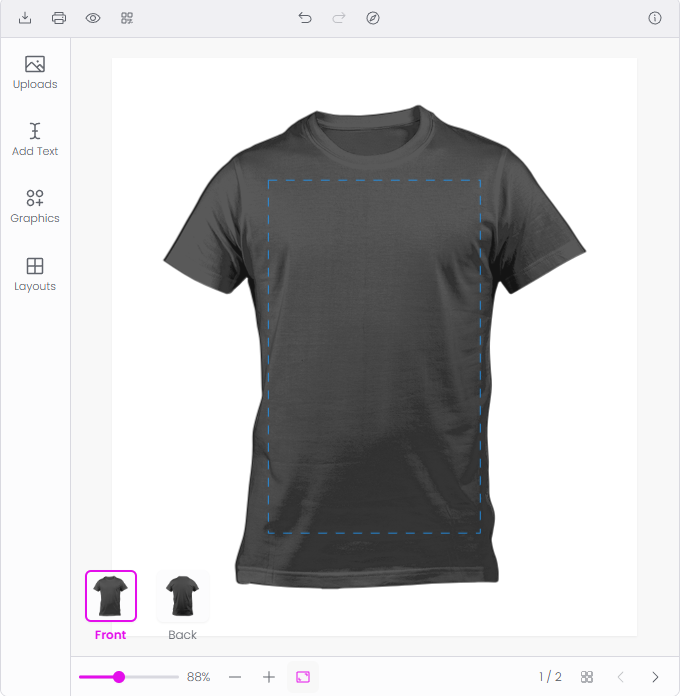
The product customizer is a browser-based canvas editor built on top of your product images. Customers interact with it directly on your WooCommerce product page — or in a lightbox or on a separate page, depending on your display settings.
Every customizable product has three layers of configuration:
- Views — the sides of the product (front, back, left, right). Each view has its own canvas and elements. You set up views in the Product Builder.
- Elements — the objects on the canvas. Text, images, graphics, curved text, neon text, and text boxes. Customers add, edit, move, and remove these.
- Settings — the rules that control what customers can do. Permissions, colors, fonts, upload limits, pricing, and module visibility.
What this affects
The product customizer touches nearly every part of your Chamevo setup:
Canvas and elements
- Set the canvas size per view in the Product Builder. The canvas scales automatically to fit smaller screens, so your design stays usable on mobile.
- Six element types are available: Text, Image, Text Box, Curved Text, Neon Text, and Shape. Each type has its own set of properties and controls.
- Elements can be locked, hidden, or restricted using element permissions. This lets you control exactly what customers can change.
Modules
Modules are the UI panels your customers see alongside the canvas. The default modules are Products, Images, Text, and Designs. You can add optional modules like Names & Numbers, My Designs, or Bulk Variations — and arrange them all in the UI Composer.