Configure the product customizer position on product pages
Control where the product customizer appears on WooCommerce product pages, set the customize button position, and choose between page, lightbox, or button-triggered display modes.
Control where and how the product customizer appears on your WooCommerce product pages. You can place it inline on the page, open it in a lightbox, or show it after a button click. You also control where the "Customize" button sits relative to the product summary.
Before you start
- Chamevo and WooCommerce are both active.
- At least one WooCommerce product has a Chamevo product assigned. See Link a Chamevo product to a WooCommerce product.
Product customizer display mode
This setting controls how the product customizer opens. Go to Chamevo → Settings → General → Display.
Find the Open Customizer in... setting. Three options are available:
| Option | Behavior |
|---|---|
| Page (default) | The product customizer loads directly on the product page. No button needed — customers see it immediately. |
| Lightbox | The product customizer opens in a modal overlay when the customer clicks the customize button. Only works with the sidebar layout. |
| Page after user clicks on the customization button | The product page loads normally. When the customer clicks the customize button, the page reloads with the product customizer visible. |
Product customizer position on the page
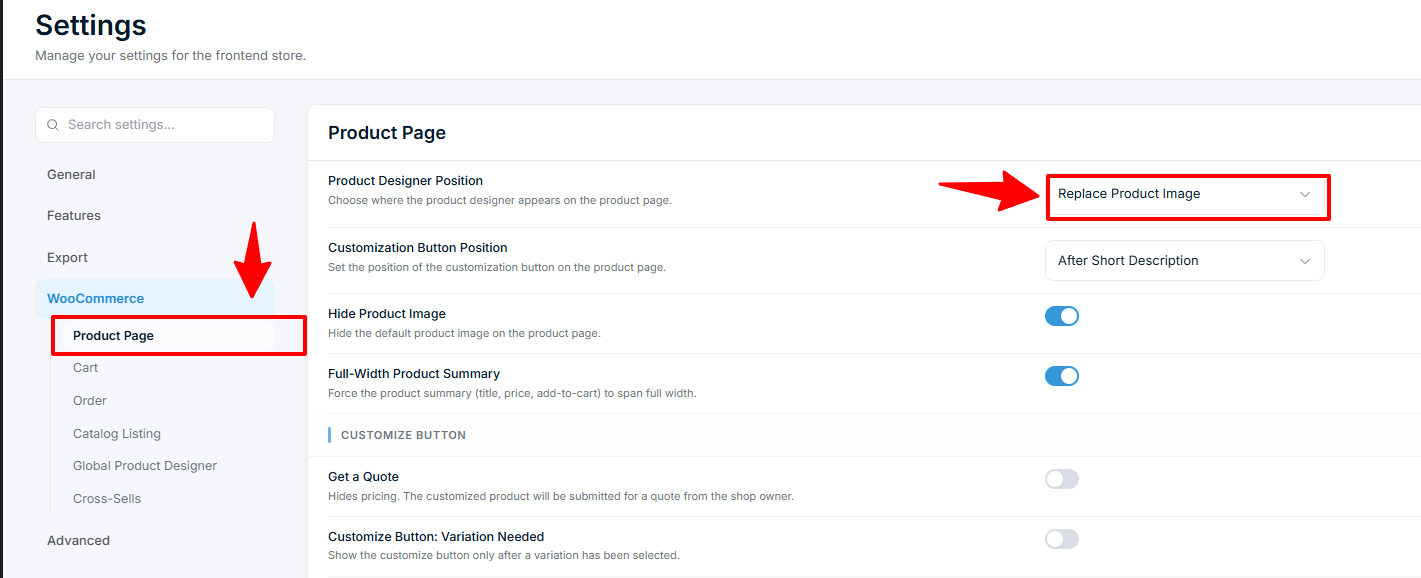
This setting controls where the product customizer sits within the WooCommerce product page layout. Go to Chamevo → Settings → WooCommerce → Product Page.
Find the Product Designer Position setting:
| Option | Where it appears |
|---|