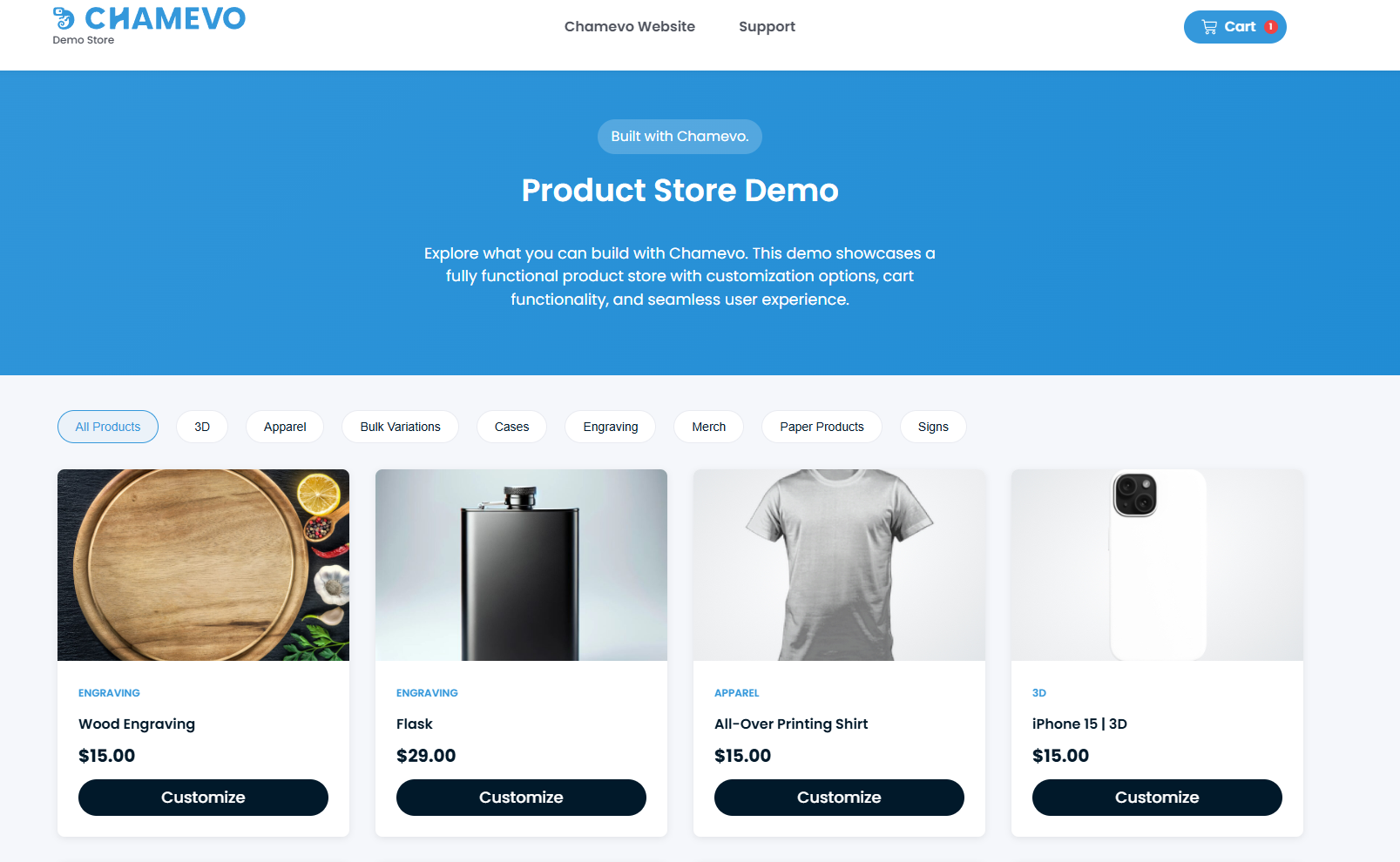
Set up catalog, global, and cross-sell settings
Configure how the customize button appears in WooCommerce shop pages, enable the product customizer for all products globally, and set up cross-sell display options.
Configure how the customize button appears on WooCommerce shop and category pages, enable the product customizer for all WooCommerce products at once, and show cross-sell suggestions with your customer's design overlaid.
Before you start
- Chamevo and WooCommerce are active and connected. See Connect your WooCommerce store to Chamevo.
Catalog listing settings
Go to Chamevo → Settings → WooCommerce → Catalog Listing.
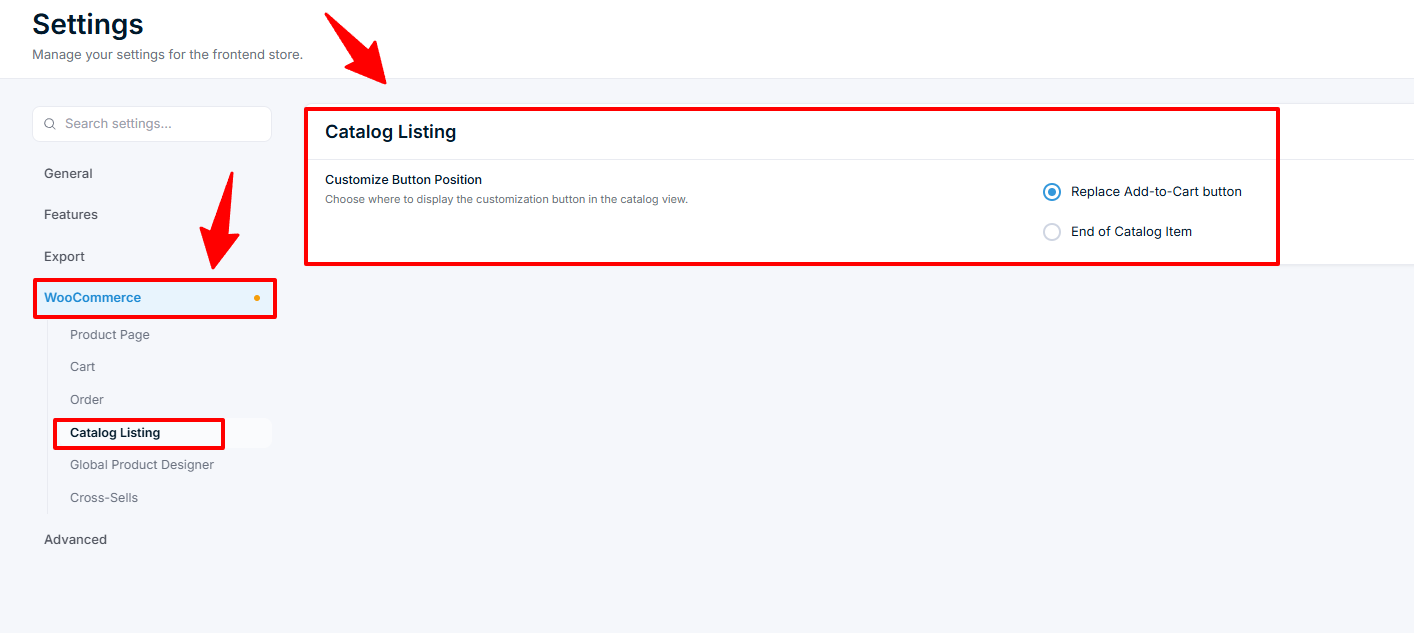
The Customize Button Position controls how the customize button appears on WooCommerce shop pages, category pages, and any page that lists products.
| Option | Behavior |
|---|---|
| Replace Add-to-Cart button (default) | The standard "Add to Cart" button is replaced with a "Customize" button that links to the product page. |
| End of Catalog Item | The "Customize" button is added after the product item, below the price. The original "Add to Cart" button stays. |
The customize button only appears for WooCommerce products that have a Chamevo product assigned. Products without a Chamevo product show the normal Add to Cart button.
When Get a Quote mode is enabled for a product, the main shop page hides that product's price. (Product category and tag archive pages are not affected — the price still shows on those listings.)