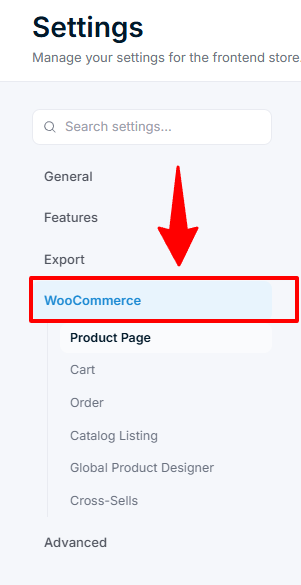
Connect your WooCommerce store to Chamevo
Link your WooCommerce store to Chamevo so that customized products flow through WooCommerce cart, checkout, and order management.
Updated April 28, 20265 min read
Connect your WooCommerce store to Chamevo so customers can customize products, add them to cart, and check out through WooCommerce. Chamevo handles the customization; WooCommerce handles the commerce.
Before you start
- WordPress is installed and running.
- WooCommerce is installed and active.
- Chamevo is installed and your license key is active. See Install Chamevo on WordPress and Activate your Chamevo license key.
- You have at least one Chamevo product with views and elements. See Create your first customizable product.
What the connection does
When WooCommerce is active, Chamevo automatically:
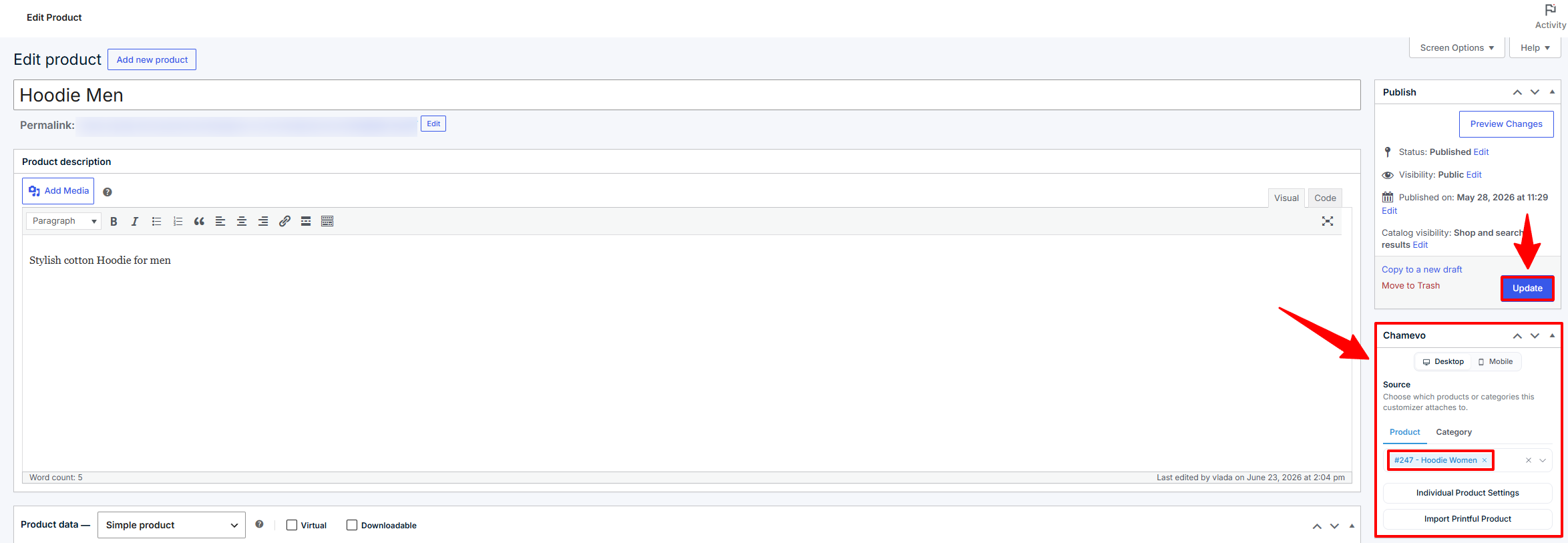
- Adds a Chamevo meta box to the WooCommerce product editor so you can assign Chamevo products to WooCommerce products
- Loads the product customizer on WooCommerce product pages
- Captures customization data when customers add to cart
- Passes customization data through checkout into WooCommerce orders
- Shows customized product details in Chamevo → Orders
- Syncs WooCommerce currency formatting with the product customizer price display
No separate "connect" step is needed. If both plugins are active, the integration works out of the box.
Steps
1. Assign a Chamevo product to a WooCommerce product
- Go to Products (WooCommerce) in your WordPress admin.
- Open an existing WooCommerce product or create a new one.
- In the right sidebar, find the Chamevo meta box.
- Set the source type to Product.
- Select your Chamevo product from the dropdown.
- Click Update or Publish.
For detailed instructions, see .
Related articles
Configure the product customizer position on product pagesControl where the product customizer appears on WooCommerce product pages, set the customize button position, and choose between page, lightbox, or button-triggered display modes.Use WooCommerce variations with the product customizerAssign different Chamevo products to WooCommerce product variations so the product customizer changes when a customer selects a different variation.Configure cart behavior for customized productsControl how customized products appear in the WooCommerce cart, including custom thumbnails, customization details, and re-edit links.Configure order settings for customized productsControl how customization data appears in WooCommerce orders, customer account pages, and order confirmation emails.