
Activate your Chamevo license key
Enter your license key to connect the Chamevo plugin to your account and unlock all admin features.
After installing the Chamevo plugin, enter your license key to connect it to your Chamevo account. The license key unlocks the full admin menu, enables Print-Ready Exports through the cloud export service, and activates AI Tools.
Before you start
- The Chamevo plugin is installed and activated on your WordPress site (see Install Chamevo on WordPress).
- You have a Chamevo subscription with an active license key. Find your key in the Chamevo Customer Portal.
- Your server can make outbound HTTPS requests (required for license validation).
Activate your license key
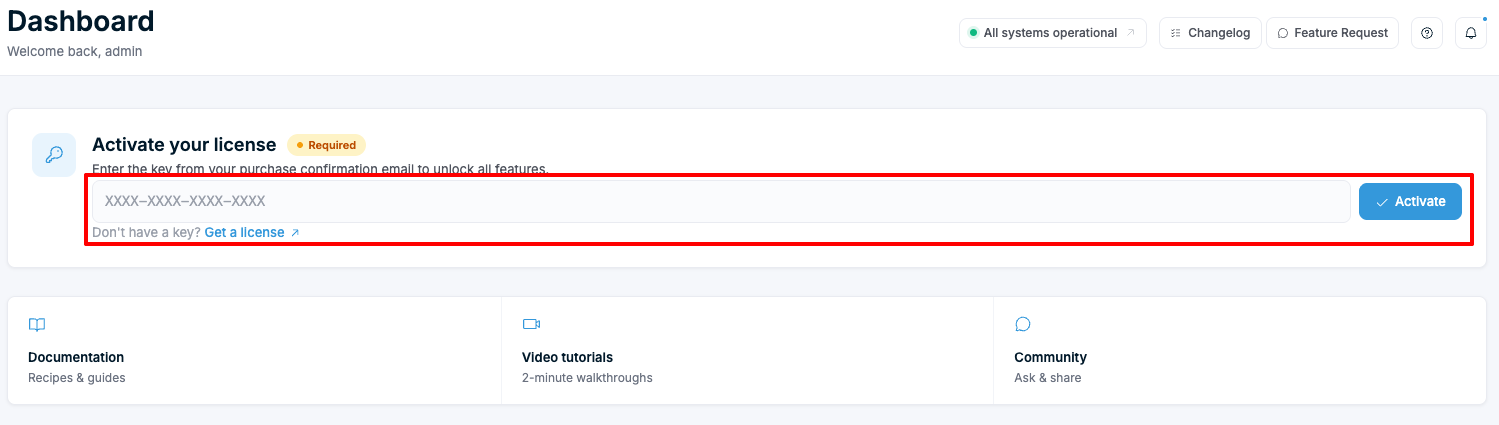
- In your WordPress admin, go to Chamevo > Dashboard.
- Find the Activate your license card, marked Required.
- Paste your license key from the Customer Portal into the field (format:
XXXX-XXXX-XXXX-XXXX). - Click Activate.
If you do not have a key yet, use the Get a license link in the same card to open the Customer Portal.
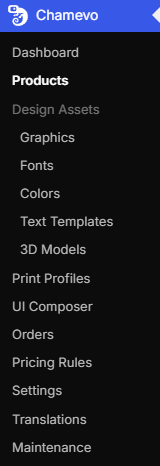
Chamevo registers your site domain with the Chamevo cloud platform. Once validated, the full admin menu appears in the sidebar: Products, Design Assets, Graphics, Fonts, Colors, Text Templates, 3D Models, Print Profiles, UI Composer, Orders, Pricing Rules, Settings, Translations, and Maintenance.
One license key per domain
Each license key is tied to one domain. If you need to move your license to a different domain:
- Deactivate the license on the current site first.
- Enter the license key on the new site.
If you run both a staging and production site, check your plan to see if it supports multiple environments.
Troubleshooting
- "License key is required for client registration" — the license key field is empty. Copy the full key from the Customer Portal and paste it again.