Migrate from Fancy Product Designer to Chamevo
Step-by-step guide to transition your store from Fancy Product Designer (FPD) to Chamevo, including data migration, plugin swap, and verification.
Chamevo is the successor to Fancy Product Designer (FPD). This guide walks you through migrating your existing FPD setup to Chamevo so your products, views, orders, and settings carry over.
Before you start
- A WordPress site running Fancy Product Designer.
- A Chamevo subscription with an active license key from the Chamevo Customer Portal.
- A full site backup (database + files). Use a backup plugin or your hosting provider's backup tool.
- Administrator access to your WordPress dashboard.
- If possible, test the migration on a staging copy of your site first.
What carries over automatically
Chamevo reads your existing FPD data directly, so it shows up as soon as you activate Chamevo:
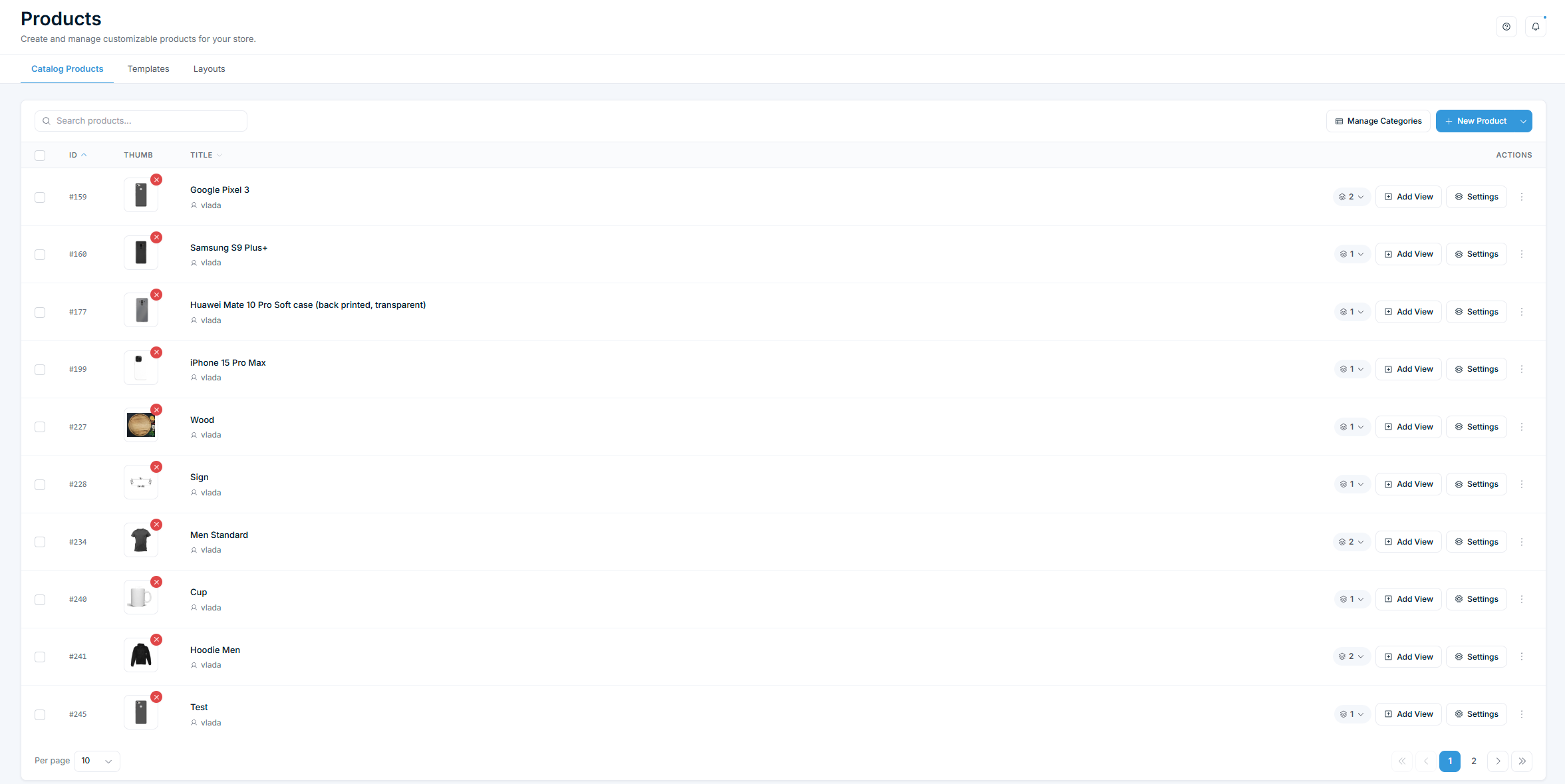
- Products and views — your products, views, and element configurations.
- Orders — existing customization order data.
- WooCommerce product links — products linked to FPD stay linked in Chamevo.
- Settings — most general, WooCommerce, and display settings.
A few older structures need a quick one-time conversion before they work fully: UI layouts, pricing rules, fonts, and color configs. Chamevo runs these for you from the Migration panel (see step 5). Per-profile color selection modes are backfilled automatically on update — no action needed.
What does not migrate automatically
- Print profiles. Print Profiles are a new Chamevo feature and do not exist in FPD, so there is nothing to carry over. Set up your print production settings (bleed, DPI, format) from scratch after migrating. See Set up print profiles.
- Plugin files and customizations. If you modified FPD plugin files directly (custom templates, CSS overrides in plugin folders), those changes do not carry over. Move customizations to your theme or a child theme before migrating.
- Third-party add-on compatibility. If you use FPD-specific third-party plugins, check whether they are compatible with Chamevo. Core features like 3D Visualization, Dynamic Pricing, and Bulk Variations are built into Chamevo and no longer require separate add-on plugins.
Steps
1. Back up your site
Create a full backup of your WordPress database and files. If anything goes wrong during migration, you can restore from this backup.