
Install Chamevo on WordPress
Download the Chamevo plugin, install it on your WordPress site, and confirm it is running.
Updated April 25, 20265 min read
Install the Chamevo plugin on your WordPress site in under five minutes. After installation, you will activate your license key and start building customizable products.
Before you start
- A self-hosted WordPress site running WordPress 5.8 or later (see System requirements).
- Administrator access to your WordPress dashboard.
- A Chamevo account. Sign up at chamevo.com if you do not have one.
Download the plugin
- Log in to the Chamevo Customer Portal.
- Navigate to your subscription or downloads section.
- Download the latest Chamevo plugin ZIP file.
Save the ZIP file to your computer. Do not extract it — WordPress needs the ZIP.
Install the plugin
- In your WordPress admin, go to Plugins > Add New.
- Click Upload Plugin at the top of the page.
- Click Choose File and select the Chamevo ZIP file you downloaded.
- Click Install Now.
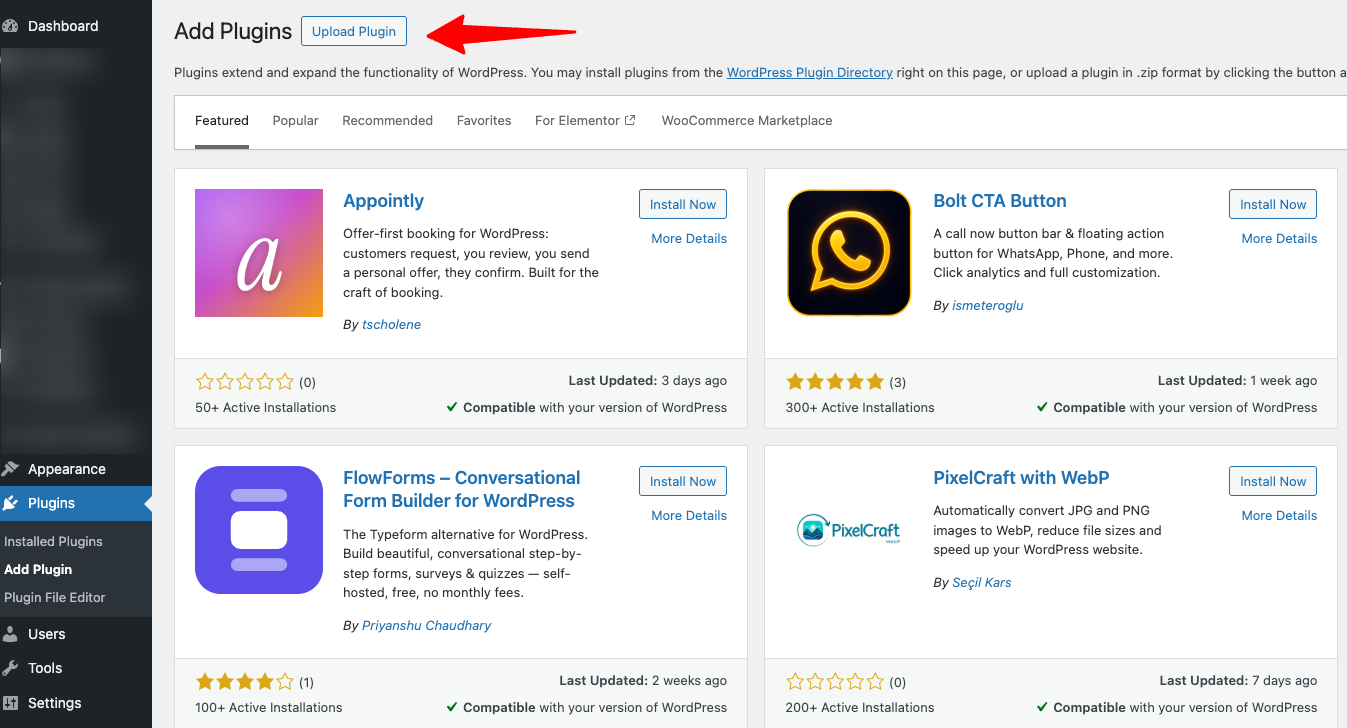
- Wait for WordPress to upload and install the plugin. You will see a success message when it completes.
- Click Activate Plugin.
Confirm the installation
After activation, a Chamevo menu item appears in the WordPress admin sidebar. Click it to open the Chamevo Dashboard.

At this point, only the Dashboard submenu is visible. The full menu (Products, Orders, Settings, and more) appears after you activate your license key.
Update the plugin
Plugin updates are delivered through the WordPress admin. When an update is available:
- Go to Dashboard > Updates or .
Related articles
System requirements for WordPressMinimum server, WordPress, and browser requirements to run Chamevo on WordPress and WooCommerce.Activate your Chamevo license keyEnter your license key to connect the Chamevo plugin to your account and unlock all admin features.Get started with Chamevo on WordPress and WooCommerceAn overview of what Chamevo adds to your WordPress store, how the platform works, and the steps to go from installation to your first print-ready order.Migrate from Fancy Product Designer to ChamevoStep-by-step guide to transition your store from Fancy Product Designer (FPD) to Chamevo, including data migration, plugin swap, and verification.