Use WooCommerce variations with the product customizer
Assign different Chamevo products to WooCommerce product variations so the product customizer changes when a customer selects a different variation.
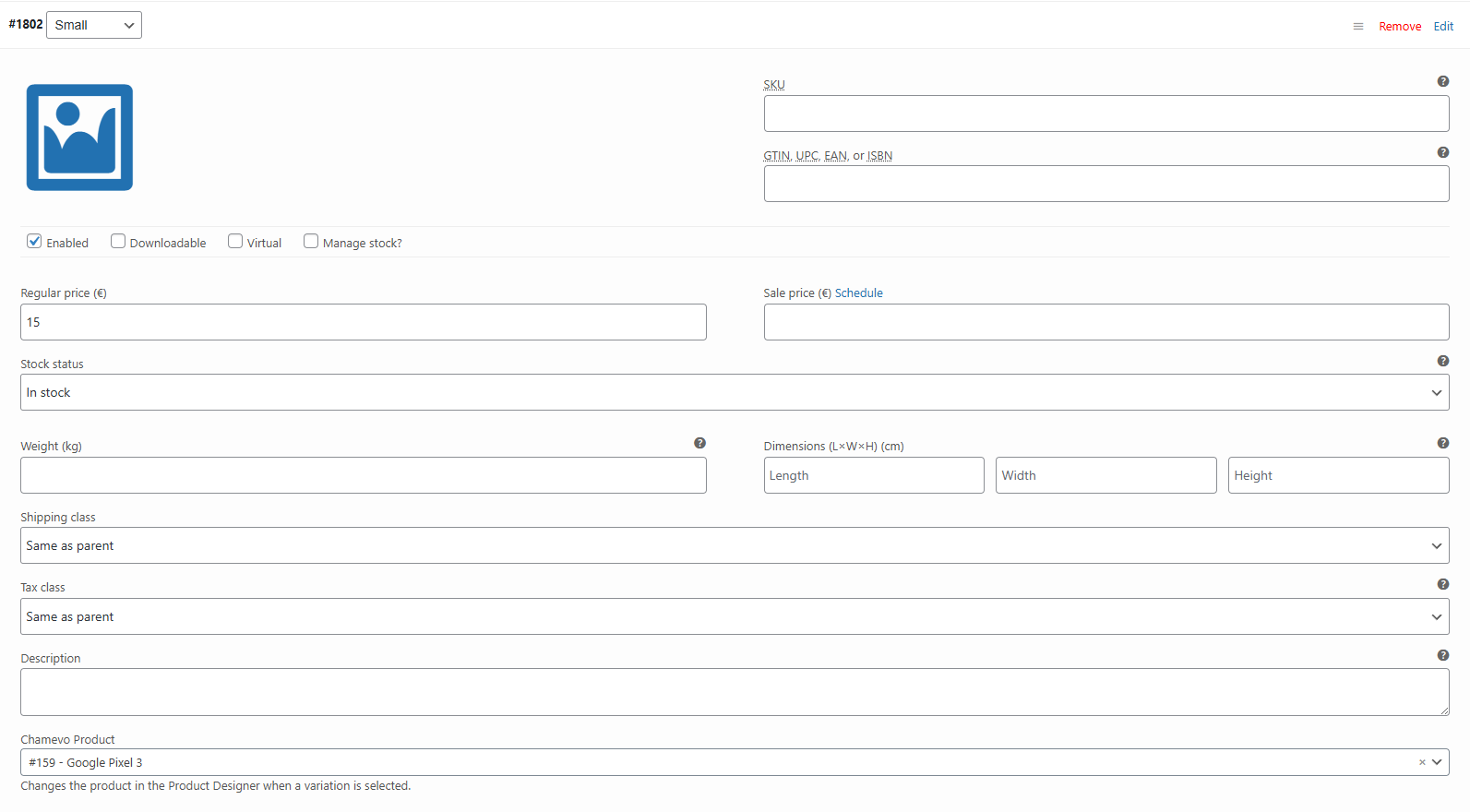
Assign different Chamevo products to individual WooCommerce variations. When a customer selects a variation (like a different color or size), the product customizer switches to the Chamevo product assigned to that variation.
Before you start
- You have a WooCommerce variable product with at least two variations defined.
- You have multiple Chamevo products created for each variation. See Create your first customizable product.
- The parent WooCommerce product has a Chamevo product assigned in the Chamevo meta box. See Link a Chamevo product to a WooCommerce product.
How it works
WooCommerce variable products let customers choose attributes (Color, Size, Material) to select a variation. Chamevo extends this by letting you assign a different Chamevo product to each variation.
For example, a t-shirt product might have:
- Black T-Shirt variation → Chamevo product with a black t-shirt background
- White T-Shirt variation → Chamevo product with a white t-shirt background
- Red T-Shirt variation → Chamevo product with a red t-shirt background
When the customer switches colors, the product customizer reloads with the matching Chamevo product.
Steps
1. Open the variation settings
- Go to Products (WooCommerce) in your WordPress admin.
- Open your variable product.
- Scroll to the Product Data section and click the Variations tab.
- Expand the variation you want to configure.
2. Assign a Chamevo product to the variation
In each variation's settings, find the Chamevo Product dropdown (its value is stored as fpd_variation_product in the variation meta).
- Select the Chamevo product to load for this variation from the dropdown (it lists your Chamevo products by name).
- Repeat for each variation that needs a different Chamevo product.
- Click Save changes.