Add patterns to text and SVG elements
Apply texture and pattern fills to text and SVG elements so customers can choose from preset designs.
Updated April 28, 20265 min read
Patterns let customers fill text and SVG elements with textures or repeating images instead of solid colors. Use them for fabric textures, gradients, decorative fills, or material effects.
Before you start
- You have created a product with text or SVG elements.
- You have pattern images ready — PNG or JPEG files that tile well. Seamless, high-resolution images produce the best results.
- You have access to your WordPress admin and FTP or file manager access to upload pattern files.
How patterns work
Chamevo supports patterns for text and image elements through the print profile. When patterns are configured, the customer sees a pattern picker in the toolbar when they select an element.
Steps
Upload pattern images
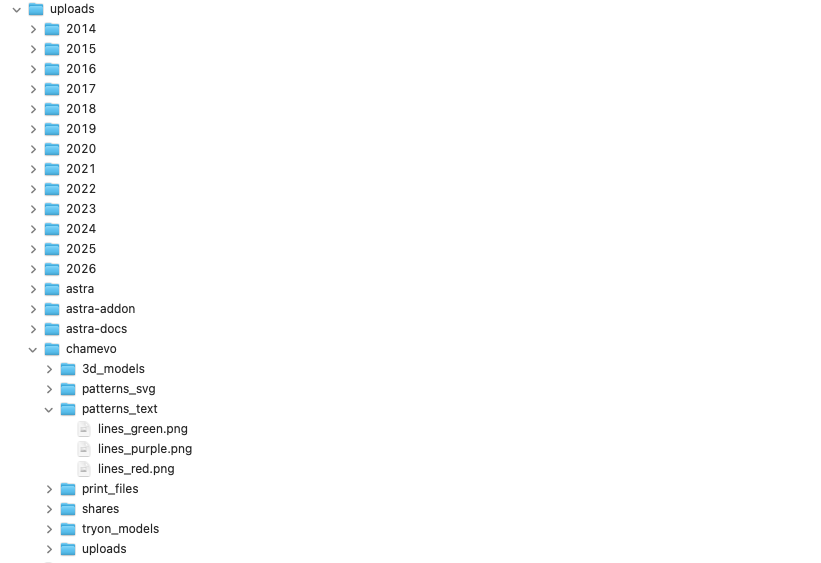
- Connect to your WordPress server via FTP or your hosting file manager.
- Navigate to
wp-content/uploads/. - For text patterns, upload files to
wp-content/uploads/patterns_text/. - For image/SVG patterns, upload files to
wp-content/uploads/chamevo/patterns_svg/. - Use PNG or JPEG images that tile seamlessly.
Set patterns for text elements
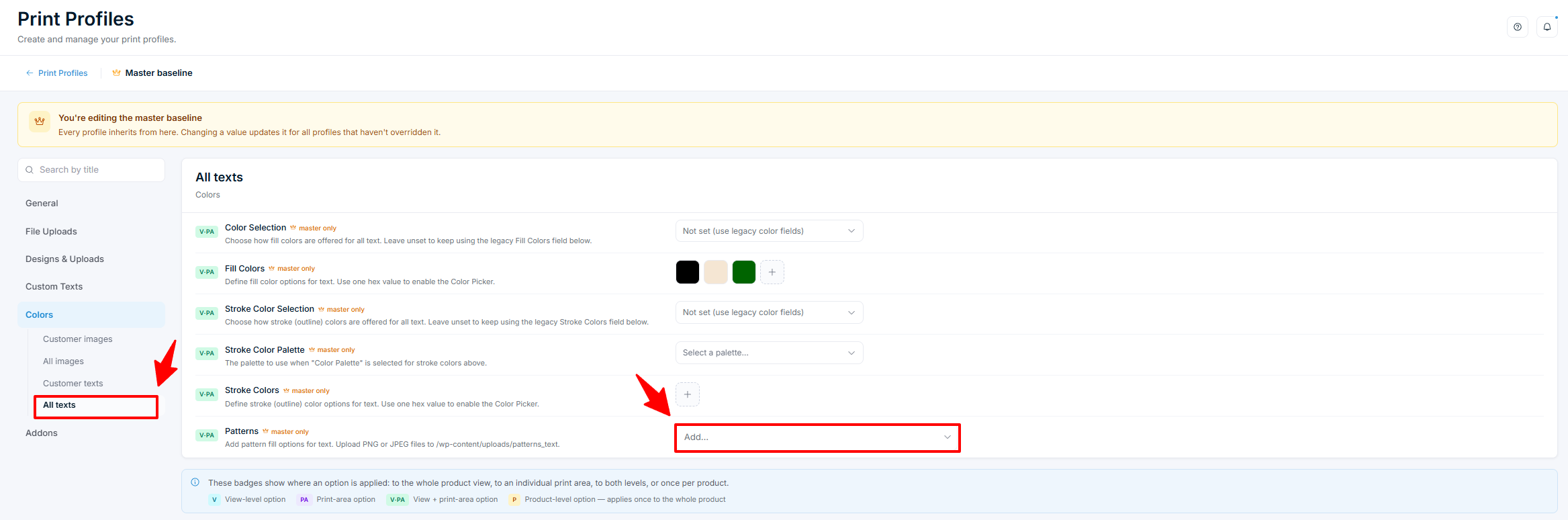
- Go to Chamevo > Print Profiles in your WordPress admin.
- Edit your print profile (or the Master Print Profile for global defaults).
- Open the Colors tab.
- Select the All texts section.
- Find the Patterns field.
- Select pattern images from your uploaded files.
- Click Save Changes.
Now every text element in the product customizer shows a pattern picker alongside the color options.
Set patterns for image and SVG elements
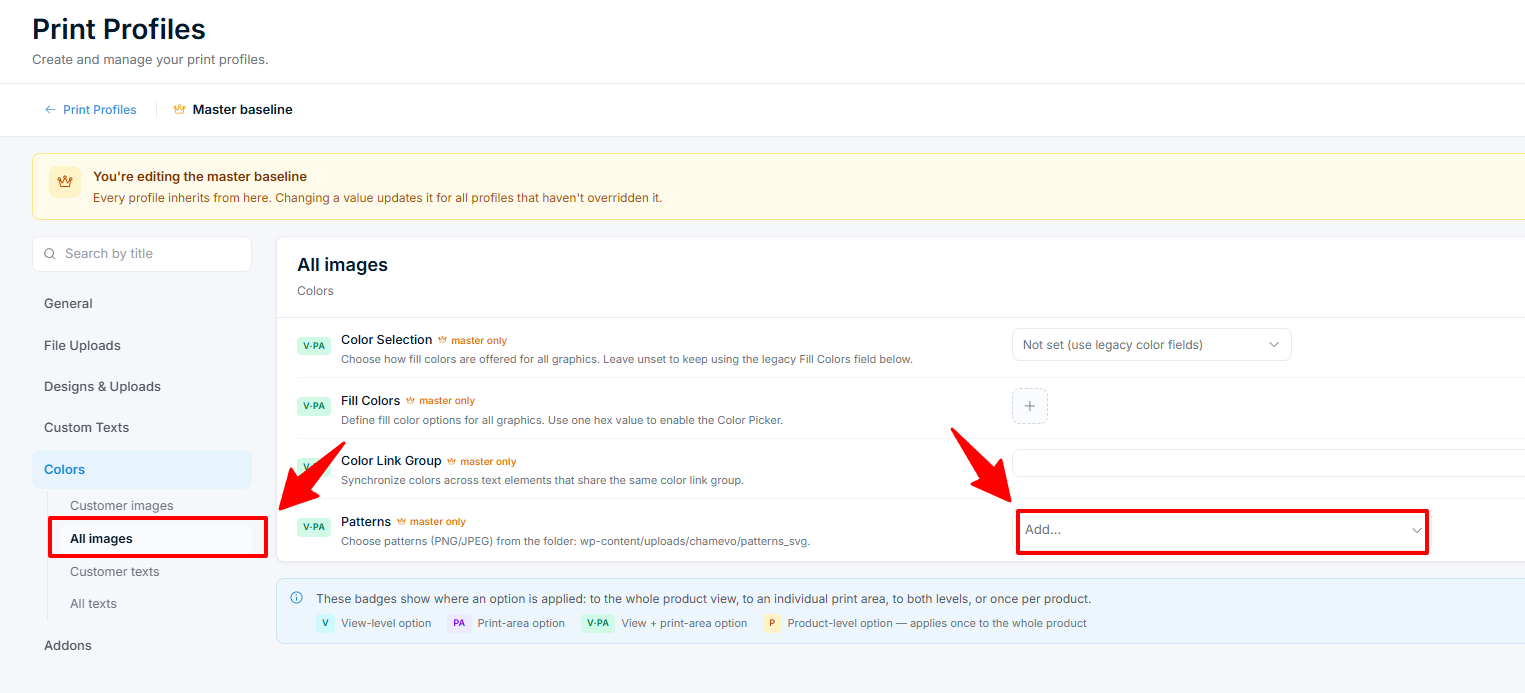
- Go to Chamevo > Print Profiles.
- Edit your print profile.
- Open the Colors tab.
- Select the All images section.
Related articles
Connect a catalog product to a product templateLink a catalog product to a reusable product template so the template's design elements load inside the catalog product's customizer.Create your first customizable productCreate a Chamevo product, add views, configure elements in the Product Builder, and preview the product customizer.Set up product views (front, back, sides)Add, configure, and order product views to represent each customizable surface of your product.Use the Product Builder to design customization areasLearn the Product Builder interface — canvas, modules panel, Element Options, print areas, and keyboard shortcuts for building customizable products.