Preparing the latest guides, releases, and feature request updates.
Loading guides
Preparing the right Knowledge Base content for this platform.
Colorization methods and setup | Chamevo Support Center
Colorization methods and setup
Configure how customers change colors on text, SVG, and PNG elements using the Color Selection modes, palettes, link groups, and PNG color modes in Print Profiles.
Updated April 28, 20265 min read
Chamevo gives customers several ways to change element colors in the product customizer. Color options are configured in the Colors tab of a Print Profile, using a Color Selection mode per element scope: no colors, a free color picker, or a restricted palette. This article covers all colorization methods and how to set them up.
Default for profiles created before this setting existed. Falls back to the older Fill Colors field / Color Picker toggle.
None
No color changes allowed.
All Colors (Color Picker)
A free color wheel — customers can choose any color.
Color Palette
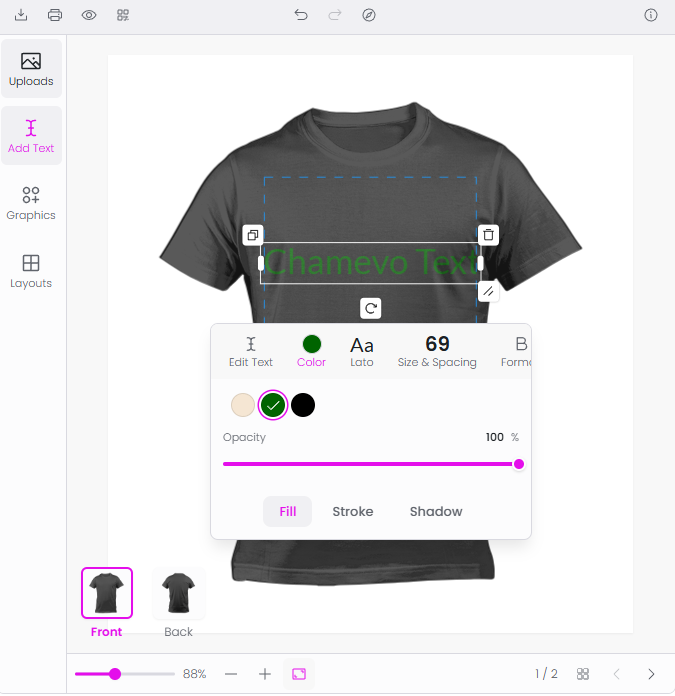
A restricted set of swatches from a palette you choose in the accompanying Palette field. This is the recommended approach for most products — it prevents customers from choosing colors you cannot produce.
Set colors for an element scope in the print profile
Go to Chamevo > Print Profiles in your WordPress admin.
Edit your print profile (or the Master baseline for global defaults).
Open the Colors tab.
Choose the section for your element type:
Customer images — colors for customer-uploaded images
All images — colors applied to all image and graphic elements
Customer texts — colors for customer-added text
All texts — colors applied to all text elements
Set the Color Selection dropdown to None, All Colors (Color Picker), or Color Palette.
If you chose Color Palette, select a palette in the Palette field that appears.
For All texts, you can also set a separate Stroke Color Selection mode to control the outline color independently of the fill color.
Click Save Changes.
Set colors on a graphics category
Go to Chamevo > Graphics in your WordPress admin.
Find the graphics category and click its settings icon to open Category Options.
Enable the options panel if not already active.
Configure the color fields the same way as the print profile — a color mode and, for palettes, which palette to use.
Click Save Changes.
Every graphic in this category inherits these color options, overriding the print profile default.
Set colors on a single element
Individual elements in the Product Builder can override the print profile and category defaults with their own color configuration, using the same None / All Colors (Color Picker) / Color Palette modes described above. Select the element and look for the color configuration section in its properties panel.
Customers see the result as Fill and Stroke color tabs (plus Shadow, if configured) when they select the element in the product customizer.
Color link groups
Color link groups synchronize color changes across multiple elements. When a customer changes the color of one element in a group, all other elements in the same group update to match.
Set up a color link group
Open your product in the Product Builder.
Select the first element.
In the properties panel, find the Color Link Group field.
Enter a group name (for example, "team-color").
Select the next element and enter the same group name.
Repeat for all elements that should share the same color.
Click Save View.
Now when a customer picks a color for one element, every element in the "team-color" group changes to that color.
You can also set a default Color Link Group in the print profile. Go to the Colors tab and find the Color Link Group field in the Customer images, All images, or Customer texts section. (The All texts section does not have a Color Link Group field.)
Works with: text elements, PNG images, and single-path SVGs. Multi-path SVGs do not support color link groups because each path has its own color.
PNG color modes
PNG images cannot be recolored with a simple fill. Instead, Chamevo applies a color blend mode to shift the image's appearance.
Select a PNG image element in the Product Builder and set the Color Mode field in the properties panel:
Mode
Effect
Best for
Tint
Recolors the entire image with the chosen hue while preserving light and dark values.
Icons, flat graphics, simple illustrations
Multiply
Blends the chosen color with the original image, darkening it.
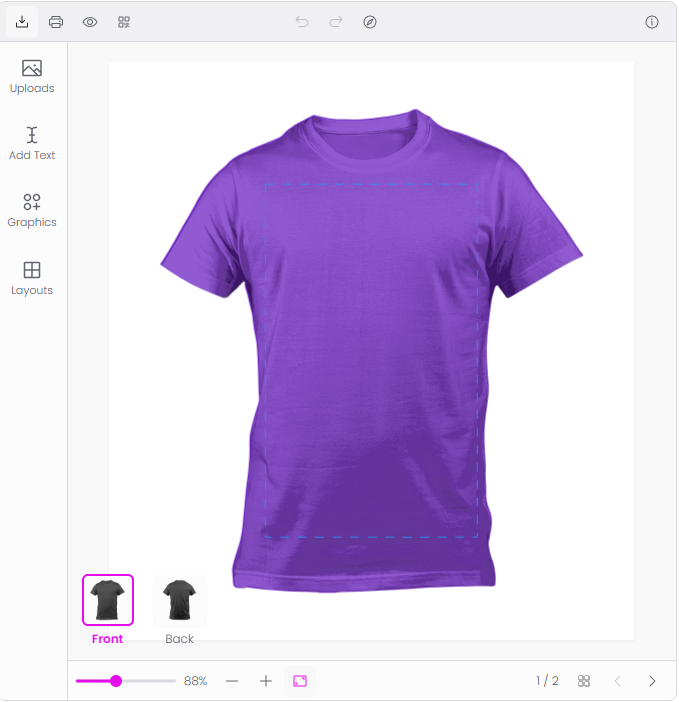
For most products, Tint and Multiply are the most useful modes. Use Multiply on white product mockups (like t-shirts) for realistic color simulation.
Set a PNG color mode
Open your product in the Product Builder.
Select the PNG image element.
In the properties panel, set the Color Mode to your preferred mode (for example, Multiply).
Set the Color Selection mode to Color Palette for a restricted set of colors, or All Colors (Color Picker) for free choice.
Click Save View.
SVG per-path coloring
Multi-path SVGs support per-path color editing. Each path in the SVG can have its own color, and customers can change them individually.
You can control how many SVG paths can be colored independently in Chamevo > Settings > Features > Custom Images & Designs. Find the Max Colorable SVG Paths setting. The default is 10. Set it to 0 for unlimited, or reduce it if complex SVGs with many paths slow down the interface.
Color pricing
You can charge different prices for different color choices. Go to Chamevo > Colors, open the Colors tab, and set a surcharge per color:
In the Pricing panel, turn on Charge for text colors and/or Charge for image colors.
Enter an amount in the Surcharge column for each color you want to charge for.
Click Save changes.
When a customer selects a color with a surcharge, Chamevo adds it to the product total through Dynamic Pricing.
Color names and presets
On the Chamevo > Colors page you can also:
Name colors — add a display name to any color in the Name column (for example, "Navy Blue" for #001f3f). Customers see the name instead of the hex code.
Set picker presets — on the Palettes tab, mark one palette as the Default picker palette so its colors appear as quick-access swatches alongside the free color wheel.
Build palettes — create reusable color groups on the Palettes tab that you can assign to elements.
For All Colors (Color Picker): confirm the color wheel appears and the element updates in real time.
For Color Palette: confirm only your chosen palette's colors appear as swatches.
For text elements, confirm the Fill and Stroke tabs each show the colors you configured.
For a color link group: change one element's color and confirm all linked elements update.
For a PNG color mode: select a color and confirm the image recolors correctly.
Troubleshooting
Color picker appears when I set a palette. Check the Color Selection field for that scope in the print profile — it must be set to Color Palette with a palette chosen, not All Colors (Color Picker) or Not set (use legacy color fields) with the old Color Picker toggle still enabled.
SVG does not change color. Check that the SVG has fill attributes on its paths. Some SVGs use stroke-only styling, which is not affected by fill colorization.
PNG color mode looks wrong. Try a different mode. Multiply works best on white-base images. On dark images, try Tint.
Color link group does not sync. Confirm all elements in the group have the exact same Color Link Group value (case-sensitive). Multi-path SVGs do not support link groups.
Next steps
Add patterns to offer texture fills alongside solid colors.
Q: What is the difference between the Color Picker and Color Palette modes?
A: All Colors (Color Picker) gives customers a color wheel to choose any color. Color Palette restricts customers to the swatches in a palette you choose. Use palettes when you need to match production capabilities or brand colors.
Q: Can I charge extra for certain colors?
A: Yes. Go to Chamevo > Colors, turn on Charge for text colors or Charge for image colors, and enter a Surcharge for specific colors. The surcharge adds to the product total when the customer selects that color.
Q: How do I recolor a PNG product mockup like a t-shirt?
A: Select the PNG element in the Product Builder and set the Color Mode to Multiply. Then set its Color Selection mode to Color Palette and choose a palette. Multiply mode works best on white-base images, simulating realistic fabric coloring.
Q: How many SVG paths can customers color individually?
A: The default limit is 10 paths. Change this in Chamevo > Settings > Features > Custom Images & Designs under Max Colorable SVG Paths. Set it to 0 for unlimited. Complex SVGs with many paths may slow down the interface.