
Connect a catalog product to a product template
Link a catalog product to a reusable product template so the template's design elements load inside the catalog product's customizer.
A product template holds design elements you want to reuse across many products. Connect a catalog product to a template, and the template's elements load inside that catalog product's customizer — without copying them into every product.
This is different from creating a product from a pre-made template. Creating from a template makes a one-time copy. Linking keeps a live connection: edit the template once, and every connected catalog product picks up the change.
Before you start
- You have at least one product saved as a Template. On Chamevo > Products, templates appear under the Templates tab. Use Save as Template on an existing product, or click New Template to build one.
- You have a catalog product to connect. Catalog products are listed under the Catalog Products tab.
- Plan your views: template views and catalog product views are matched by position. View 1 of the template pairs with view 1 of the catalog product, view 2 with view 2, and so on.
Steps
-
Go to Chamevo > Products and open the Catalog Products tab.
-
Find the catalog product you want to connect.
-
Open its settings: click Options on the product row.
-
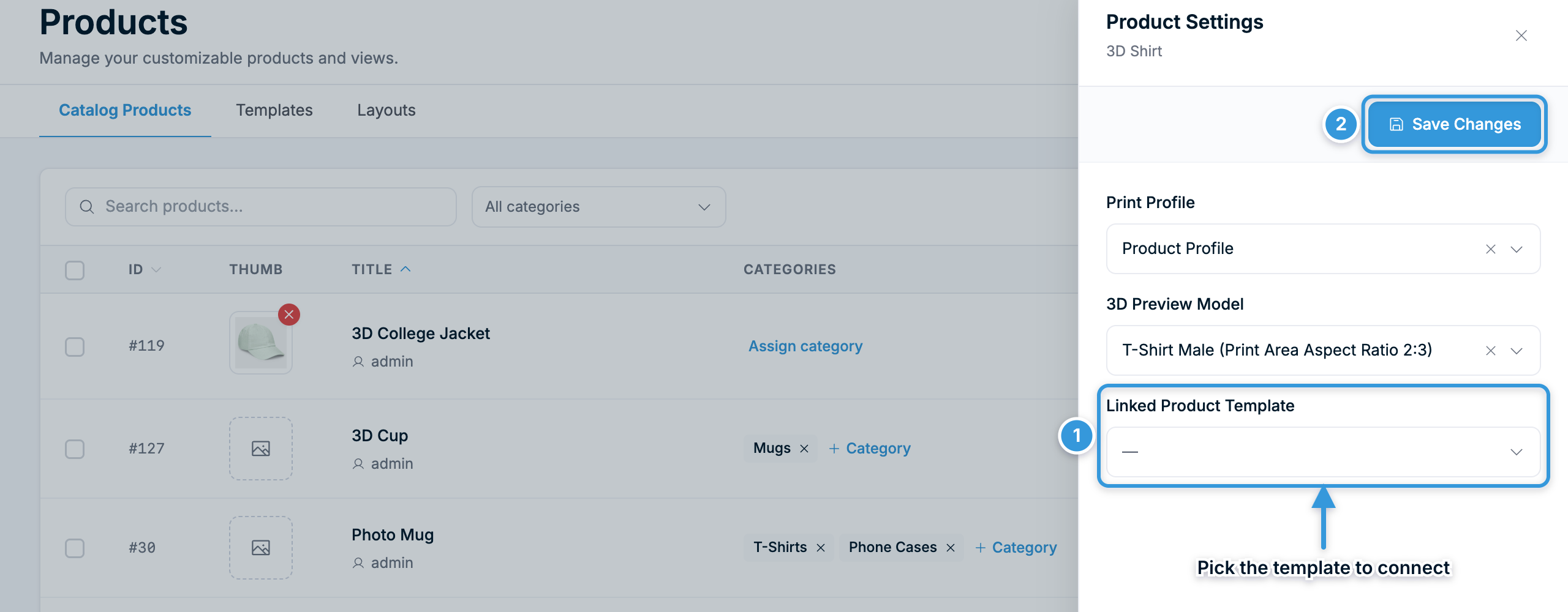
In the Product Settings panel, find the Linked Product Template dropdown. It lists all of your templates.
-
Select the template to connect.
-
Click Save Changes.
How the template and catalog product combine
Once connected, the customizer loads both in a fixed order:
- The template's views form the base of the product.
- Each catalog product view keeps its own title and thumbnail.
- The template's elements load first. The catalog product's own elements load on top of them.
- View settings from the catalog product override the template's view settings when both define the same setting.
In practice: put the shared design — placeholder text, upload areas, decorative graphics — in the template. Put product-specific content, like the product's background image, in the catalog product.