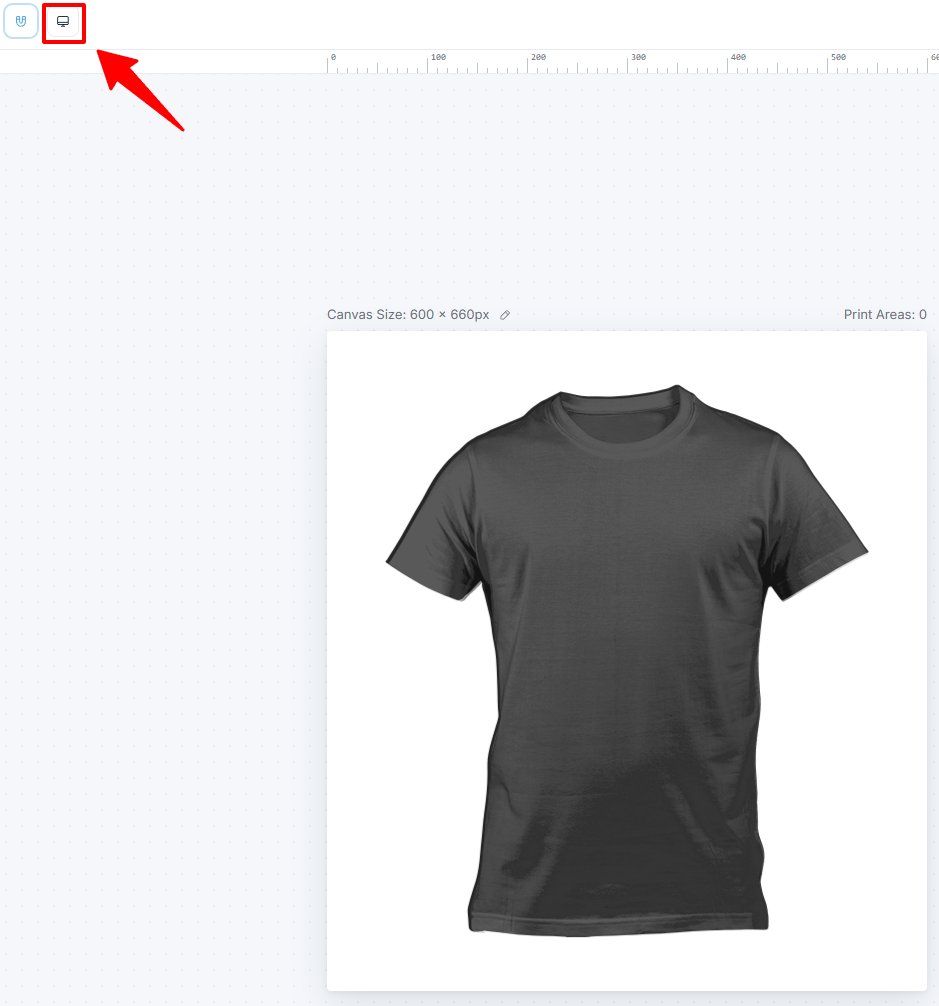
Use the Product Builder to design customization areas
Learn the Product Builder interface — canvas, modules panel, Element Options, print areas, and keyboard shortcuts for building customizable products.
Updated April 25, 20265 min read
The Product Builder is the visual editor where you design what customers can customize. You add elements to a canvas, configure their behavior and permissions, define print areas, and preview the final product customizer.
Before you start
- You have created a Chamevo product with at least one view (see Create your first customizable product).
Open the Product Builder
- Go to Chamevo > Products.
- Expand a product by clicking its views count, then click Edit in Builder on the view you want to design. (Use Add View on the product first if it has no views yet.)
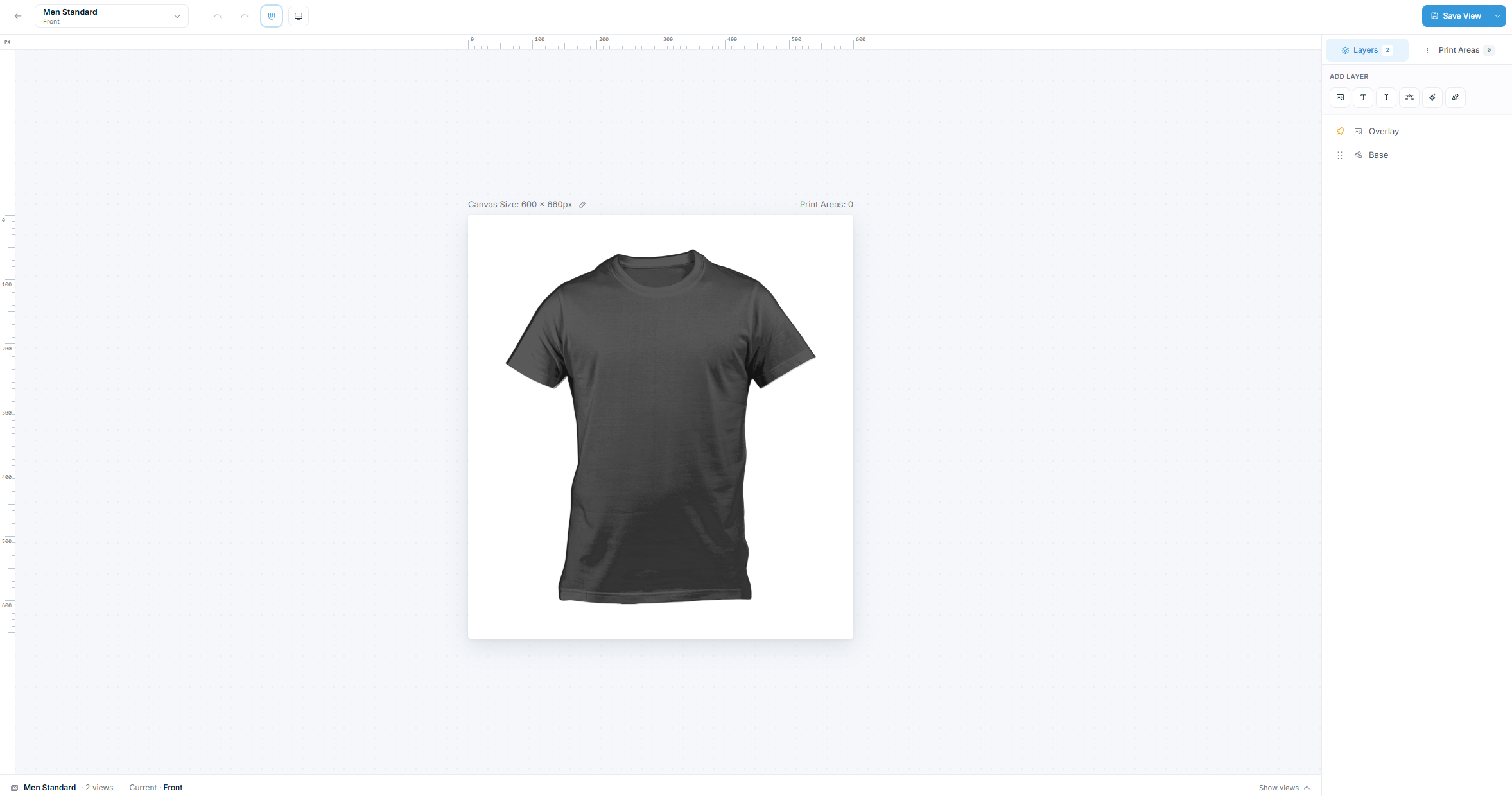
The Product Builder has three main areas:
- Canvas (center) — the working area where you place and arrange elements.
- Sidebar (right) — two tabs: Layers (with the Add layer toolbar and the layer list) and Print areas.
- Properties panel — opens when you select an element, with its options grouped into sections (General, Styles, Color Configuration, Text, Interactions, Upload Zone).
Work with elements
Add elements
Add elements from the Add layer toolbar at the top of the Layers panel. Click an icon to add that layer type directly:
| Button | What it adds |
|---|---|
| Add Image | An image or image placeholder for customer uploads |
| Add Text |
Related articles
Connect a catalog product to a product templateLink a catalog product to a reusable product template so the template's design elements load inside the catalog product's customizer.Create your first customizable productCreate a Chamevo product, add views, configure elements in the Product Builder, and preview the product customizer.Organize products with categoriesCreate, rename, and delete Chamevo product categories, assign them to products from the product list, and filter the list by category.Set up product views (front, back, sides)Add, configure, and order product views to represent each customizable surface of your product.