Design-Layouts für Produkte einrichten
Erstellen Sie wiederverwendbare Design-Layouts, die vorab arrangierte Elementkombinationen bieten, die Kunden mit einem Klick anwenden können.
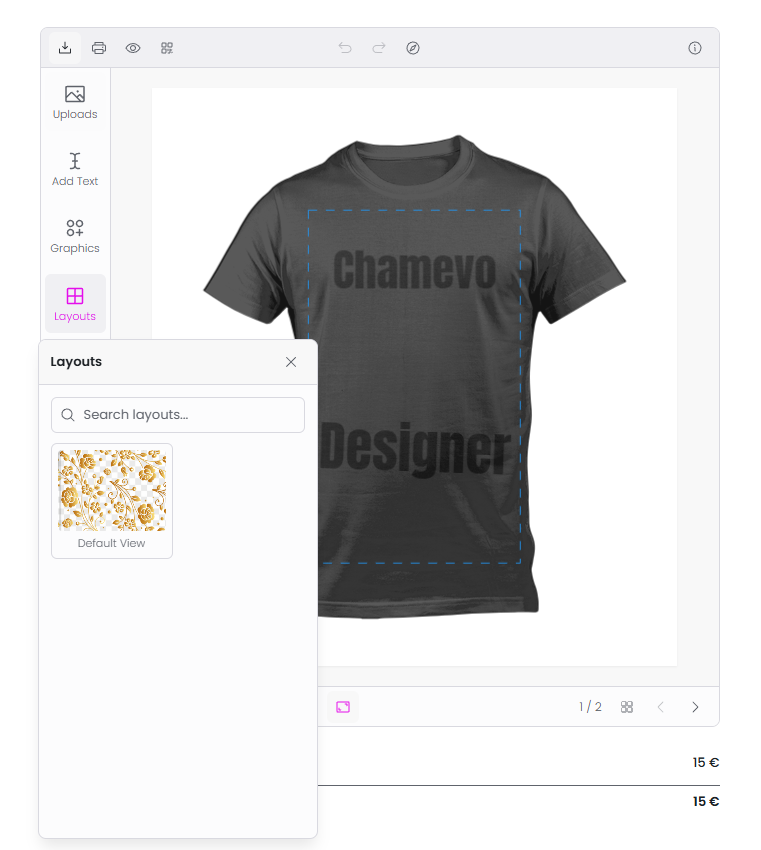
Ein Layout ist eine vorab arrangierte Kombination aus Elementen – Text, Bildern und Grafiken –, die Kunden mit einem Klick auf eine Ansicht anwenden können. Statt Elemente einzeln hinzuzufügen, durchsuchen Kunden Layout-Optionen und wählen einen vollständigen Design-Ausgangspunkt.
Layouts beschleunigen den Personalisierungsprozess und helfen Kunden, die nicht wissen, wo sie anfangen sollen.
Bevor Sie beginnen
- Sie haben mindestens ein Chamevo-Produkt mit konfigurierten Ansichten und Elementen.
- Sie wissen, wie man mit dem Product Builder arbeitet (siehe Den Product Builder verwenden).
Wie Layouts funktionieren
Ein Layout ist selbst ein Chamevo-Produkt, dessen Typ auf layout statt catalog gesetzt ist. Jede Ansicht im Layout-Produkt stellt eine Layout-Option dar. Wenn ein Kunde im Produkt-Customizer ein Layout auswählt, ersetzen (oder verschmelzen) die Elemente dieser Layout-Ansicht mit dem aktuellen Canvas-Inhalt.
Betrachten Sie Layouts als Design-Vorlagen innerhalb eines Produkt-Customizers – vorgefertigte Ausgangspunkte, aus denen Kunden wählen können.
Ein Layout-Produkt erstellen
- Gehen Sie zu Chamevo > Products.
- Klicken Sie auf den Tab Layouts.
- Klicken Sie auf New Layout.
- Geben Sie einen Titel ein (z. B. „T-Shirt Layouts" oder „Phone Case Designs").

Layout-Optionen als Ansichten hinzufügen
Jede Ansicht im Layout-Produkt wird zu einer wählbaren Layout-Option.
- Fügen Sie dem Layout-Produkt eine Ansicht hinzu.
- Benennen Sie sie aussagekräftig (z. B. „Centered Logo", „Full Bleed Photo", „Text Arc").
- Laden Sie ein Vorschaubild hoch, das das Layout-Design zeigt – dies sehen Kunden beim Durchsuchen der Layouts.
- Öffnen Sie die Ansicht im Product Builder.
- Fügen Sie Elemente genau so hinzu und ordnen Sie sie an, wie sie erscheinen sollen, wenn der Kunde dieses Layout auswählt.