Set up product views (front, back, sides)
Add, configure, and order product views to represent each customizable surface of your product.
A view represents one customizable surface of a product — the front of a t-shirt, the back of a phone case, or a single side of a mug. Each view has its own canvas, background image, elements, and optional print area configuration.
Before you start
- You have created a Chamevo product (see Create your first customizable product).
Add a view
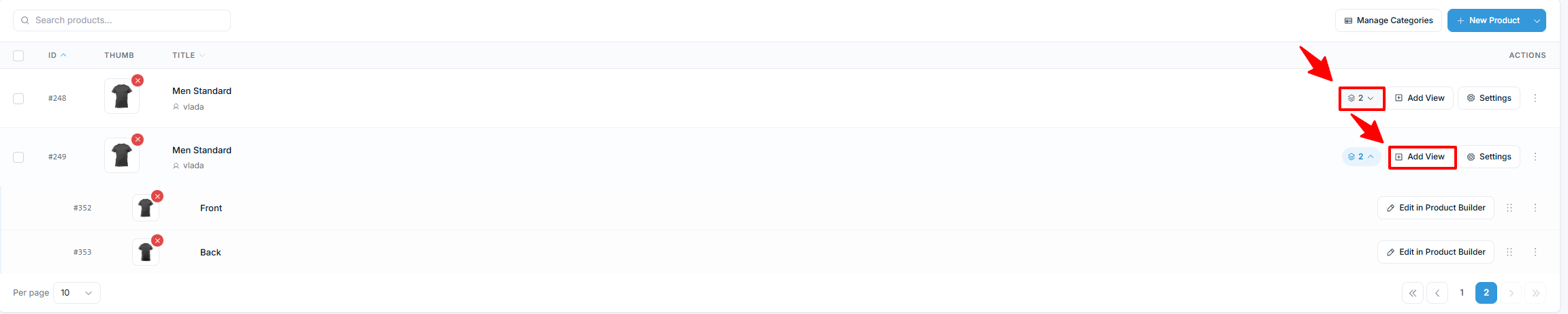
Go to Chamevo > Products and click Add View on the product you want to expand. See Add views for the full step-by-step if this is your first view.
Configure view settings
Each view has its own settings that you configure in the Product Builder. Open a view in the Product Builder to access its options.
Background image
The background image is the product photo customers see while designing. It defines the visual context for the canvas.
- Use a high-quality, straight-on photo of the product surface.
- Transparent backgrounds (PNG) work well if you want the canvas background to show through.
- The image scales to fit the canvas dimensions.
Canvas dimensions
The canvas dimensions control the working area size. Elements are positioned relative to these dimensions. Set the canvas Width and Height (in pixels) from the canvas size control in the Product Builder. The canvas scales automatically to fit the viewer's screen on the storefront.
Print area
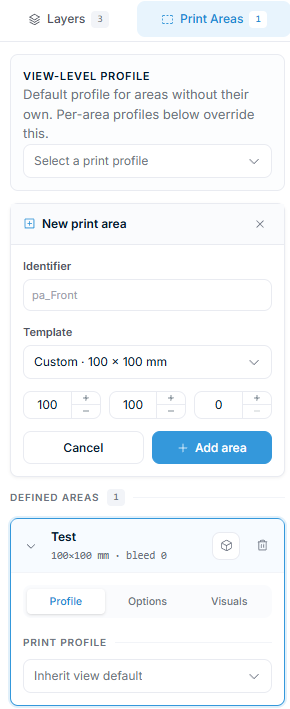
A print area defines the region that maps to the physical printable area on your product. You add and configure print areas in the Product Builder's Print areas tab, entering the size in millimeters. Each print area has:
- Size (mm) — the physical width and height, chosen from a size template or entered directly. There are no pixel-coordinate fields; the print area is sized in millimeters and positioned on the canvas.
- Bleed — extra area around the print area for bleed in print-ready files.
- Mask — an optional SVG shape (preset or uploaded) that clips the visible area (useful for non-rectangular products like phone cases).