
Create products from pre-made templates
Import pre-built designs from Chamevo's Template Library, or save your own products as reusable Templates, instead of building every product from scratch.
Chamevo gives you two different ways to avoid building every product from scratch:
- The Template Library — Chamevo's own collection of pre-built product designs, hosted in the cloud. Import one to quickly create a new product.
- Templates — products you save from your own catalog for reuse. These live in the Templates tab on the Products page, separately from the Template Library.
This article covers both.
Before you start
- Chamevo is installed and your license key is activated.
- You have access to Chamevo > Products in the WordPress admin.
Use Chamevo's Template Library
- Go to Chamevo > Products.
- Click the dropdown arrow next to New Product, then choose From Templates Library. (Clicking New Product directly creates a blank product instead.)
- Browse templates by category — apparel, phone cases, mugs, signs, and more.
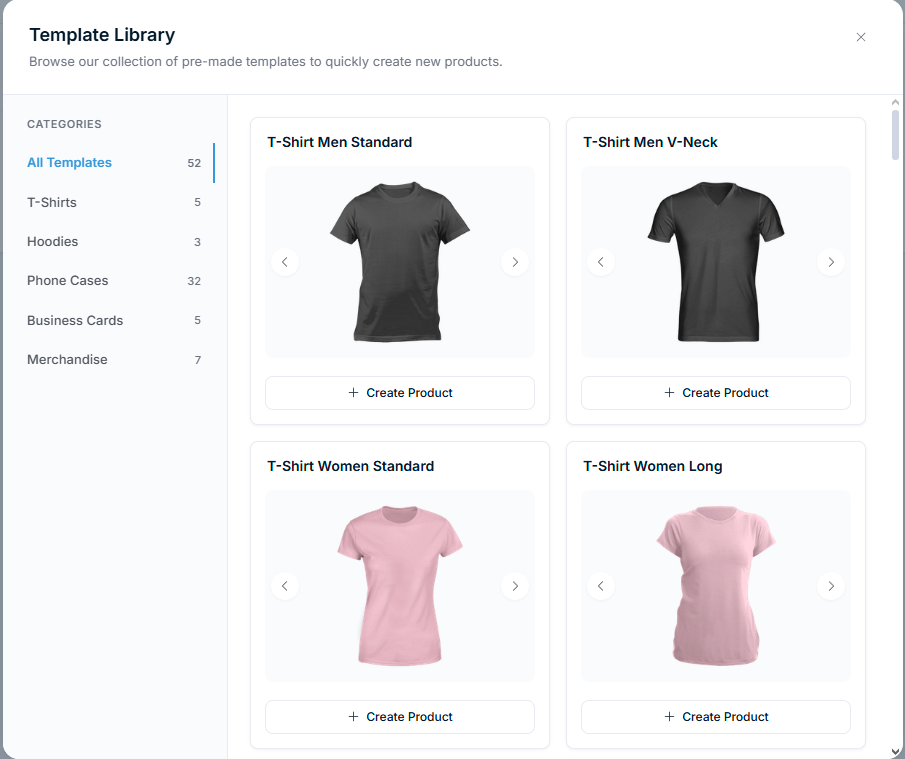
Each template card shows the template name and a preview image. Click Create Product on the template you want to build from. Chamevo creates a new product with the template's views, elements, background images, and settings pre-configured — it does not modify the template itself, so you can build from the same template more than once.
Customize the imported product
After importing, open the product in the Product Builder and tailor it to your needs:
Replace background images
The template includes placeholder background images. Replace them with photos of your actual products:
- Open a view in the Product Builder.
- Update the background image in the view settings.
- Adjust element positions to match your new background.
Adjust elements
- Change default text — update placeholder text like "Your Name Here" to match your product's context.
- Reposition elements — drag elements to match your product's printable area.
- Update colors — change the available colors to match your brand or product options.
- Modify permissions — tighten or loosen what customers can change.