
Work with text elements
How customers add and configure text elements in the product customizer, including text templates, character limits, and pricing.
Updated April 28, 20265 min read
The Text module is one of the default modules in the product customizer. It lets customers type custom text and add it to the canvas. Customers can also choose from text templates you define once and reuse across products.
Before you start
- The Text module is enabled by default. No activation is needed unless it was previously disabled.
- Text element settings (font, size limits, pricing) are configured in the Print Profile assigned to your product, under Custom Texts.
- Editing behavior — emojis, textbox mode, double-click editing — is configured store-wide in Chamevo → Settings → Features → Text Editing.
How customers use the Text module
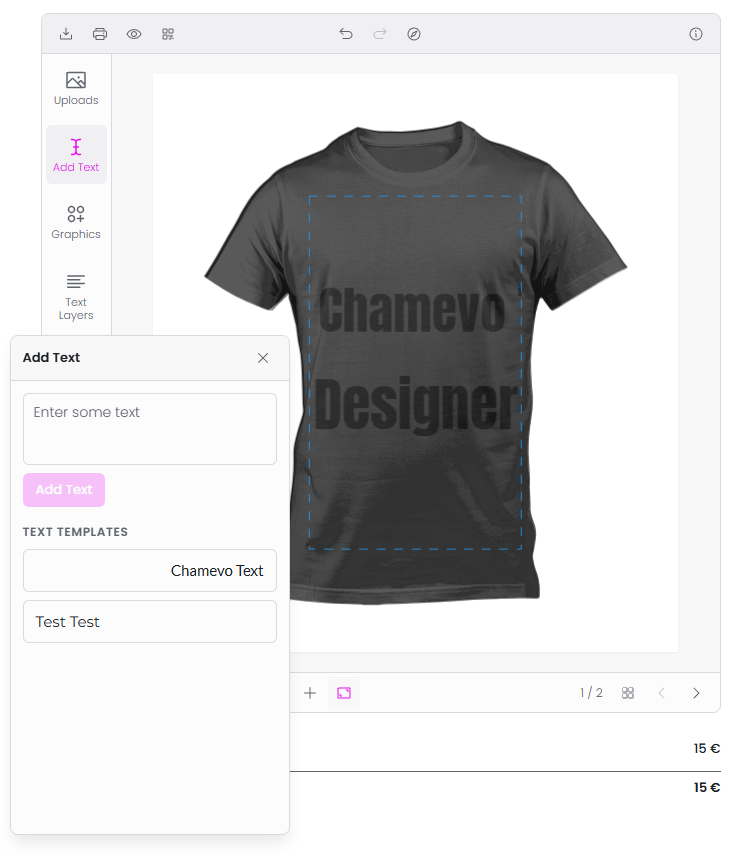
- The customer opens the Text module in the customizer sidebar.
- They type their text in the input field. The input supports multi-line text (Shift+Enter for a new line).
- They click Add Text to place it on the canvas.
- The text appears as a movable, resizable element on the canvas.
If you have defined text templates, they appear below the input field. Customers can click a template to add it directly — the template text, font, and style are applied automatically.
Configure text element behavior
Text element settings live in the Print Profile assigned to your product, in the Custom Texts group.
Character and line limits
Go to Chamevo → Print Profiles, open a profile, and select Custom Texts → Styles & content.
| Setting | What it controls |
|---|---|
| Maximum Characters | How many characters the customer can type. 0 means unlimited. |
| Maximum Lines | How many lines are allowed. Set for single-line input. means unlimited. |
Related articles
Work with image elementsHow the Images module works, including uploads, Pixabay, AI image generation, QR codes, and image pricing.Use the layers panel to manage element orderHow the Layers module lets customers view, reorder, edit, lock, hide, change colors, and delete design elements.Use Names & Numbers for group and team ordersSet up the Names & Numbers module so customers can submit a list of names and jersey numbers for group orders like sports teams or events.Use Bulk Variations for multi-variant productsSet up the built-in Bulk Variations module so customers can order multiple size, color, or style combinations of a customized product in a single order.