Use Names & Numbers for group and team orders
Set up the Names & Numbers module so customers can submit a list of names and jersey numbers for group orders like sports teams or events.
The Names & Numbers module lets customers enter a list of names and numbers for group orders. Each entry represents one item in the order — for example, one jersey in a team order. The module shows the entry on the canvas in real time, so the customer can preview each item before submitting.
This is commonly used for sports jerseys, team uniforms, event merchandise, and any product where each unit needs different personalization.
Before you start
- The Names & Numbers module is not enabled by default. You need to add it to the customizer's module list.
- The module requires placeholder elements on the canvas — text elements marked as name or number placeholders in the Product Builder.
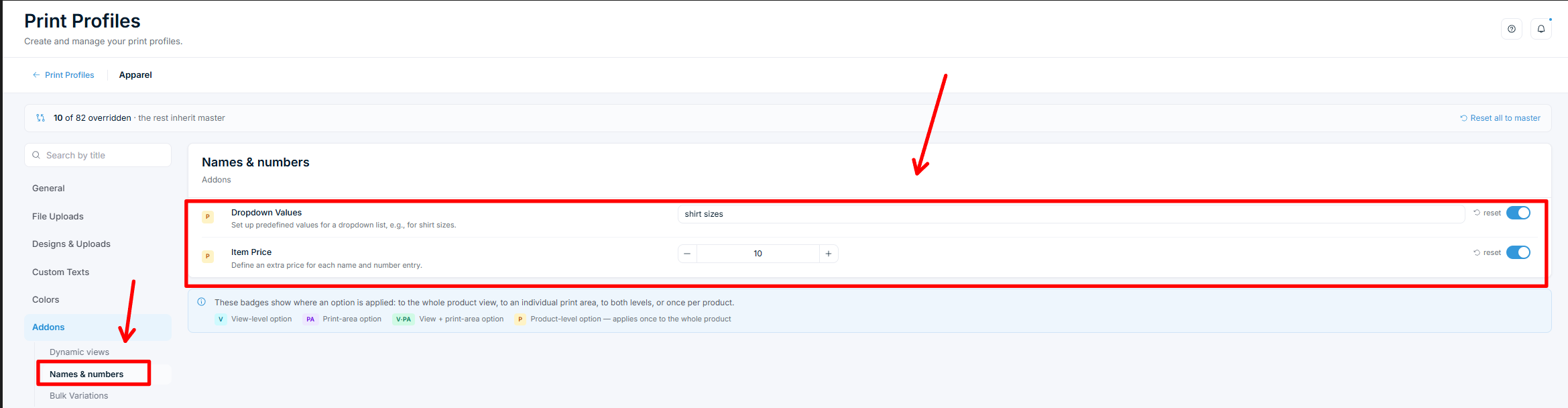
- You need access to Chamevo → Print Profiles and the Product Builder in your WordPress admin.
Step 1: Create placeholder elements in the Product Builder
The Names & Numbers module works by replacing placeholder elements on the canvas with the customer's entries.
- Open the product in the Product Builder (Chamevo → Products → Edit in Builder on a view).
- Add a text element where the name should appear (e.g., position it on the back of a jersey).
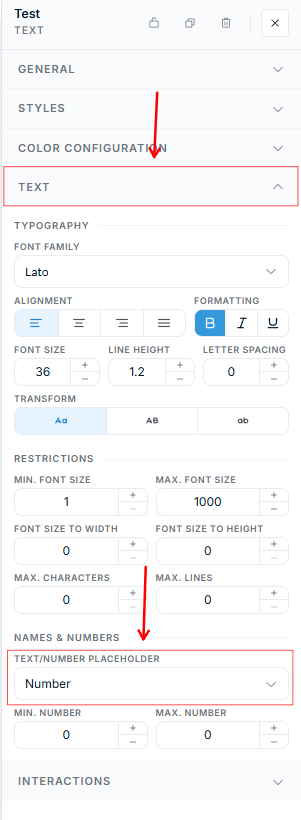
- Select the element and open its Text settings. Under the Names & Numbers section, set the Text/Number Placeholder dropdown to Text. This marks the element as the name placeholder.
- Add another text element where the number should appear.
- Select it, and under Text → Names & Numbers, set Text/Number Placeholder to Number. You can optionally set the Min. Number and Max. Number range (e.g., 1 to 99).
- Save the product.
You can use just a name placeholder, just a number placeholder, or both — the module adapts to show only the relevant columns.
Step 2: Enable the module
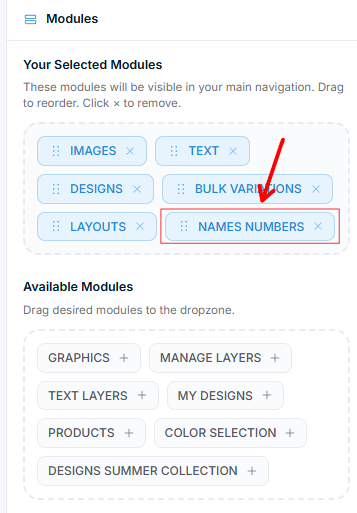
Names & Numbers is enabled per customizer interface in the UI Composer. Open the Modules tab, find Names Numbers under Available Modules, and drag it into Your Selected Modules. Drag modules to reorder them, or click the × on a module to remove it.