
Use the layers panel to manage element order
How the Layers module lets customers view, reorder, edit, lock, hide, change colors, and delete design elements.
Updated April 28, 20265 min read
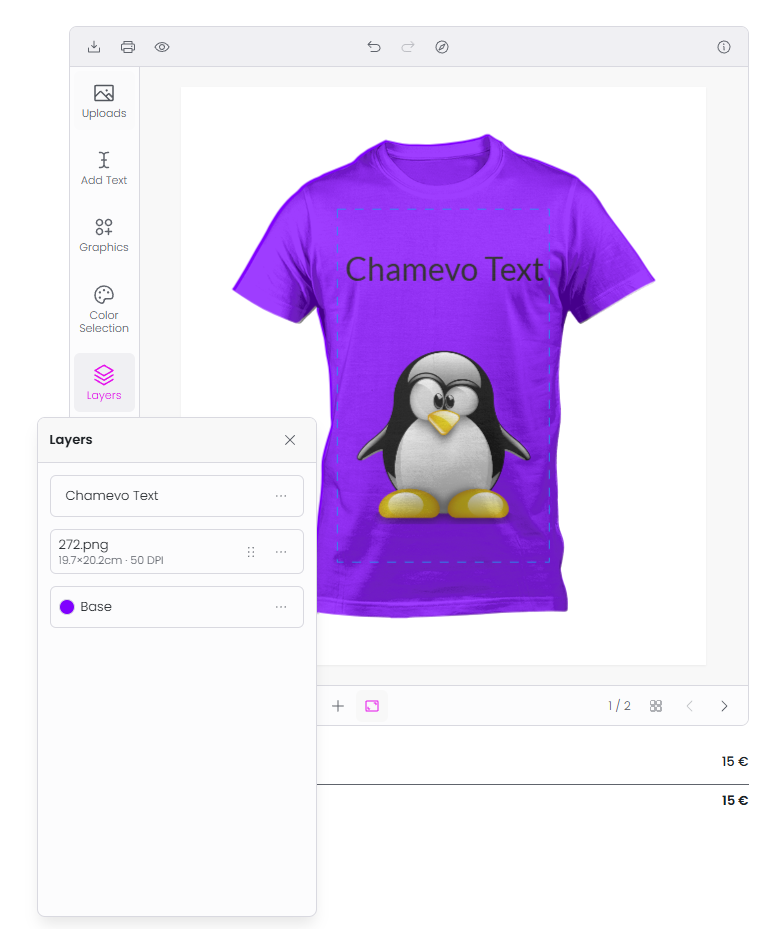
The Layers module shows all design elements in a vertical list, ordered from top to bottom (topmost element first). Customers use it to see what is on the canvas, reorder elements, edit text inline, change colors, and manage element visibility.
Before you start
- The Layers module is enabled by default. No activation is needed unless it was previously disabled.
- By default, the Layers panel only shows editable elements. Non-editable background elements and locked decorative elements are hidden.
What the Layers panel shows
Each row in the Layers panel represents one element on the canvas:
| Element info | What it shows |
|---|---|
| Color swatch | The current fill color (click to expand color options) |
| Title or text input | For text elements: an inline editable text field. For images: the element title with physical size and DPI |
| Drag handle | Dots icon for drag-to-reorder (only on elements where reordering is allowed) |
| Menu | Lock, hide, and delete options |
Reorder elements
Customers can change element stacking order by dragging:
- Grab the drag handle (dots icon) on the right side of a layer row.
- Drag the row up or down.
- Release to set the new position.
Elements higher in the list appear in front of elements lower in the list. This matches the convention used in design tools like Photoshop and Figma.
Related articles
Work with text elementsHow customers add and configure text elements in the product customizer, including text templates, character limits, and pricing.Work with image elementsHow the Images module works, including uploads, Pixabay, AI image generation, QR codes, and image pricing.Use Names & Numbers for group and team ordersSet up the Names & Numbers module so customers can submit a list of names and jersey numbers for group orders like sports teams or events.Use Bulk Variations for multi-variant productsSet up the built-in Bulk Variations module so customers can order multiple size, color, or style combinations of a customized product in a single order.