Mobile-first product customizer best practices
Optimize your product customizer for mobile shoppers — layout, element sizing, module selection, and testing.
70–80% of your customers shop on mobile devices. If the product customizer is hard to use on a phone, you lose sales. This article covers practical changes that improve the mobile customization experience.
Overview
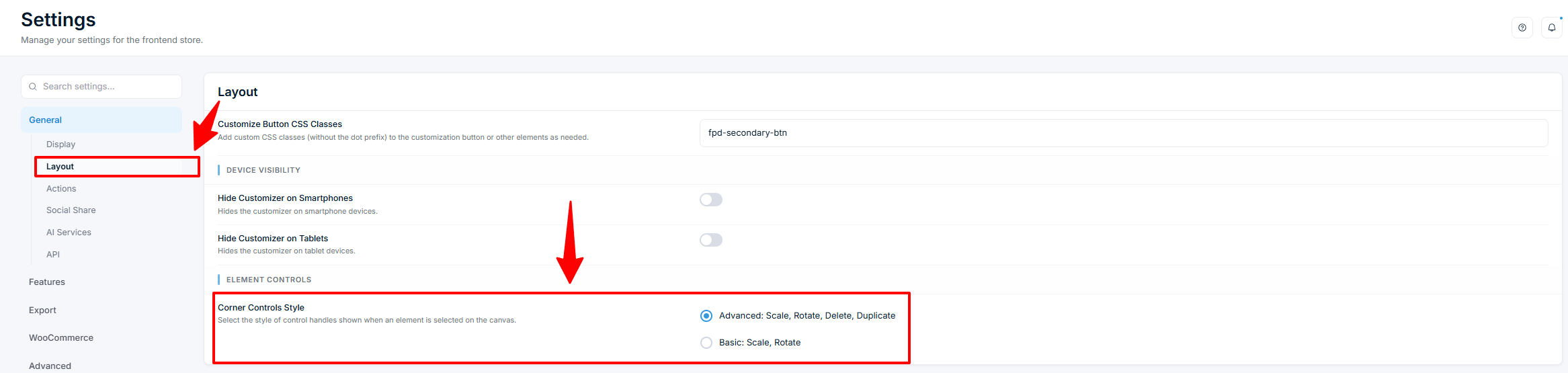
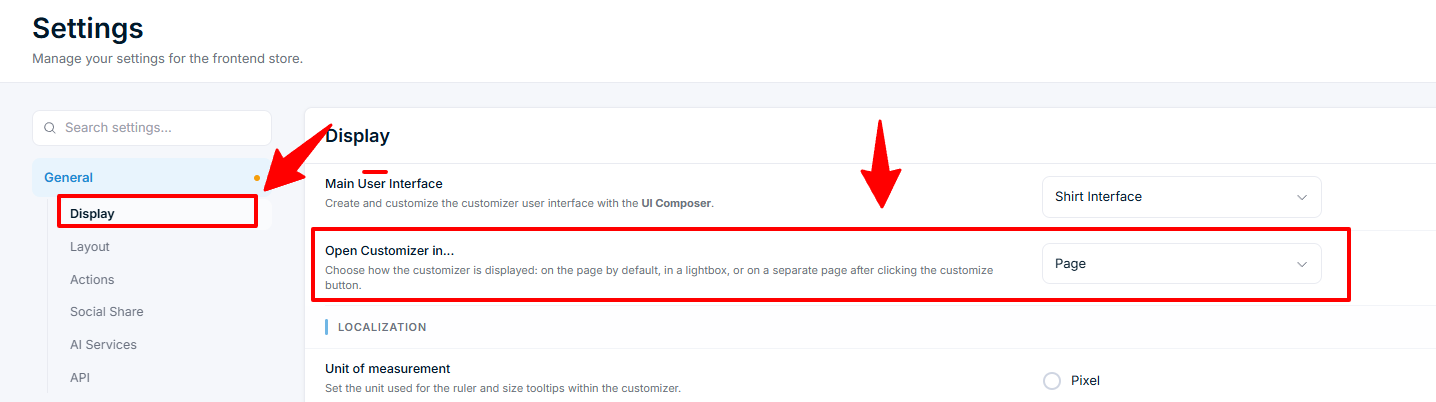
The product customizer scales automatically to fit smaller screens — the canvas resizes to match the container width with no setting to configure. But responsive scaling alone is not enough — you need to consider element sizes, tap targets, module count, and testing.
Canvas and element sizing
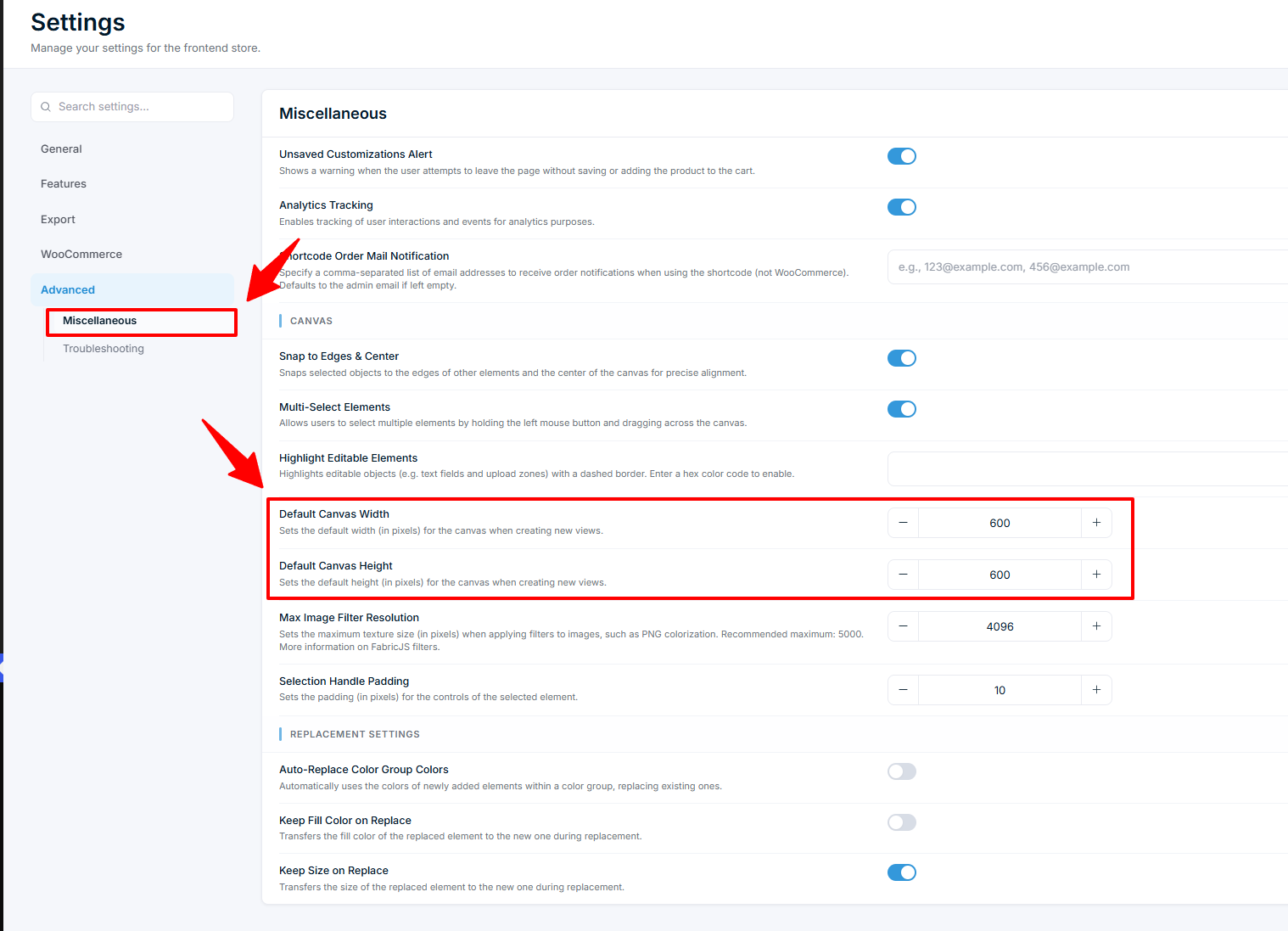
Set your canvas dimensions for the largest screen first. You configure the canvas size per view in the Product Builder, or set defaults in Chamevo > Settings > Advanced > Miscellaneous under Default Canvas Width and Default Canvas Height. The customizer scales this down proportionally on mobile. A canvas that looks good at 900px wide may have elements too small to tap at 360px wide.
- Make text elements large enough to read at 40% scale. If your canvas is 900px and a phone renders it at ~360px, that is roughly 40% of the original size. A 14px font on the canvas becomes about 6px on screen — too small. Use 24px or larger for customer-editable text.
- Space elements apart. Tapping accuracy on mobile is lower than mouse clicks. Leave at least 40px of canvas space between elements so customers can select one without accidentally hitting another.
- Avoid overlapping elements. Overlapping elements are frustrating on mobile. Customers cannot reliably tap the one they want.
Module selection
Each module adds a panel to the interface. On mobile, too many modules crowd the screen and create confusion.
- Limit to 3–4 modules. The default set (Products, Images, Text, Designs) works well. Adding Names & Numbers, My Designs, and Bulk Variations all at once creates a cluttered mobile interface.
- Remove modules that customers do not need. If your product only has text customization, disable the Uploads and Graphics modules. Edit your print profile in Chamevo > Print Profiles, open the tab, and use the setting (it disables the Uploads, Texts, or Graphics modules).