Save and load customer designs (My Designs)
Enable the My Designs module so customers can save their customized designs and reload them later.
Updated April 28, 20265 min read
The My Designs module lets customers save their current design and reload it later. Each saved design includes a thumbnail, the full product configuration, and all element positions. Customers can build a library of designs and switch between them without starting over.
Before you start
- The My Designs module is not enabled by default. You need to add it to the customizer's module list.
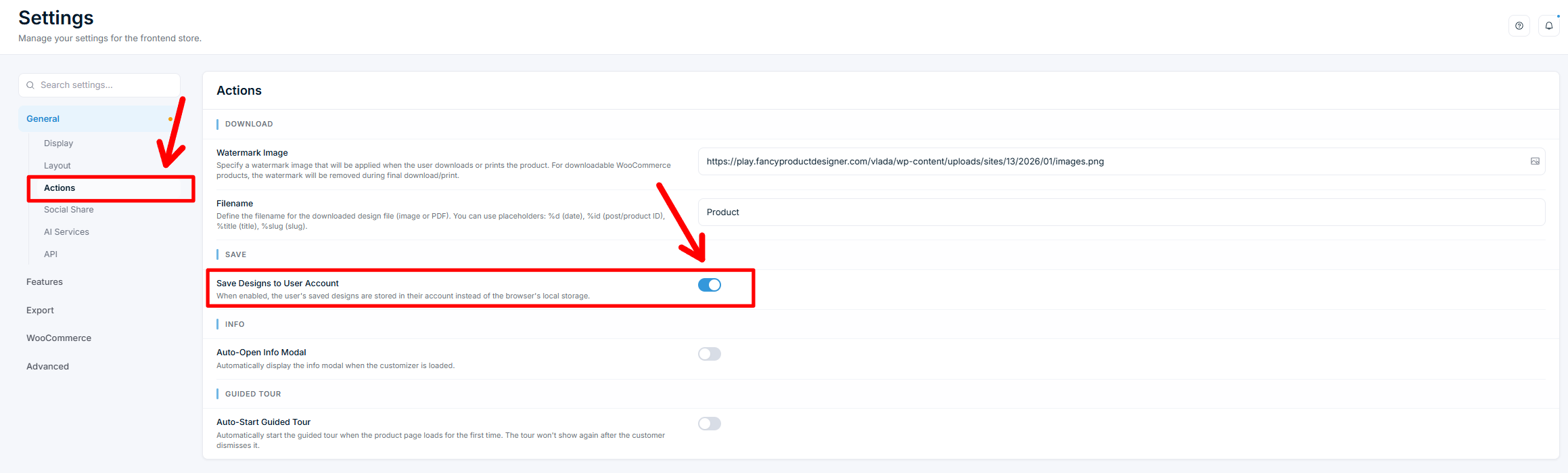
- By default, designs are saved to the browser's local storage. To save designs to the customer's account, enable account-based storage in settings.
- When account-based storage is enabled, the Save button is only shown to logged-in customers. Customers who are not logged in will not see the Save button. Make sure WooCommerce customer accounts are enabled if you want My Designs to work for your shoppers.
Enable My Designs
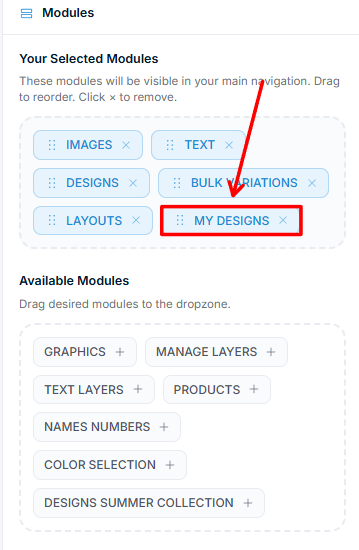
My Designs is enabled per customizer interface in the UI Composer. Open the Modules tab, find My Designs under Available Modules, and drag it into Your Selected Modules. Drag modules to reorder them, or click the × on a module to remove it.
How customers use My Designs
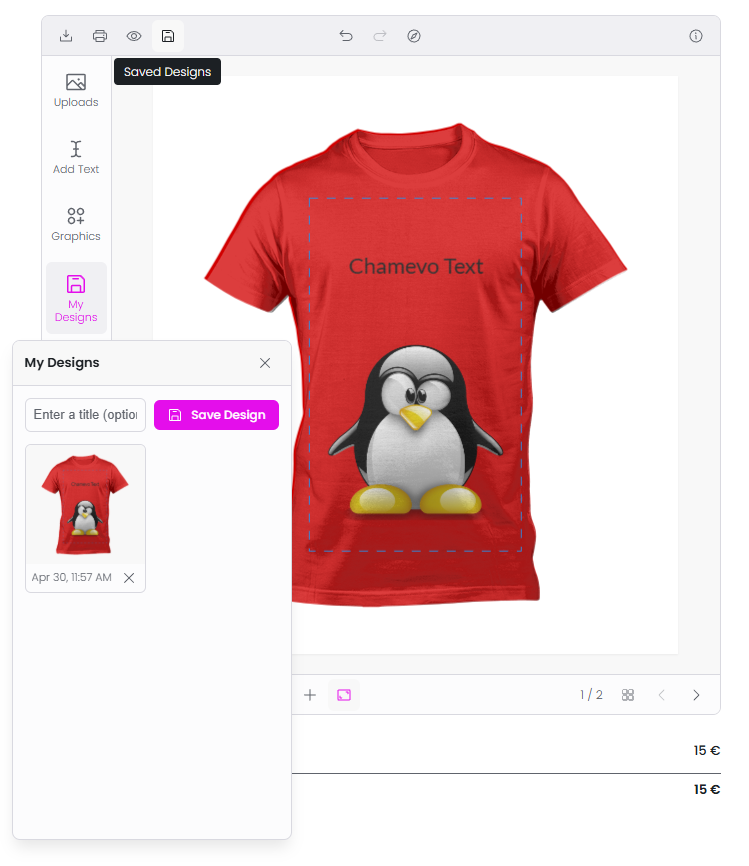
The module shows two areas:
- Save bar — a title input and a Save button at the top.
- Design grid — thumbnails of previously saved designs.
Saving a design
- The customer customizes their product.
- They open the My Designs module.
- They optionally enter a title for the design.
- They click Save.
- A thumbnail is generated from the current canvas and the design is stored.
Loading a design
- The customer clicks on a saved design thumbnail.
- The entire product configuration is restored — all elements, positions, colors, and text revert to the saved state.
Deleting a design
Each thumbnail has a delete button (X icon). Clicking it removes the design from storage.
Related articles
Work with text elementsHow customers add and configure text elements in the product customizer, including text templates, character limits, and pricing.Work with image elementsHow the Images module works, including uploads, Pixabay, AI image generation, QR codes, and image pricing.Use the layers panel to manage element orderHow the Layers module lets customers view, reorder, edit, lock, hide, change colors, and delete design elements.Use Names & Numbers for group and team ordersSet up the Names & Numbers module so customers can submit a list of names and jersey numbers for group orders like sports teams or events.