
Konfigurieren Sie die Benutzeroberfläche des Produkt-Customizers
Richten Sie das Haupt-Layout der Benutzeroberfläche, die Sichtbarkeit, die Symbolleisten-Platzierung und die Anzeigeoptionen für den Chamevo Produkt-Customizer ein.
Aktualisiert am 28. April 20265 Min. Lesezeit
Die Benutzeroberfläche des Produkt-Customizers bestimmt, was Kunden sehen, wenn sie ein Produkt anpassen — die Symbolleiste, das Modul-Panel, das Canvas-Layout und wie sich der Customizer öffnet. Diese Anleitung behandelt die Anzeige- und Layout-Einstellungen unter Chamevo → Settings.
Bevor Sie beginnen
- Chamevo ist installiert und Ihre Lizenz ist aktiv.
- Sie haben mindestens ein Produkt im Product Builder erstellt.
Anzeigeeinstellungen konfigurieren
Gehen Sie zu Chamevo → Settings → General → Display.
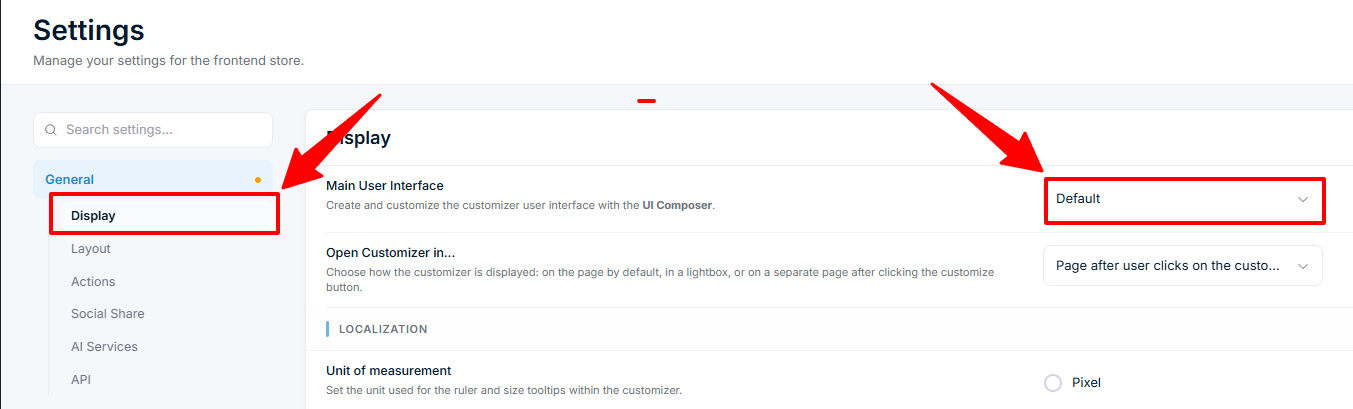
Main User Interface
Wählen Sie aus, welches UI-Layout der Produkt-Customizer verwendet. Optionen:
- Default — das integrierte Chamevo-Layout.
- Custom layouts — jedes Layout, das Sie im UI Composer erstellen.
Open Customizer in...
Wählen Sie, wie der Customizer auf der Produktseite erscheint:
| Option | Verhalten |
|---|---|
| Page | Wird direkt auf der Produktseite angezeigt (Standard) |
| Lightbox | Öffnet sich in einem modalen Overlay — funktioniert nur mit dem Sidebar-Layout |
| Page after user clicks on the customization button | Lädt eine separate Seite, wenn der Kunde auf die Customize-Schaltfläche klickt |
Ähnliche Artikel
UI Composer für individuelle Layouts konfigurierenErstellen Sie individuelle Oberflächen für den Produkt-Customizer mit dem UI Composer – steuern Sie Layout, Module, Actions, die Symbolleiste für Elemente, Custom CSS und geführte Touren.Button-Stile und CSS anpassenÄndern Sie das Erscheinungsbild der Customize-Schaltfläche und nehmen Sie CSS-Anpassungen am Chamevo Produkt-Customizer vor.Bildabmessungen im Produkt-Customizer anzeigenZeigen Sie Größeninformationen zu Elementen in Tooltips und im Lineal des Chamevo Produkt-Customizers an.Personalisierungsbestellungen ansehen und verwaltenSehen Sie Personalisierungsdaten, druckfertige Dateien und Bestelldetails im Chamevo-Bestellbildschirm und in WooCommerce-Bestellungen ein.