
Show image dimensions in the product customizer
Display element size information in tooltips and the ruler within the Chamevo product customizer.
Chamevo can display element dimensions and a ruler on the canvas so customers understand the physical size of their design. This is helpful for products where exact dimensions matter — signs, labels, business cards, and any print product.
Enable the size tooltip
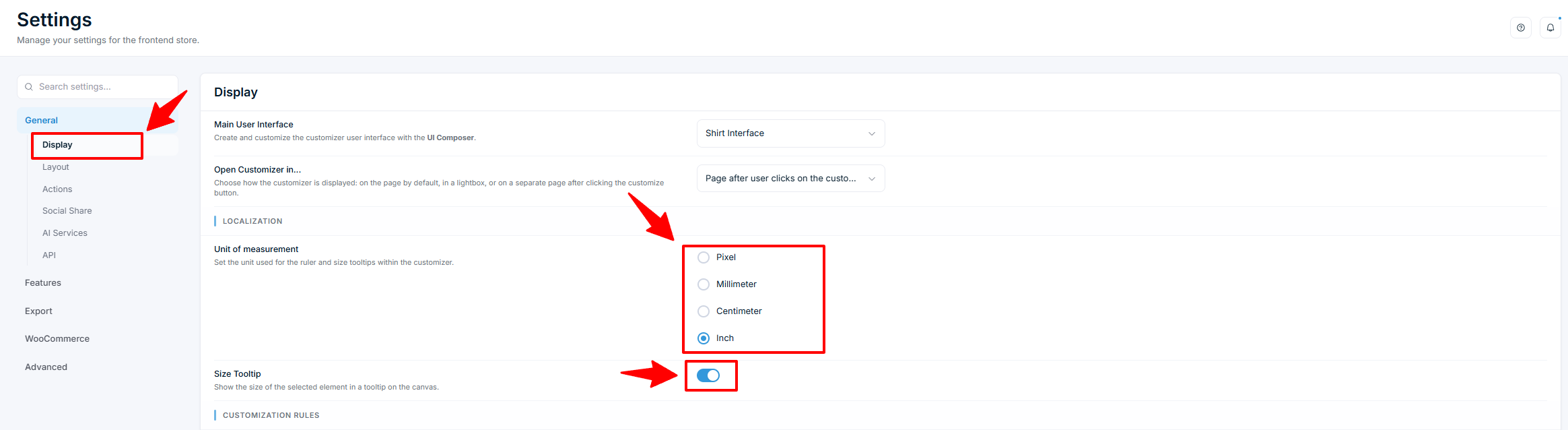
- Go to Chamevo → Settings → General → Display.
- Enable Size Tooltip.
When a customer selects an element on the canvas, a tooltip shows the element's width and height in the selected unit of measurement.
Set the unit of measurement
- Go to Chamevo → Settings → General → Display.
- Find Unit of Measurement.
- Select the unit:
- Pixel — raw pixel dimensions.
- Millimeter — default, common for print products.
- Centimeter — alternative metric unit.
- Inch — for US/UK-based print workflows.
The selected unit applies to both the size tooltip and the canvas ruler. The conversion from pixels to physical units is based on the DPI set in the product's print profile.
Show the ruler
The ruler is a visual scale reference along the print area's edges. It is enabled per print area, not from the toolbar.
Turn it on with the Show Ruler option for a print area in the Product Builder. When enabled, a small ruler icon appears on the canvas next to that print area; the customer clicks the icon to toggle the ruler on or off. The ruler uses the unit of measurement you set above.
Check your setup
- Open a product on the frontend.
- Select an element and verify the size tooltip shows dimensions in the correct unit.
- Click the ruler icon on the canvas and check that it displays the correct scale.
- Upload an image and verify the tooltip updates to reflect the image's size on the canvas.
Troubleshooting
Tooltip shows pixel values instead of physical units
- Verify the Unit of Measurement is set to Millimeter, Centimeter, or Inch — not Pixel.
- Check that the product has a print profile with a DPI value set. Without DPI, the conversion to physical units cannot be calculated.