Preparing the latest guides, releases, and feature request updates.
Loading guides
Preparing the right Knowledge Base content for this platform.
Customize button styles and CSS | Chamevo Support Center
Customize button styles and CSS
Change the appearance of the Customize button and apply CSS adjustments to the Chamevo product customizer.
Updated April 28, 20265 min read
Chamevo adds a Customize button to your product pages and renders the product customizer with its own styles. You can adjust the button appearance, add CSS classes, and apply custom CSS to match your theme.
Change the Customize button style
Add CSS classes
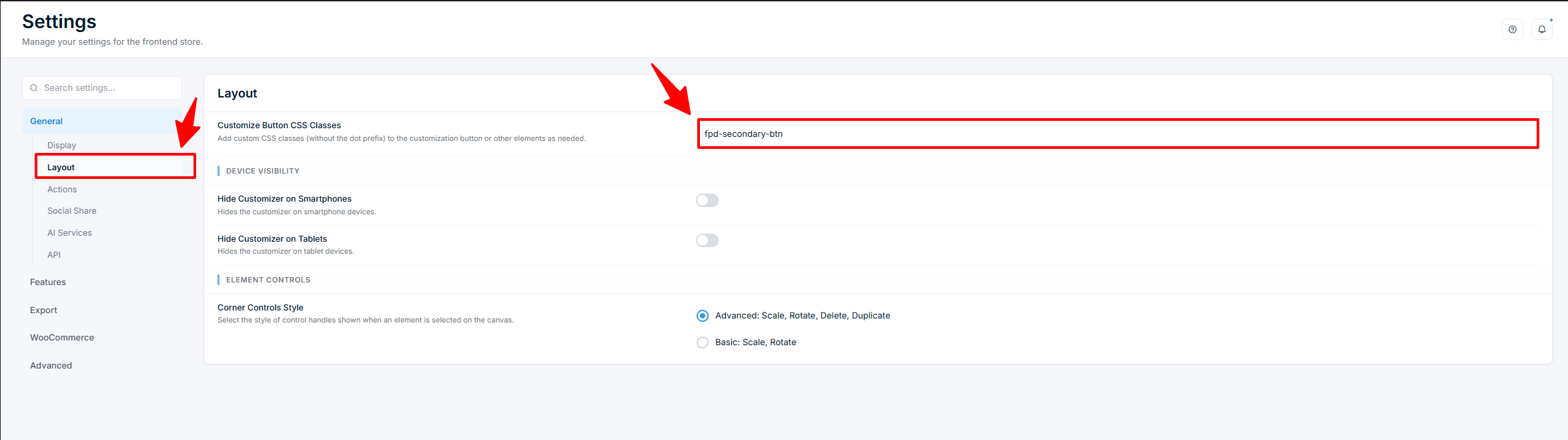
Go to Chamevo → Settings → General → Layout.
Find Customize Button CSS Classes.
Enter one or more CSS classes (without the dot prefix). The default is fpd-secondary-btn.
Examples:
Use your theme's button class (e.g., btn btn-primary) to match the theme style.
Add multiple classes separated by spaces.
Change the button position (WooCommerce)
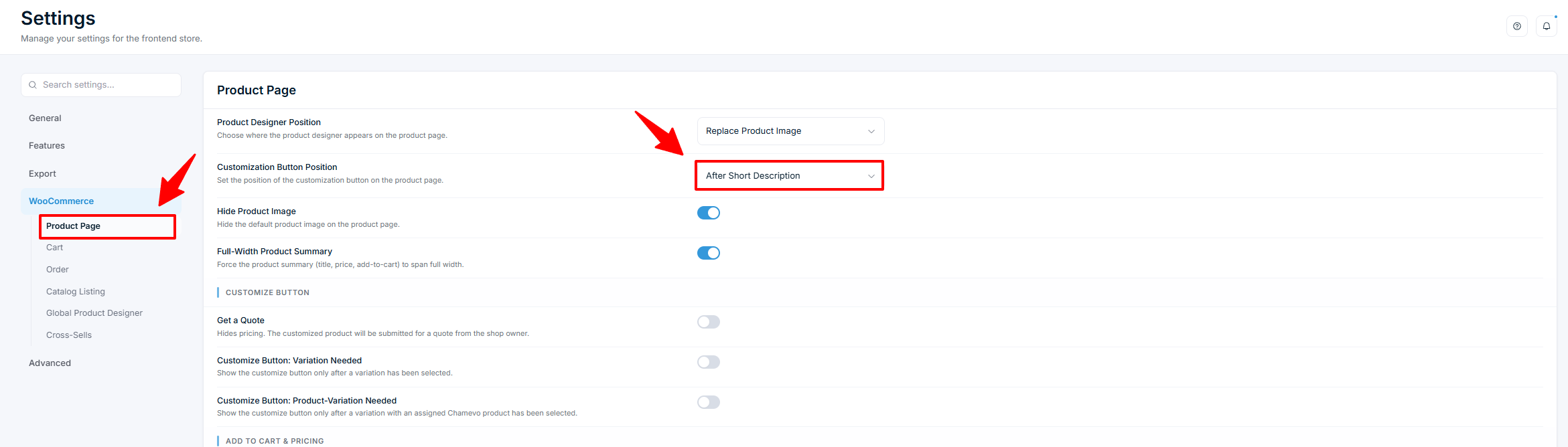
Go to Chamevo → Settings → WooCommerce → Product Page.
Set Customization Button Position:
After Short Description — below the product excerpt.
Before Add-to-Cart Button — directly above the Add to Cart button.
After Add-to-Cart Button — directly below the Add to Cart button.
Replace Add-to-Cart in catalog listings
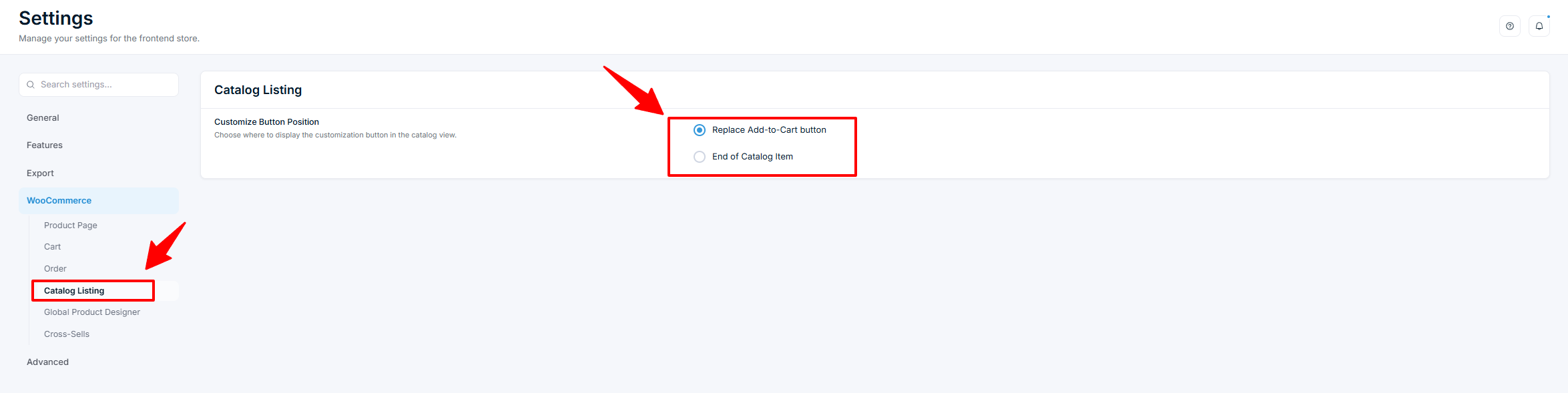
Go to Chamevo → Settings → WooCommerce → Catalog Listing.
Set Customize Button Position:
Replace Add-to-Cart button — replaces the default button with the Customize button.
End of Catalog Item — adds the button at the end of the product card.
The product customizer renders inside a <cv-customizer> web component with an encapsulated Shadow DOM, so plain descendant selectors (like a .fpd-container class) no longer reach inside it. Set CSS custom properties on the base shadow part instead:
To change the customizer height, use the UI Composer instead of CSS — see the next section.
Hide the price display:
Use the Disable Price Calculation setting in Chamevo → Settings → WooCommerce → Product Page instead of custom CSS — it stops price calculations from running rather than just hiding the number. See Enable quote mode to hide pricing.
Full-width product summary
If you want the product summary (title, price, Add to Cart) to span the full page width:
Go to Chamevo → Settings → WooCommerce → Product Page.
Enable Full-Width Product Summary.
This is useful when the customizer replaces the product image and you want the product details below rather than beside it.
Hide the default product image
If the customizer replaces the product image but the original image still shows:
Go to Chamevo → Settings → WooCommerce → Product Page.
Enable Hide Product Image.
Resize the customizer
You do not need CSS for this. Go to Chamevo → UI Composer, open the interface your products use, and open the Layout tab. Scroll to Dimensions.
Pick a device with the Desktop / Tablet / Mobile switch above the preview. The preview follows your choice, so you see the result as you type.
Set Height — the target height of the customizer.
Set Min Height — the smallest height it can shrink to.
Set Max Height — the largest height it can grow to.
Repeat for the other two devices, then click Save.
Each field takes a number plus a unit: px, %, vh, vw, or rem. Leave a field empty to inherit the next wider device's value for that one field.
Min Height floors the height and Max Height caps it. Both beat the Height you enter. If the customizer stays shorter than you asked for, raise Max Height — it defaults to 70vh, so on a short screen it wins. To lock an exact height that ignores the viewport, put the same value in all three fields.
For heights the three fields cannot express — a calc() expression, a container query, or a breakpoint other than tablet and mobile — set the tokens yourself:
Set these on cv-customizer::part(base), not on cv-customizer — the tokens are read by the customizer's root layout container, which re-declares them on itself at narrow widths. Your CSS wins over the Dimensions fields. See custom CSS for the product customizer for the full token reference.
Theme-specific CSS selectors
If your theme uses custom markup, you may need to adjust CSS selectors in Chamevo:
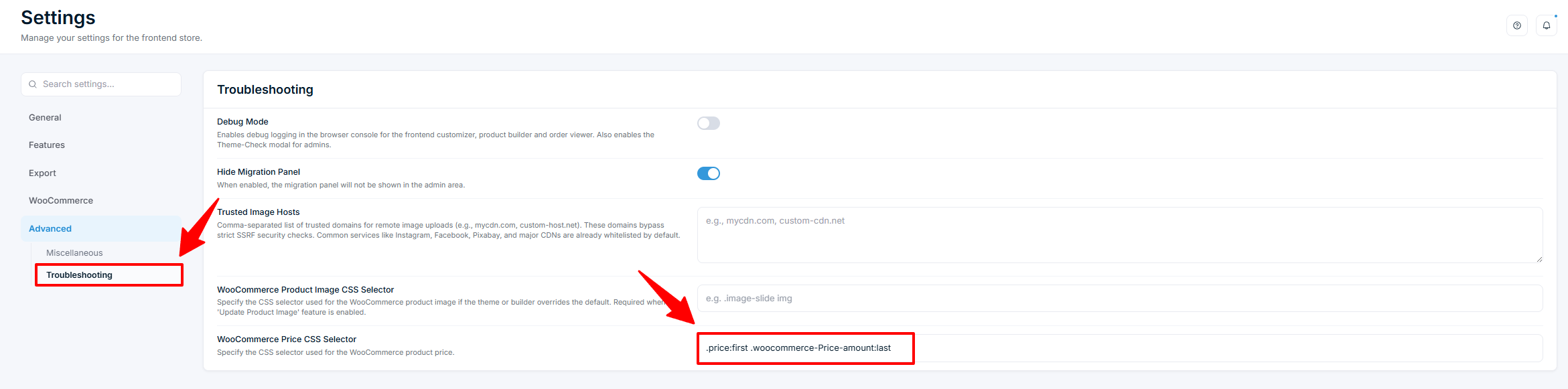
Go to Chamevo → Settings → Advanced → Troubleshooting.
Set WooCommerce Product Image CSS Selector if the product image uses a non-standard selector (e.g., .image-slide img).
Set WooCommerce Price CSS Selector if the price uses a non-standard selector.
These selectors are needed for the product image update and price display features to work with custom themes.
Check your setup
Open a product page and verify the Customize button appears in the correct position.
Verify the button matches your theme's visual style.
If you set Dimensions, check the customizer height on a desktop browser, then narrow the window past 1024px and 768px to confirm the tablet and mobile values apply.
If you added custom CSS, verify it applies correctly on both desktop and mobile.
Troubleshooting
Button appears but does not match the theme
Check that the CSS classes in the Customize Button CSS Classes field match your theme's button classes.
Use your browser's developer tools (F12) to inspect the button and verify which CSS rules apply.
Custom CSS does not take effect
Add !important to your CSS rules if Chamevo's default styles have higher specificity.
Verify the CSS is loading by checking the page source or the browser's developer tools.
Product image still shows alongside the customizer
Enable Hide Product Image in WooCommerce → Product Page settings.
Or set Product Designer Position to Replace Product Image.
The customizer is shorter than the Height I set
Raise Max Height. It caps the height and defaults to 70vh, so on a short screen it wins over Height.
Check you edited the interface the product actually uses. Products can override the store-wide interface in their own Chamevo settings.
A Dimensions value has no effect
Confirm you clicked Save in the UI Composer, then clear any caching plugin.
Confirm you set the value on the right device. The three fields apply only to the device selected in the switch above the preview.
If you also wrote height tokens in CSS, they win over the Dimensions fields. Remove the CSS or set the value there instead.