View and manage customization orders
View customer customization data, print-ready files, and order details in the Chamevo Orders screen and WooCommerce orders.
Updated April 28, 20265 min read
When customers place orders with customized products, Chamevo stores the design data alongside the WooCommerce order. You can view the customization, download print-ready files, and manage order details from the Chamevo Orders screen or directly in WooCommerce.
View orders in Chamevo
- Go to Chamevo → Orders in the WordPress admin.
- You see a list of WooCommerce orders that contain customized products.
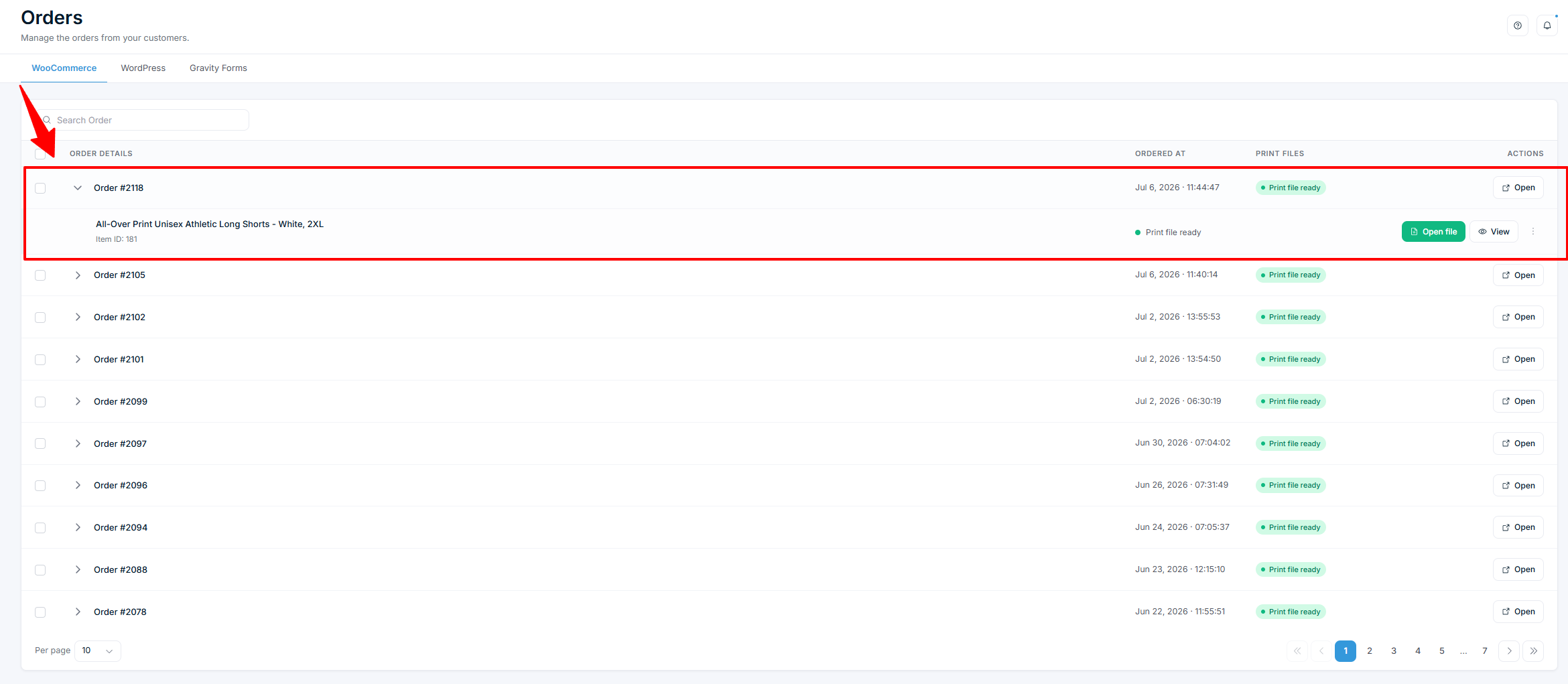
Each order shows:
- Order ID — the WooCommerce order number (click to open the WooCommerce order).
- Order date — when the order was placed.
- Order items — each customized line item in the order.
View the customization
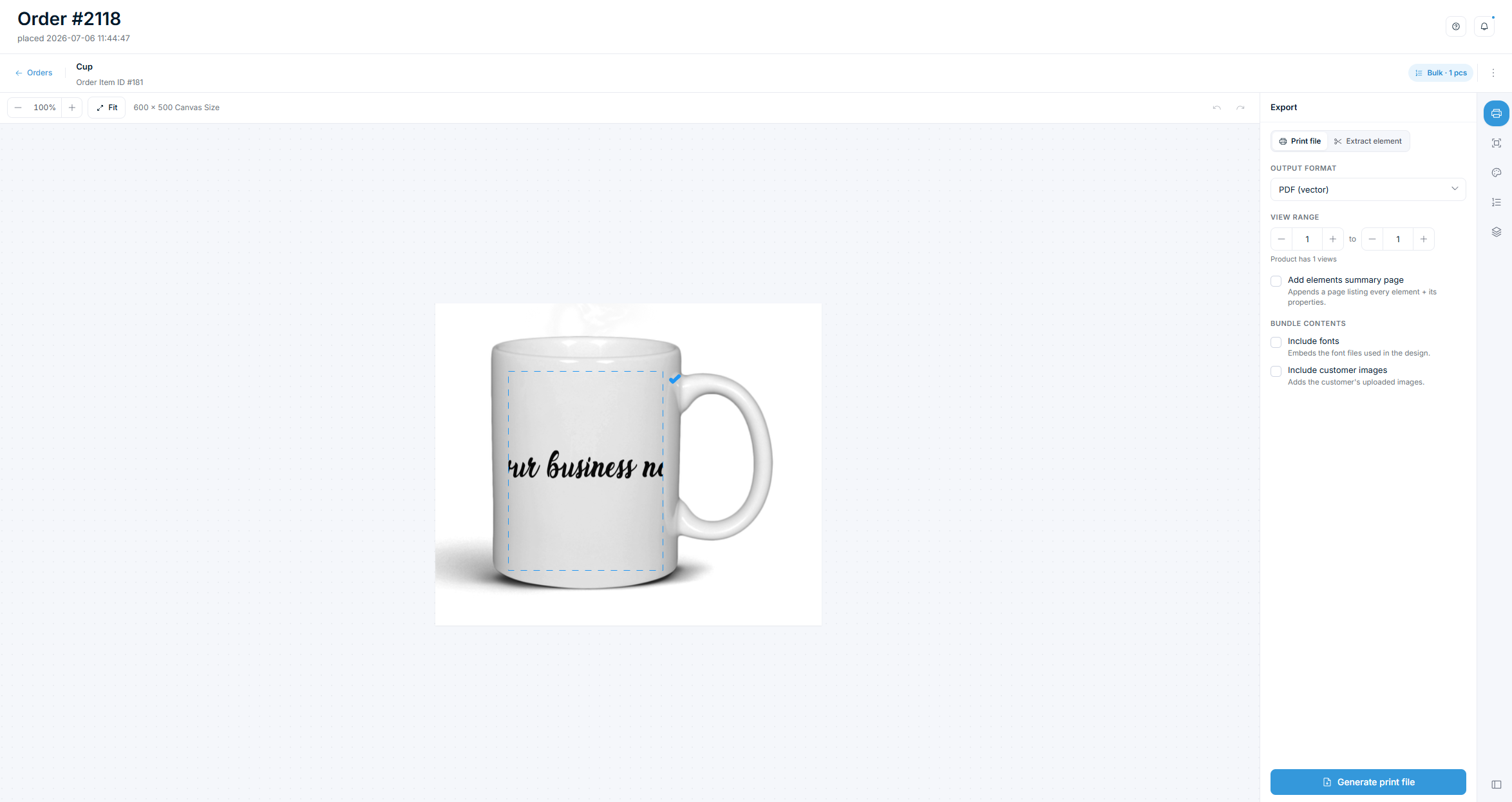
- Click an order item to open the order viewer.
- The order viewer loads the customer's design in a read-only preview.
- You can see:
- The design on each view (front, back, etc.).
- The text, images, and elements the customer added.
- Color choices and element positions.
Search orders
Use the search field to find orders by order ID.
View orders in WooCommerce
Customization data is also accessible from the WooCommerce order screen:
- Go to WooCommerce → Orders.
- Open an order that contains a customized product.
- In the order items section, customized products show additional metadata.
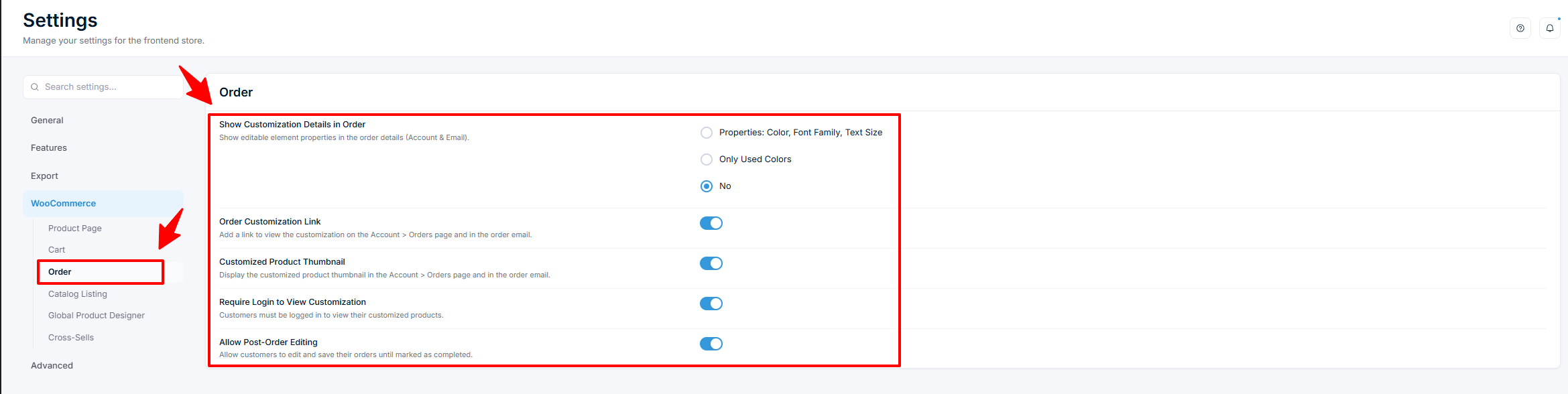
Configure order display settings
Cart display
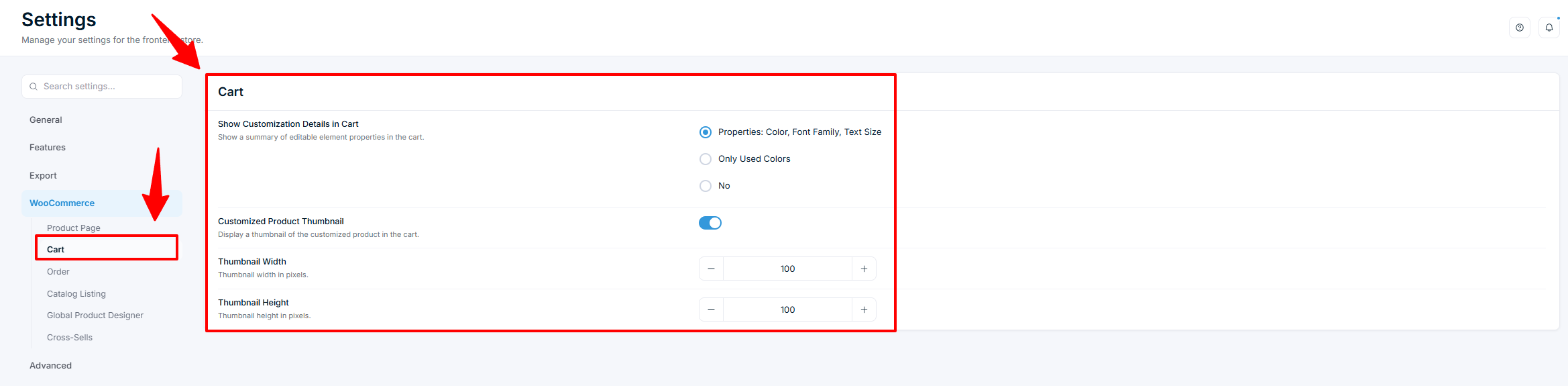
Go to Chamevo → Settings → WooCommerce → Cart:
- Show Customization Details in Cart — choose what customers see in the cart:
Related articles
Configure the product customizer user interfaceSet up the main user interface layout, visibility, toolbar placement, and display options for the Chamevo product customizer.Configure the UI Composer for custom layoutsBuild custom product customizer interfaces with the UI Composer — control layout, modules, actions, the element toolbar, custom CSS, and guided tours.Customize button styles and CSSChange the appearance of the Customize button and apply CSS adjustments to the Chamevo product customizer.Show image dimensions in the product customizerDisplay element size information in tooltips and the ruler within the Chamevo product customizer.