
Configure the product customizer user interface
Set up the main user interface layout, visibility, toolbar placement, and display options for the Chamevo product customizer.
The product customizer user interface controls what customers see when they customize a product — the toolbar, modules panel, canvas layout, and how the customizer opens. This guide covers the display and layout settings in Chamevo → Settings.
Before you start
- Chamevo is installed and your license is active.
- You have at least one product created in the Product Builder.
Configure display settings
Go to Chamevo → Settings → General → Display.
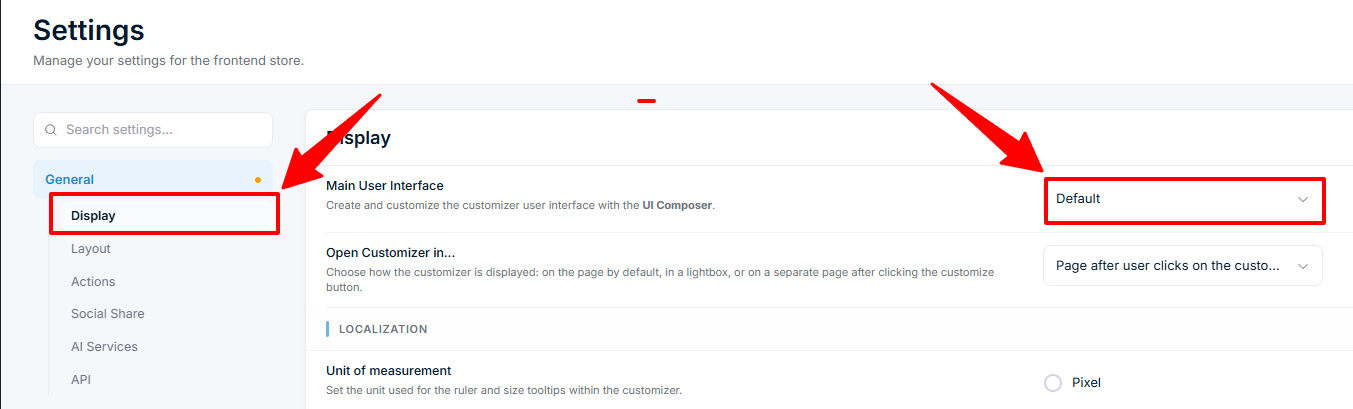
Main User Interface
Select which UI layout the product customizer uses. Options include:
- Default — the built-in Chamevo layout.
- Custom layouts — any layout you create in the UI Composer.
Open Customizer in...
Choose how the customizer appears on the product page:
| Option | Behavior |
|---|---|
| Page | Displays directly on the product page (default) |
| Lightbox | Opens in a modal overlay — works with the sidebar layout only |
| Page after user clicks on the customization button | Loads a separate page when the customer clicks the Customize button |
The Customize button behavior on variable products is controlled separately under . See for the two variation-needed options (any variation vs. variations with an assigned Chamevo product). Both also apply when the visibility is set to .