Wir bereiten die neuesten Anleitungen, Releases und Feature-Updates vor.
Anleitungen werden geladen
Wir bereiten die passenden Inhalte der Wissensdatenbank für diese Plattform vor.
Button-Stile und CSS anpassen | Chamevo Support Center
Button-Stile und CSS anpassen
Ändern Sie das Erscheinungsbild der Customize-Schaltfläche und nehmen Sie CSS-Anpassungen am Chamevo Produkt-Customizer vor.
Aktualisiert am 28. April 20265 Min. Lesezeit
Chamevo fügt Ihren Produktseiten eine Customize-Schaltfläche hinzu und rendert den Produkt-Customizer mit eigenen Stilen. Sie können das Erscheinungsbild der Schaltfläche anpassen, CSS-Klassen hinzufügen und individuelles CSS anwenden, um es an Ihr Theme anzupassen.
Den Stil der Customize-Schaltfläche ändern
CSS-Klassen hinzufügen
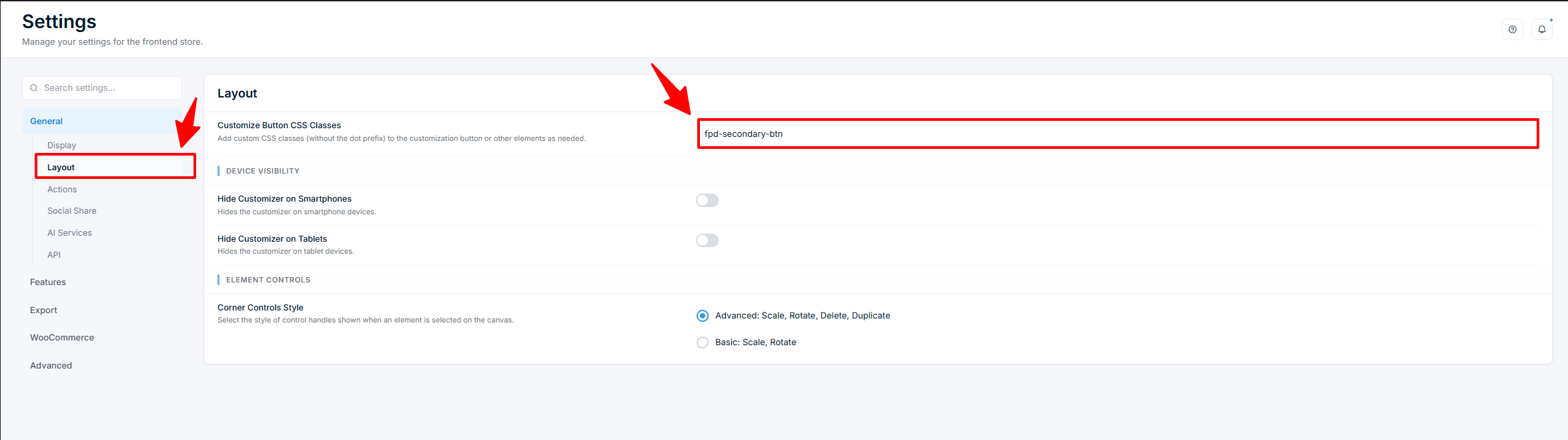
Gehen Sie zu Chamevo → Settings → General → Layout.
Suchen Sie Customize Button CSS Classes.
Geben Sie eine oder mehrere CSS-Klassen ein (ohne Punkt-Präfix). Der Standard ist fpd-secondary-btn.
Beispiele:
Verwenden Sie die Button-Klasse Ihres Themes (z. B. btn btn-primary), um dem Theme-Stil zu entsprechen.
Fügen Sie mehrere Klassen durch Leerzeichen getrennt hinzu.
Die Button-Position ändern (WooCommerce)
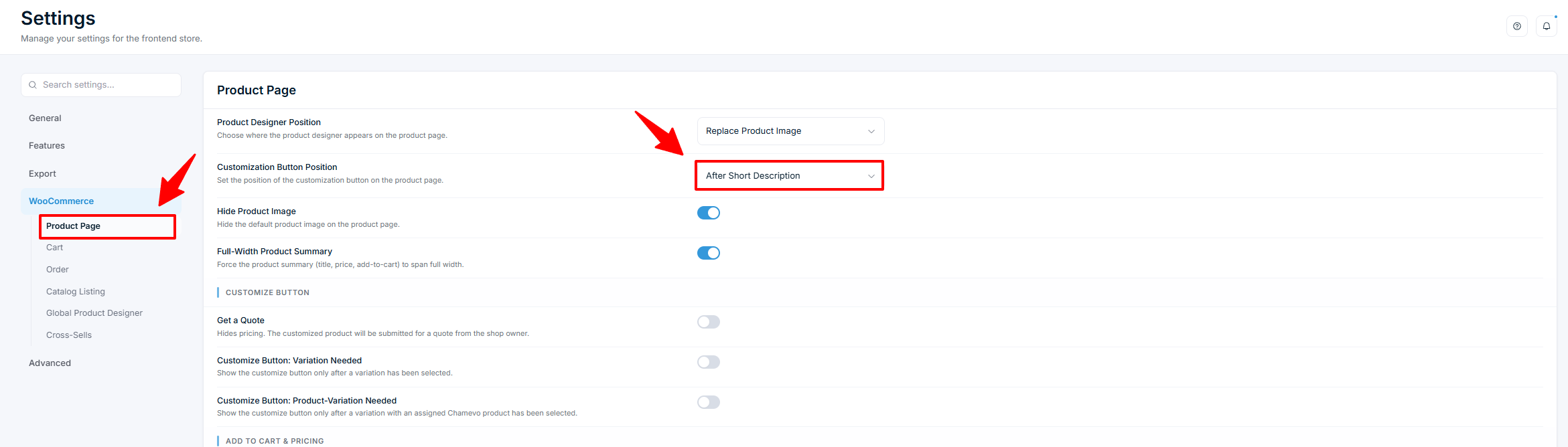
Gehen Sie zu Chamevo → Settings → WooCommerce → Product Page.
Legen Sie Customization Button Position fest:
After Short Description — unterhalb des Produktauszugs.
Before Add-to-Cart Button — direkt oberhalb der Add-to-Cart-Schaltfläche.
After Add-to-Cart Button — direkt unterhalb der Add-to-Cart-Schaltfläche.
Add-to-Cart in Katalog-Listen ersetzen
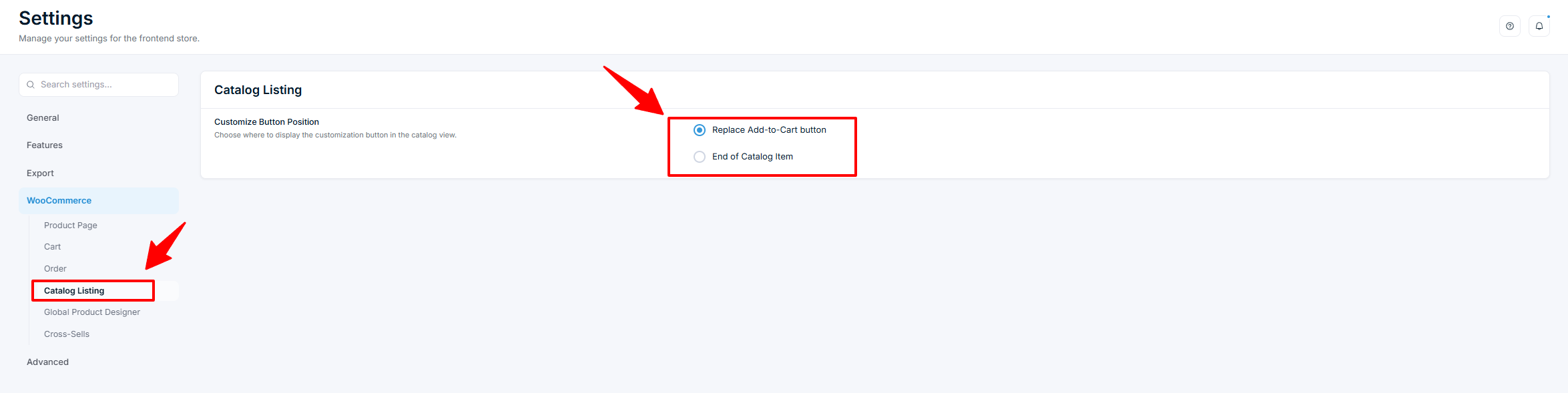
Gehen Sie zu Chamevo → Settings → WooCommerce → Catalog Listing.
Legen Sie Customize Button Position fest:
Replace Add-to-Cart button — ersetzt die Standard-Schaltfläche durch die Customize-Schaltfläche.
End of Catalog Item — fügt die Schaltfläche am Ende der Produktkarte hinzu.
Der Produkt-Customizer wird innerhalb einer <cv-customizer> Web-Component mit gekapseltem Shadow DOM gerendert, sodass einfache Nachfahren-Selektoren (wie eine .fpd-container-Klasse) nicht mehr in sie hineinreichen. Legen Sie stattdessen CSS-Custom-Properties auf dem base-Shadow-Part fest:
Um die Höhe des Customizers zu ändern, nutzen Sie den UI Composer statt CSS — siehe den nächsten Abschnitt.
Die Preisanzeige ausblenden:
Verwenden Sie die Einstellung Disable Price Calculation unter Chamevo → Settings → WooCommerce → Product Page statt individuellem CSS — sie stoppt die Preisberechnung, statt nur die Zahl auszublenden. Siehe Quote-Modus aktivieren, um Preise auszublenden.
Produktzusammenfassung in voller Breite
Wenn die Produktzusammenfassung (Titel, Preis, Add to Cart) die volle Seitenbreite einnehmen soll:
Gehen Sie zu Chamevo → Settings → WooCommerce → Product Page.
Aktivieren Sie Full-Width Product Summary.
Das ist nützlich, wenn der Customizer das Produktbild ersetzt und Sie die Produktdetails darunter statt daneben haben möchten.
Das Standard-Produktbild ausblenden
Wenn der Customizer das Produktbild ersetzt, das Originalbild aber weiterhin angezeigt wird:
Gehen Sie zu Chamevo → Settings → WooCommerce → Product Page.
Aktivieren Sie Hide Product Image.
Die Größe des Customizers anpassen
Dafür brauchen Sie kein CSS. Gehen Sie zu Chamevo → UI Composer, öffnen Sie das Interface, das Ihre Produkte verwenden, und öffnen Sie den Layout-Tab. Scrollen Sie zu Dimensions.
Wählen Sie über den Schalter Desktop / Tablet / Mobile oberhalb der Vorschau ein Gerät aus. Die Vorschau folgt Ihrer Auswahl, sodass Sie das Ergebnis beim Tippen sehen.
Setzen Sie Height — die Zielhöhe des Customizers.
Setzen Sie Min Height — die kleinste Höhe, auf die er schrumpfen kann.
Setzen Sie Max Height — die größte Höhe, auf die er wachsen kann.
Wiederholen Sie dies für die beiden anderen Geräte und klicken Sie dann auf Save.
Jedes Feld nimmt eine Zahl plus Einheit entgegen: px, %, vh, vw oder rem. Lassen Sie ein Feld leer, um für genau dieses Feld den Wert des nächstbreiteren Geräts zu übernehmen.
Min Height bildet die Untergrenze der Höhe, Max Height die Obergrenze. Beide setzen sich gegen die eingetragene Height durch. Bleibt der Customizer kürzer als gewünscht, erhöhen Sie Max Height — der Standard ist 70vh und gewinnt auf einem kurzen Bildschirm. Für eine exakte Höhe unabhängig vom Viewport tragen Sie in alle drei Felder denselben Wert ein.
Für Höhen, die diese drei Felder nicht ausdrücken können — ein calc()-Ausdruck, eine Container Query oder ein anderer Breakpoint als Tablet und Mobile — setzen Sie die Tokens selbst:
Setzen Sie diese auf cv-customizer::part(base), nicht auf cv-customizer — die Tokens werden vom Wurzel-Layout-Container des Customizers gelesen, der sie bei schmalen Breiten erneut auf sich selbst deklariert. Ihr CSS gewinnt gegenüber den Dimensions-Feldern. Die vollständige Token-Referenz finden Sie unter Custom CSS für den Produkt-Customizer.
Theme-spezifische CSS-Selektoren
Wenn Ihr Theme individuelles Markup verwendet, müssen Sie möglicherweise CSS-Selektoren in Chamevo anpassen:
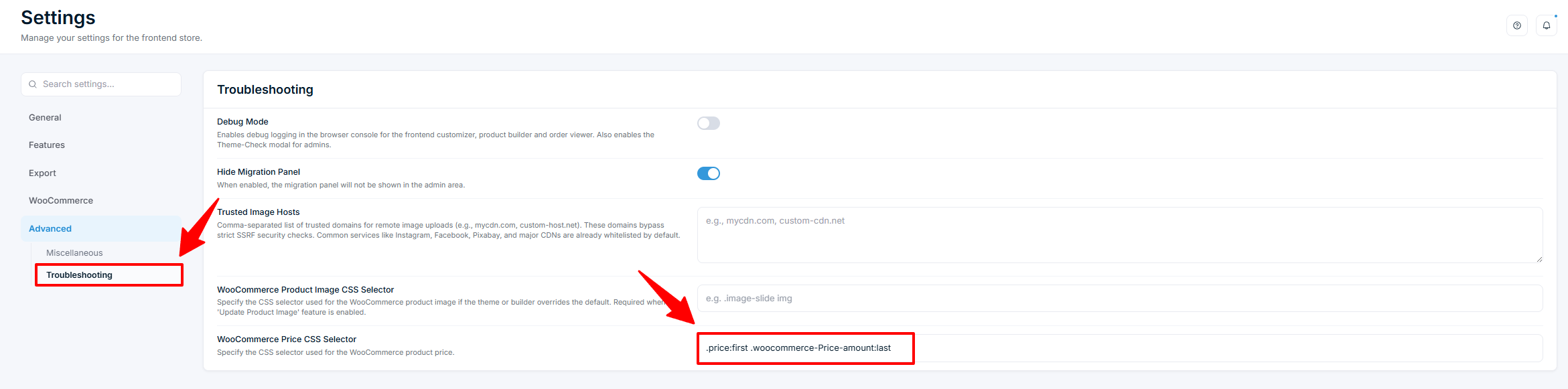
Gehen Sie zu Chamevo → Settings → Advanced → Troubleshooting.
Legen Sie WooCommerce Product Image CSS Selector fest, falls das Produktbild einen nicht standardmäßigen Selektor verwendet (z. B. .image-slide img).
Legen Sie WooCommerce Price CSS Selector fest, falls der Preis einen nicht standardmäßigen Selektor verwendet.
Diese Selektoren werden benötigt, damit die Funktionen zur Produktbild-Aktualisierung und Preisanzeige mit individuellen Themes funktionieren.
Überprüfen Sie Ihr Setup
Öffnen Sie eine Produktseite und überprüfen Sie, ob die Customize-Schaltfläche an der richtigen Position erscheint.
Überprüfen Sie, ob die Schaltfläche dem visuellen Stil Ihres Themes entspricht.
Falls Sie Dimensions gesetzt haben, prüfen Sie die Höhe des Customizers in einem Desktop-Browser und verkleinern Sie das Fenster anschließend unter 1024px und 768px, um zu bestätigen, dass die Tablet- und Mobile-Werte greifen.
Falls Sie individuelles CSS hinzugefügt haben, überprüfen Sie, ob es auf Desktop und Mobilgerät korrekt angewendet wird.
Fehlerbehebung
Schaltfläche erscheint, entspricht aber nicht dem Theme
Überprüfen Sie, ob die CSS-Klassen im Feld Customize Button CSS Classes den Button-Klassen Ihres Themes entsprechen.
Verwenden Sie die Entwicklertools Ihres Browsers (F12), um die Schaltfläche zu untersuchen und zu prüfen, welche CSS-Regeln gelten.
Individuelles CSS wirkt sich nicht aus
Fügen Sie !important zu Ihren CSS-Regeln hinzu, falls die Standard-Stile von Chamevo eine höhere Spezifität haben.
Überprüfen Sie, ob das CSS geladen wird, indem Sie den Seitenquelltext oder die Entwicklertools Ihres Browsers prüfen.
Produktbild wird weiterhin neben dem Customizer angezeigt
Aktivieren Sie Hide Product Image in den WooCommerce → Product Page-Einstellungen.
Oder setzen Sie Product Designer Position auf Replace Product Image.
Der Customizer ist kürzer als die eingetragene Height
Erhöhen Sie Max Height. Der Wert begrenzt die Höhe nach oben und liegt standardmäßig bei 70vh, sodass er auf einem kurzen Bildschirm gegenüber Height gewinnt.
Prüfen Sie, ob Sie das Interface bearbeitet haben, das das Produkt tatsächlich verwendet. Produkte können das shopweite Interface in ihren eigenen Chamevo-Einstellungen überschreiben.
Ein Dimensions-Wert bleibt wirkungslos
Bestätigen Sie, dass Sie im UI Composer auf Save geklickt haben, und leeren Sie dann den Cache eines Caching-Plugins.
Bestätigen Sie, dass Sie den Wert beim richtigen Gerät gesetzt haben. Die drei Felder gelten nur für das im Schalter oberhalb der Vorschau ausgewählte Gerät.
Wenn Sie Höhen-Tokens zusätzlich in CSS geschrieben haben, gewinnen diese gegenüber den Dimensions-Feldern. Entfernen Sie das CSS oder setzen Sie den Wert dort.