Set up print areas in the Product Builder
Define the exact printable region on each product view so Chamevo generates correctly sized, export-ready files for your printer.
A print area marks the region on your product canvas that maps to the physical printable surface. When a customer customizes the product and places an order, Chamevo uses the print area to crop and scale the design to the correct output dimensions for your printer.
Every view can have one or more print areas. Products that need image uploads — such as photo books or multi-panel canvases — typically use one print area per panel.
Before you start
- You have a Chamevo product with at least one view (see Set up product views).
- You know the physical print dimensions for your product (width × height in millimeters, and bleed if required by your printer).
- You have a high-resolution background image for the view so you can position the print area accurately.
Add a print area to a view
- Go to Chamevo → Products and open the view you want to configure in the Product Builder.
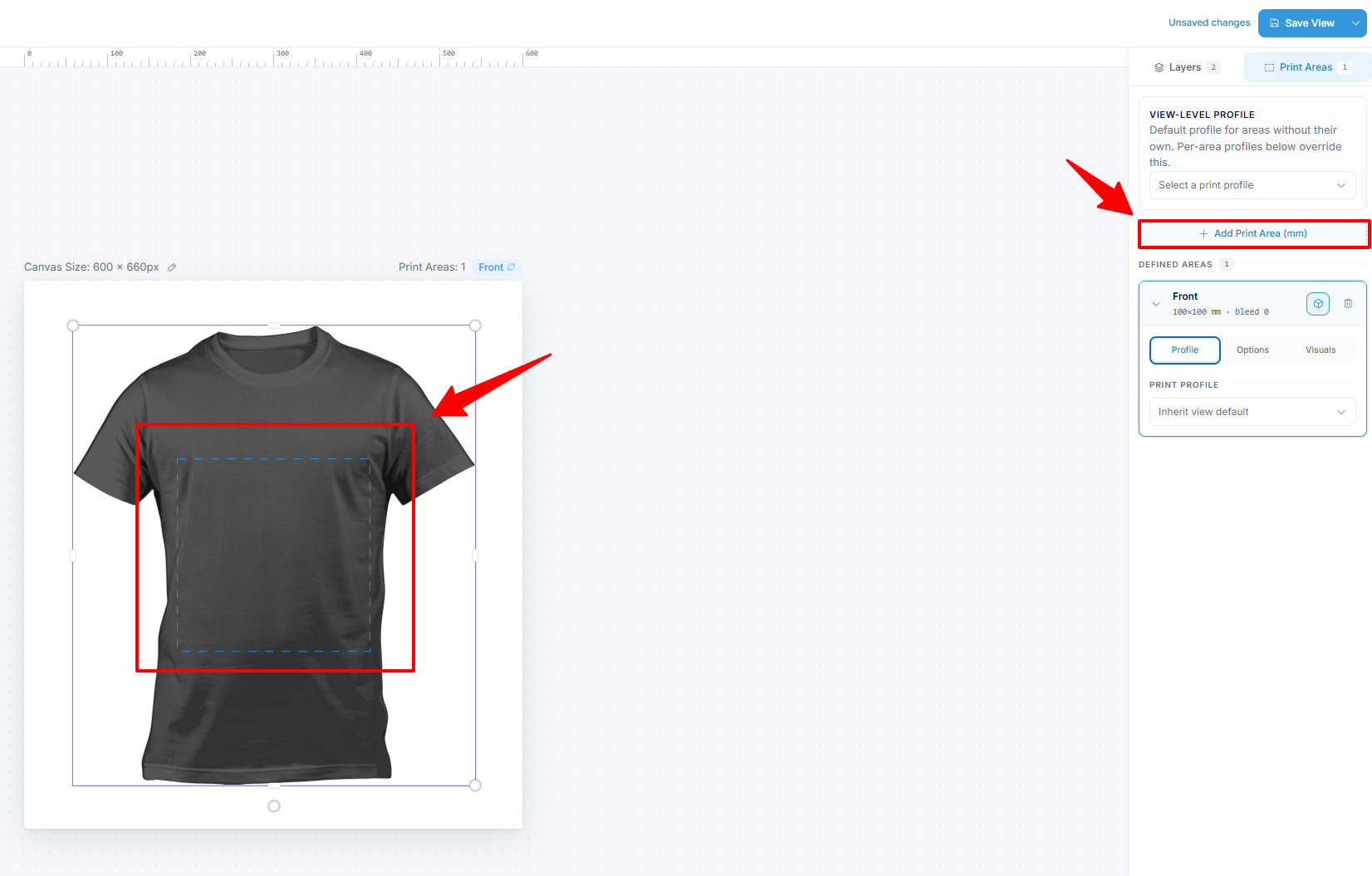
- Open the Print areas tab in the sidebar.
- Click Add print area, give it an identifier, choose a size template or enter width and height in millimeters, then click Add area.
- Use Edit print area on canvas to position and resize it over the printable region of the product.
Configure print area settings
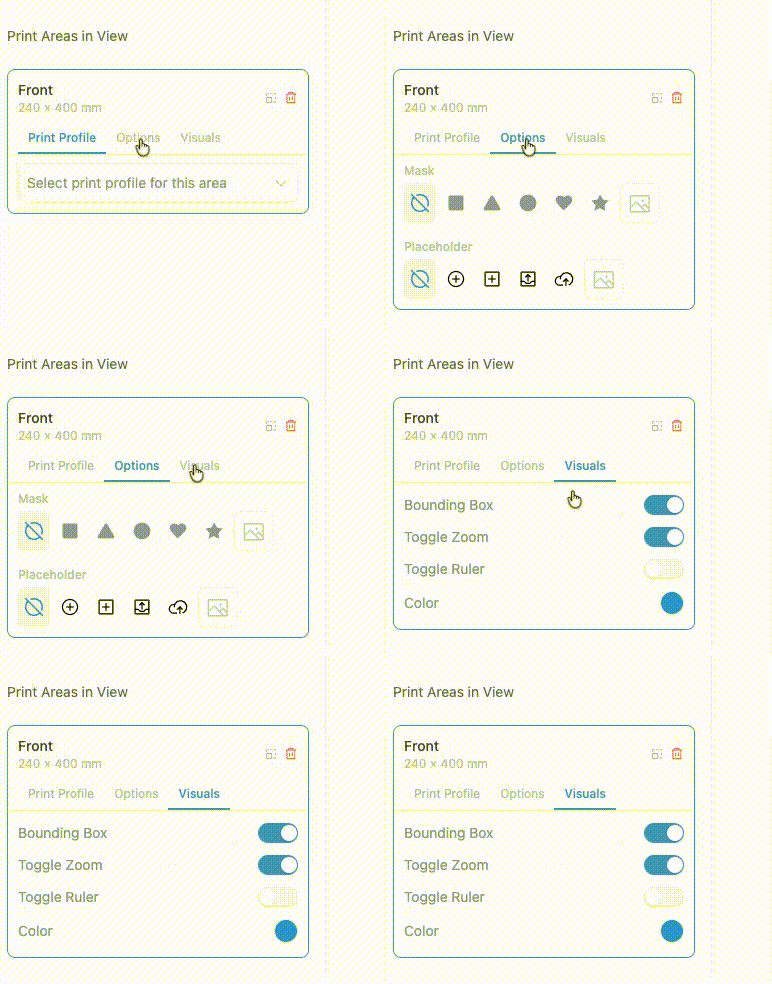
With the print area selected, its settings appear across three tabs: Profile, Options, and Visuals.
Size
There is no pixel-based positioning — a print area is sized directly in millimeters.
- Size — chosen from a size template (A0–A5, Letter, business card, etc.) or entered as custom width and height in millimeters. This tells the export engine the real-world size of the printable region, so Chamevo can scale the canvas content correctly when it generates a print-ready file.
For DPI guidance, see File types and DPI for print-ready exports.
Bleed
Bleed adds extra space around the print area so the design extends to the trim edge when cut.
- Bleed — set the bleed value in millimeters when you create the print area (ask your printer; 3 mm is common for apparel DTF).