Translate Chamevo into another language
Translate the product customizer labels customers see on the Translations page (with optional auto-translate), and translate admin strings with Loco Translate.
Chamevo uses two separate systems for translation. Frontend customizer labels — the text customers see in the product customizer (toolbar buttons, module names, messages) — are managed on the dedicated Translations page. Admin panel strings — settings page labels, WooCommerce notifications, and backend messages — are translated with Loco Translate.
Start with the Translations page. Most merchants only need that step.
Before you start
- Know which language or languages your store needs.
- Have admin access to the WordPress dashboard.
- Optional: a Google Translate API key if you want to machine-translate labels in one click.
- Optional: install Loco Translate if you also want to translate admin panel strings.
Translate customizer labels (what customers see)
Frontend labels cover all text visible to customers in the product customizer: toolbar buttons, module panel headings, action buttons, messages, and pricing text.
- Go to Chamevo → Translations in the WordPress admin.
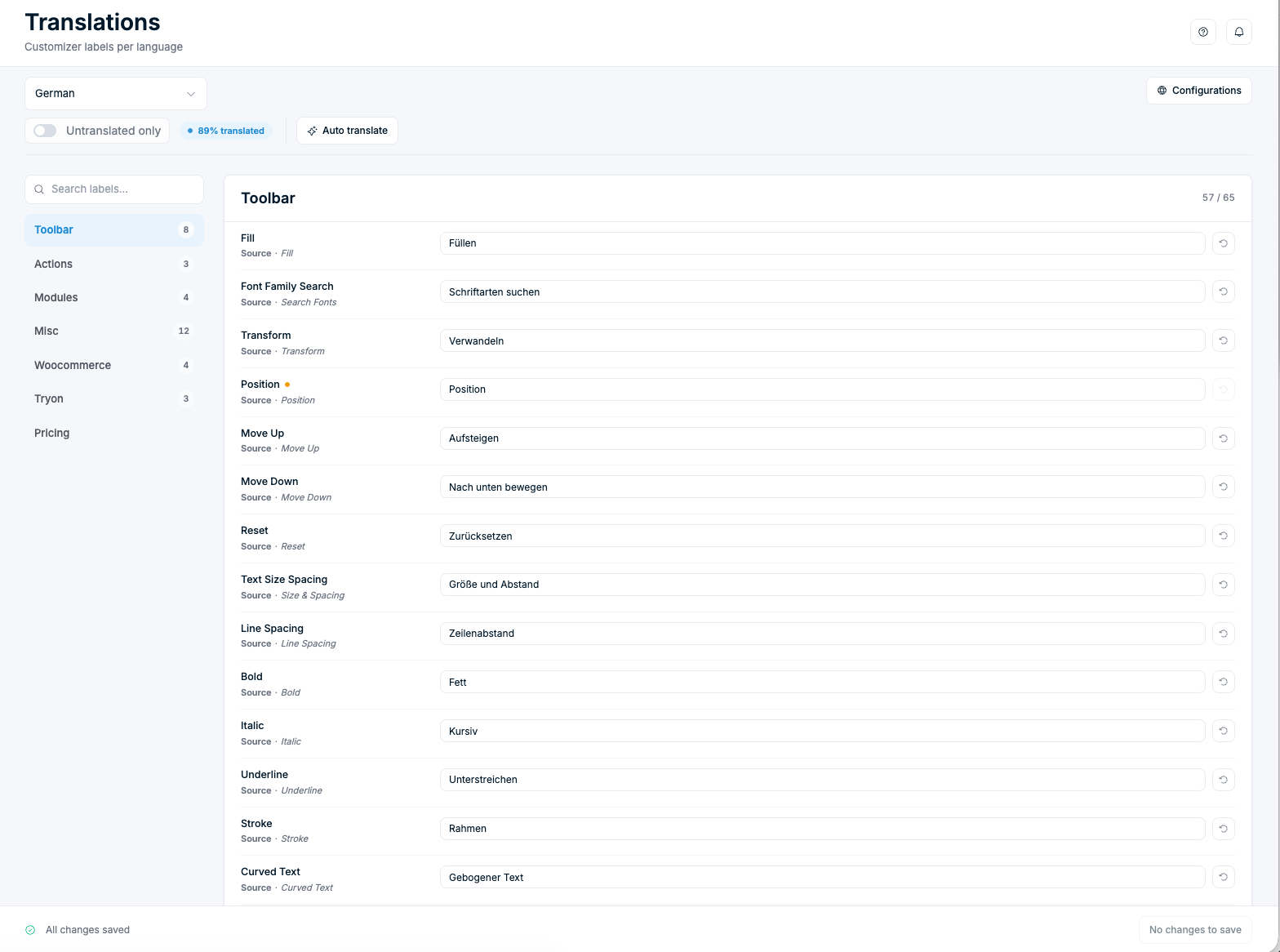
- Pick the language to edit from the dropdown at the top left.
- Labels are grouped in the sidebar: Toolbar, Actions, Modules, Misc, Woocommerce, Tryon, and Pricing. Each group shows how many labels still need work, and the bar at the top shows your overall progress (for example, "89% translated").
- Click a label field and type your translation. Each row shows the English Source text for reference.
- Use Untranslated only to hide finished labels, or the search box to jump to a specific one.
- Your changes save automatically — the bar at the bottom confirms "All changes saved."
The updated labels take effect immediately for all visitors.
A few labels are multi-line text areas because they hold longer body copy rather than single button strings. The Modules group includes Images Agreement, the consent text shown above the upload button when Require Image Rights Confirmation is enabled in Chamevo → Settings → Features → Uploads. Translate this label whenever you enable the consent modal so customers see the agreement in their language.