Apply filters to uploaded images automatically
Configure automatic image filters that apply to every customer upload, including grayscale, black and white, and threshold conversions.
Updated April 28, 20265 min read
Chamevo can automatically apply an image filter to every image a customer uploads. This is useful for stores where designs must meet specific production requirements — like engraving shops that need grayscale or black-and-white images, or sign makers that need high-contrast artwork.
The filter runs server-side using ImageMagick when the customer uploads an image. No manual conversion is needed — the filtered version replaces the original on the canvas.
Before you start
- Your WordPress server must have the ImageMagick PHP extension installed. Most managed hosting providers include it by default.
- You need access to Chamevo → Settings in your WordPress admin.
Set up an image upload filter
- Go to Chamevo → Settings in your WordPress admin.
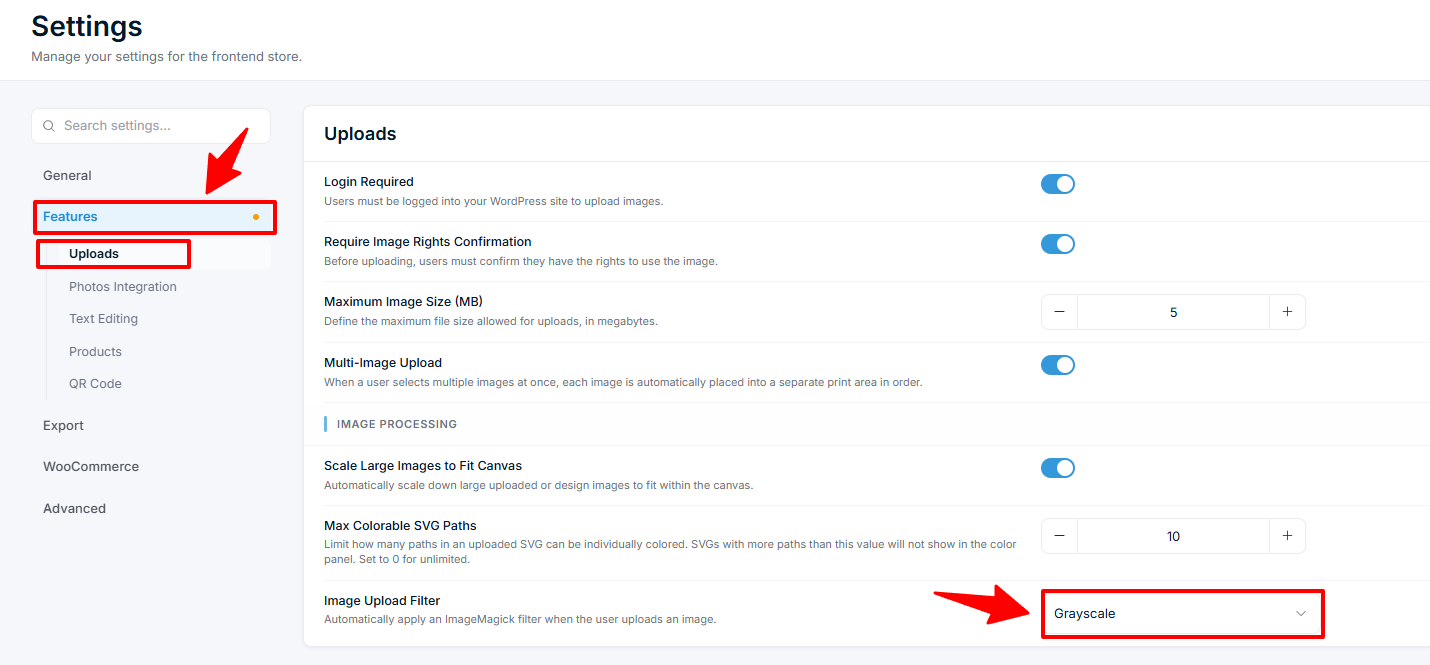
- Navigate to the Features tab, then the Uploads section.
- Scroll to the Image Processing subsection and find the Image Upload Filter dropdown.
- Select a filter:
| Filter | What it does |
|---|---|
| None | No filter applied (default). Uploads remain as-is |
| Grayscale | Converts the image to shades of gray. Removes all color information |
| Black & White | Converts the image to pure black and white using a standard threshold |
| Threshold | Converts the image to pure black and white with an aggressive threshold — produces high-contrast artwork with sharp edges |
Related articles
Configure the product customizer user interfaceSet up the main user interface layout, visibility, toolbar placement, and display options for the Chamevo product customizer.Configure the UI Composer for custom layoutsBuild custom product customizer interfaces with the UI Composer — control layout, modules, actions, the element toolbar, custom CSS, and guided tours.Customize button styles and CSSChange the appearance of the Customize button and apply CSS adjustments to the Chamevo product customizer.Show image dimensions in the product customizerDisplay element size information in tooltips and the ruler within the Chamevo product customizer.