Process orders in bulk
Generate print-ready files for multiple customization orders at once using bulk processing and cloud delivery.
When you receive many customization orders, processing them one by one is slow. Chamevo supports bulk order processing — generating print-ready files for multiple orders and delivering them automatically to email, cloud storage, or external services via webhooks.
Before you start
- You have orders with customized products in WooCommerce.
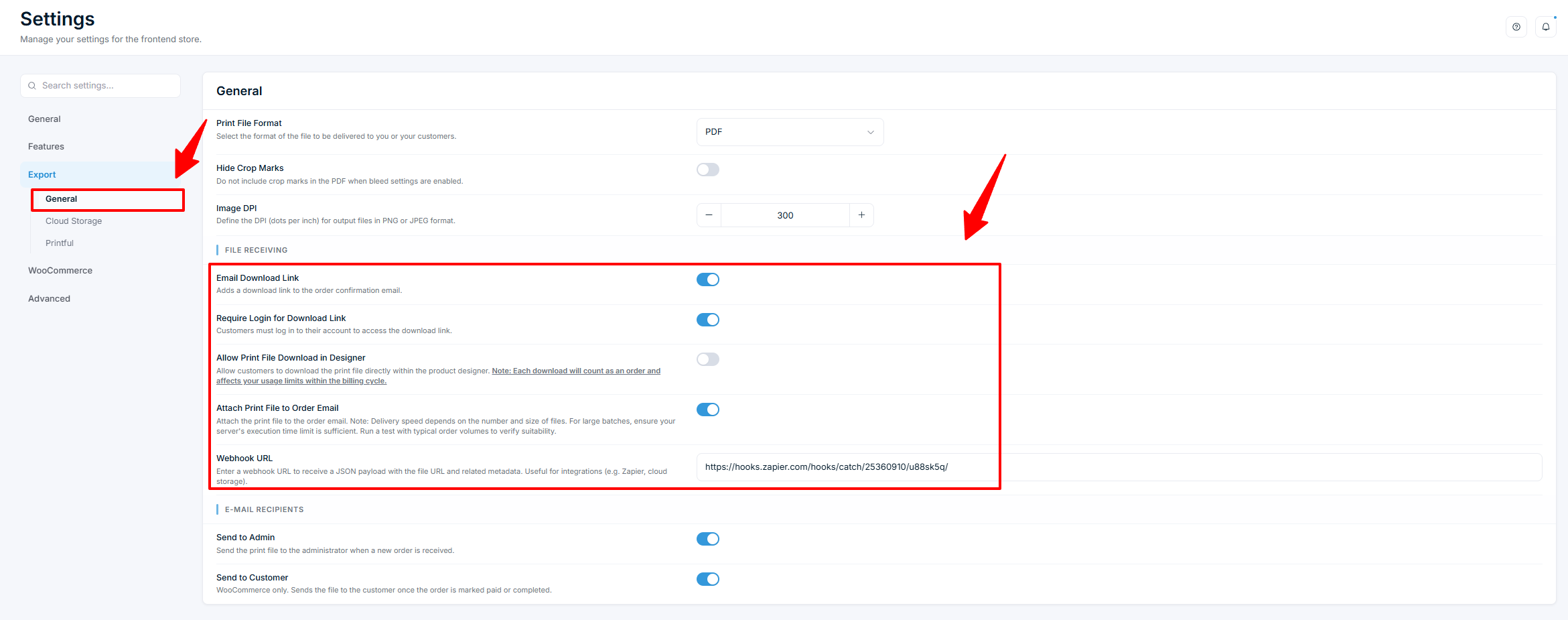
- Your export settings (file format, DPI, recipients) are configured in Chamevo → Settings → Export.
- For cloud delivery, set up Dropbox or AWS S3 in the export settings. Requires the Growth plan or higher.
Process orders from the Chamevo Orders screen
- Go to Chamevo → Orders.
- Select the orders you want to process.
- Use the bulk action to generate print-ready files for all selected orders.
Print-ready files are generated for each customized item in the selected orders. The files are delivered based on your export settings:
- Email — if Send to Admin and/or Send to Customer is enabled, files are sent via email.
- Cloud storage — if Dropbox or AWS S3 is configured, files are uploaded automatically.
- Webhook — if a webhook URL is configured, a JSON payload is sent for each file.
Set up automated delivery
Cloud storage (Dropbox or S3)
Automatically store all print-ready files in cloud storage when orders are processed:
- Go to Chamevo → Settings → Export → General.
- Under Cloud Storage Provider, select Dropbox or AWS S3.
- Enter the credentials for your chosen provider.
- Test the connection using the Example Upload button.
Once configured, every processed order's print-ready files are uploaded to your cloud storage automatically.
See Set up webhook and cloud delivery for detailed Dropbox and S3 configuration.
Webhook delivery
Send file URLs and order metadata to external services:
- Go to Chamevo → Settings → Export → General.
- Enter a Webhook URL.
- When a print-ready file is generated, Chamevo sends a POST request with the file URL, order ID, and item ID.