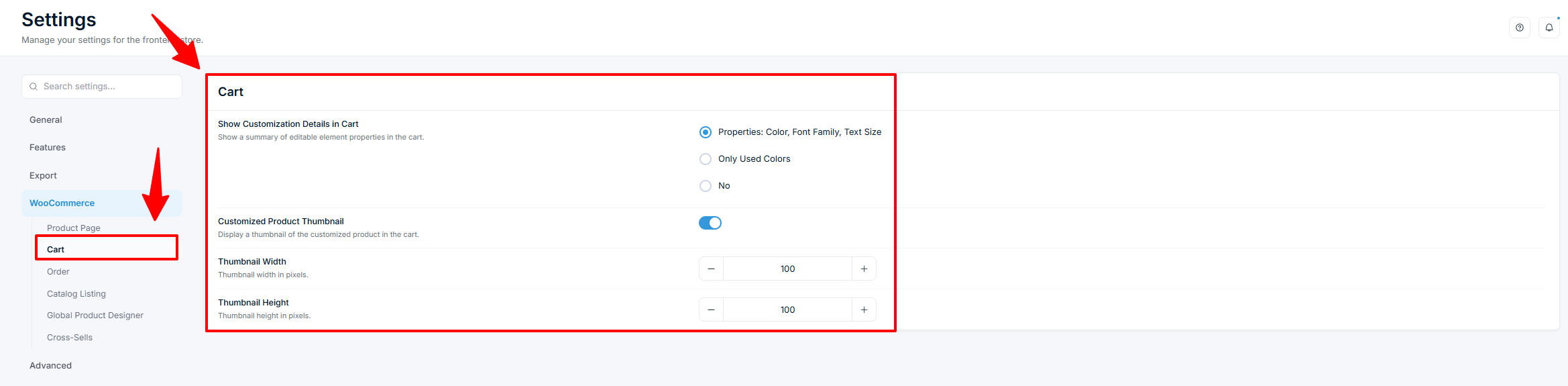
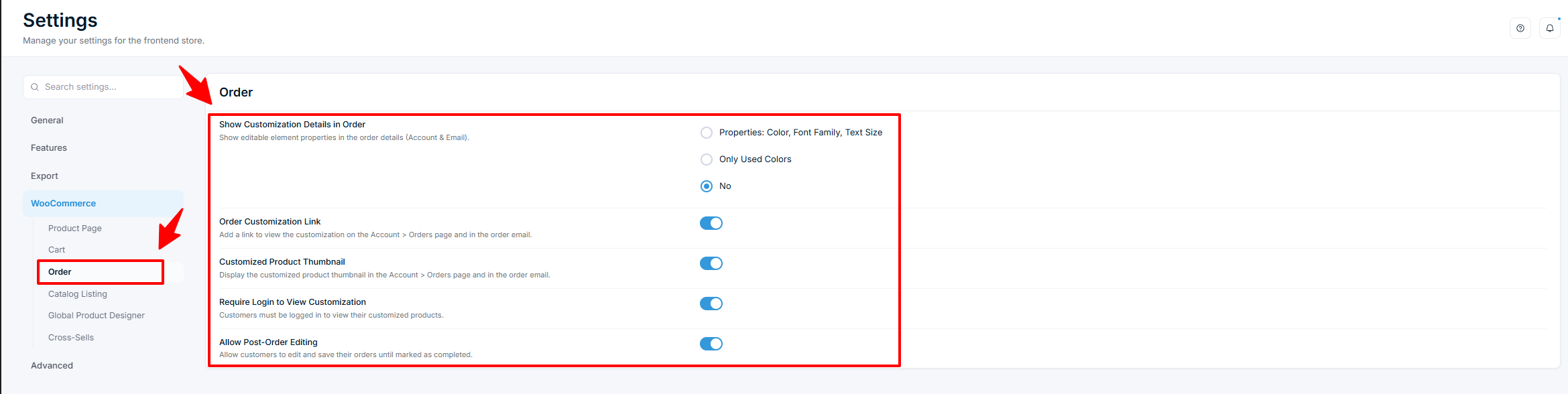
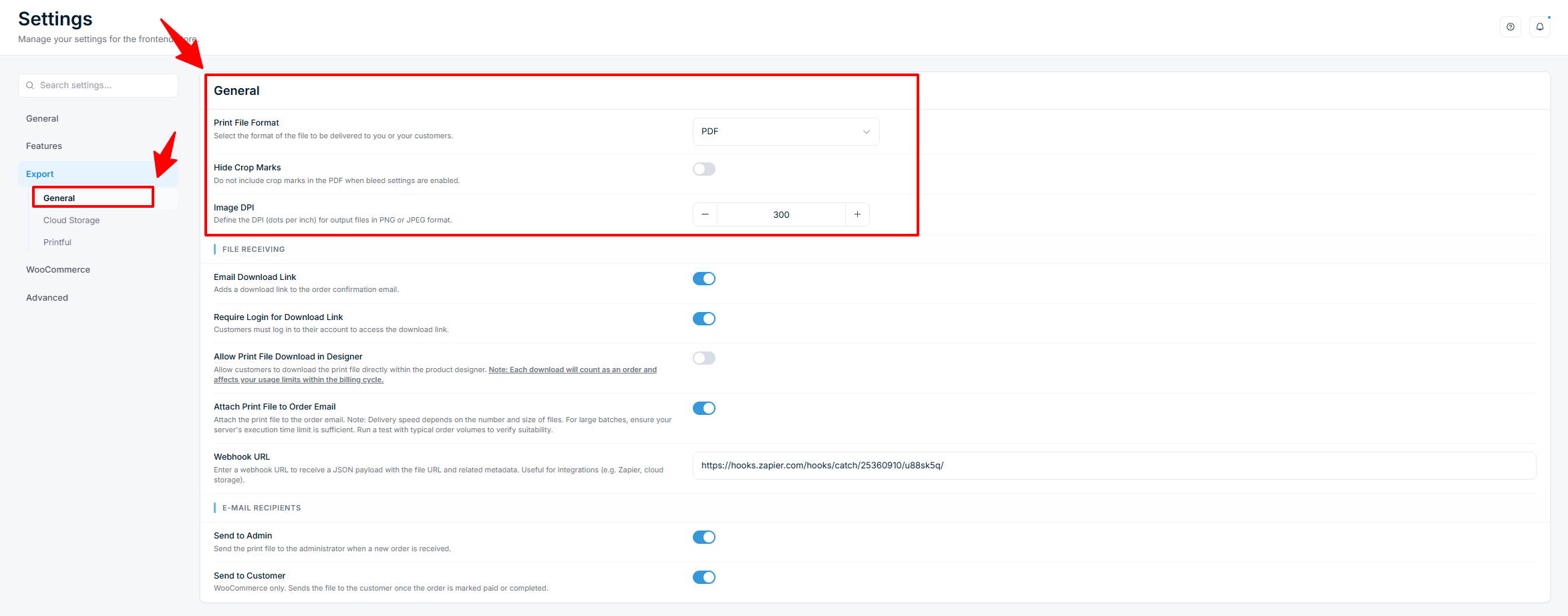
View and manage customization orders
View customer customization data, print-ready files, and order details in the Chamevo Orders screen and WooCommerce orders.
When customers place orders with customized products, Chamevo stores the design data alongside the WooCommerce order. You can view the customization, download print-ready files, and manage order details from the Chamevo Orders screen or directly in WooCommerce.
View orders in Chamevo
- Go to Chamevo → Orders in the WordPress admin.
- You see a list of WooCommerce orders that contain customized products.
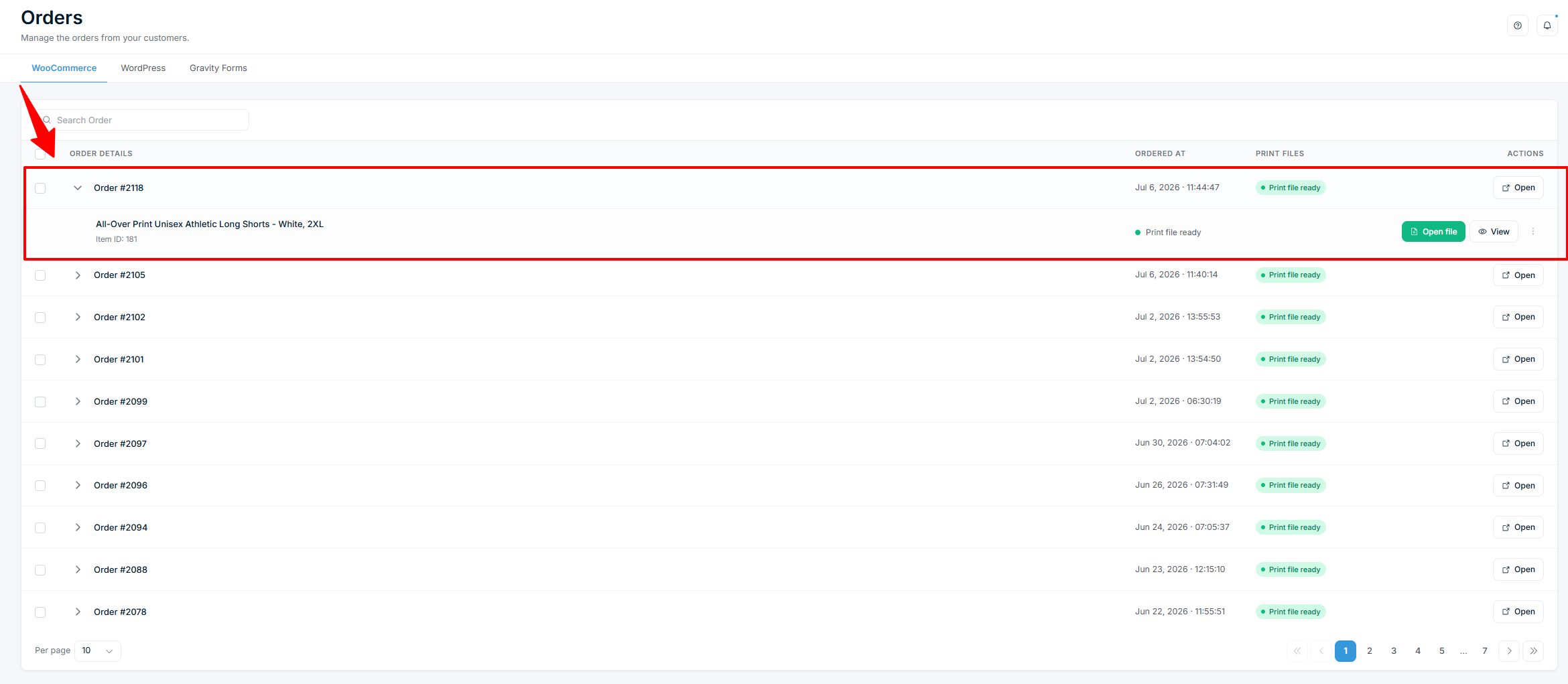
Each order shows:
- Order ID — the WooCommerce order number (click to open the WooCommerce order).
- Order date — when the order was placed.
- Order items — each customized line item in the order.
View the customization
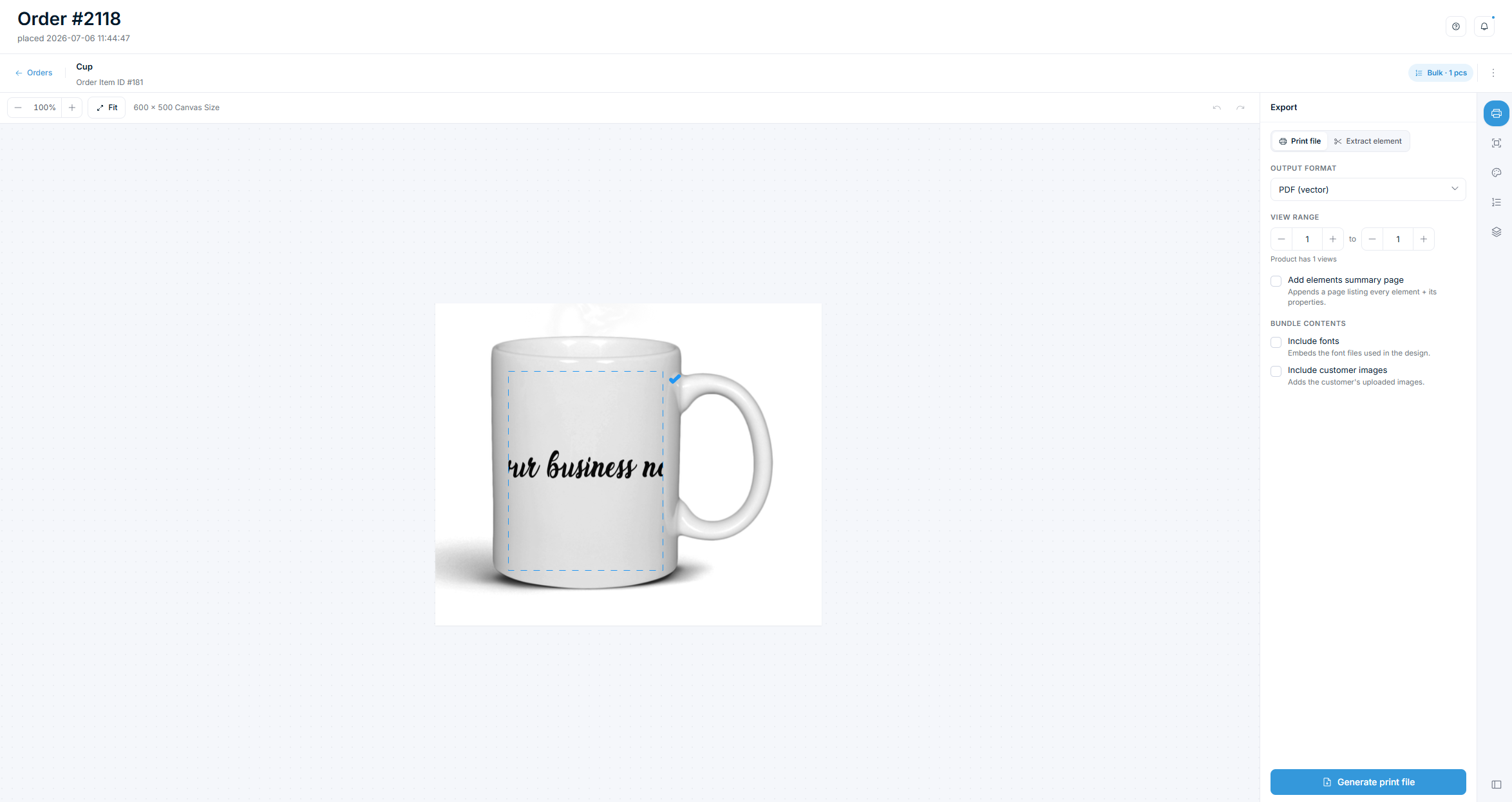
- Click an order item to open the order viewer.
- The order viewer loads the customer's design in a read-only preview.
- You can see:
- The design on each view (front, back, etc.).
- The text, images, and elements the customer added.
- Color choices and element positions.
Check which print areas are exported
The order viewer lists each view's print areas with their output size and bleed. Two badges show how an area is exported:
- Design only – not exported — the area is set to Exclude from export. The customer designed in it, but it gets no print file of its own. Its artwork prints in the file of the print area that encloses it.
- Export only — the area is hidden from customers and exported as its own file, often a whole-view output.
If every print area in the selected views is excluded from export, Generate print file is disabled. A hint below the button explains that there is nothing to print. If an excluded area holds artwork that no exported area encloses, a warning names that area, because its artwork will not be printed.