Preparing the latest guides, releases, and feature request updates.
Loading guides
Preparing the right Knowledge Base content for this platform.
Display colors in the color selection panel | Chamevo Support Center
Display colors in the color selection panel
Set up the Color Selection panel so customers can change product colors (like garment color or material color) from a dedicated module.
Updated April 28, 20265 min read
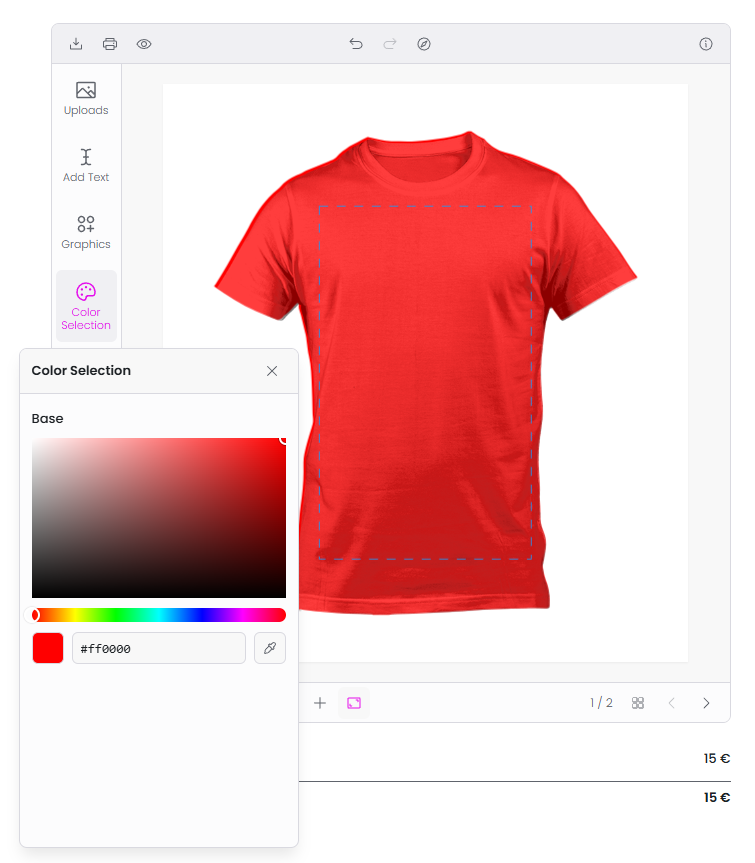
The Color Selection panel gives customers a dedicated place to change product-level colors — like the garment color of a t-shirt or the material color of a phone case. Instead of hunting for individual elements on the canvas, customers see labeled color options in a clean list.
This is separate from element-level color changes in the toolbar or Layers panel. The Color Selection panel is built for top-level product colors, and it can drive several elements at once through color link groups.
How color options are defined
Two places control which colors this panel offers:
The Colors page (Chamevo → Colors) — your shared color library. It has two tabs, Colors and Palettes. Build named palettes here once and reuse them everywhere. See Manage your color library and palettes.
Falls back to the older color fields below. Existing profiles keep working this way until you switch.
When you pick Color Palette, choose one of your saved palettes from the Colors page.
Before you start
Build any fixed palettes on the Palettes tab of the Colors page.
Set a Color Selection mode (picker or palette) for your image and text color sections in the print profile Colors tab.
Enable the Color Selection module in the UI Composer (see Step 3).
Step 1: Choose how colors are offered
Go to Chamevo → Print Profiles and edit the Master Print Profile or a custom profile.
Open the Colors tab.
For each section (Customer images, Customer texts, and the Master-only All images / All texts), set Color Selection to All Colors (Color Picker) or Color Palette.
If you chose Color Palette, pick a saved palette in the Color Palette field.
Step 2: Link elements that should change together (optional)
If changing a product color should update several elements at once (e.g., front + back + sleeve), use a color link group:
In the print profile Colors tab, find the Color Link Group field in the relevant section.
Enter a group name (for example, garment-color).
Use the same group name on every element that should share the color.
In the Color Selection panel, elements in the same color link group are merged into a single entry. The customer sees one label and one set of color options, and the change applies to all linked elements — across every view that contains them.
Step 3: Enable the module
Color Selection is enabled per customizer interface in the UI Composer. Open the Modules tab, find Color Selection under Available Modules, and drag it into Your Selected Modules. Drag modules to reorder them, or click the × on a module to remove it.
How customers use Color Selection
The Color Selection panel shows one entry per colorizable element (or per color link group):
Each entry shows a title and a color panel.
The customer clicks a color swatch or opens the color picker.
The canvas updates immediately to show the new color.
Palette mode
When the color section uses a fixed palette, the customer sees a row of color swatches. Clicking a swatch applies that color.
Picker mode
When the section allows any color, the customer sees a color picker with a hue slider and a saturation/brightness area.
Multi-path SVG support
For SVG graphics with multiple paths, the panel shows individual path swatches so the customer can recolor one part of the SVG at a time. SVGs above the path threshold (default: 10 paths) have colorization disabled to keep the panel manageable.
Color Selection vs. Layers panel colors
Feature
Color Selection panel
Layers panel
Focused on product colors
Yes — shows colorizable elements as a clean list
Shows all editable elements
Merges color link groups
Yes — one entry per group
No — each element is a separate row
Dedicated color-first UI
Yes — the color panel is always visible
Color panel is collapsible behind a swatch
Text editing, reordering
No
Yes
Use Color Selection when you want a clean, focused color-picking experience. Use the Layers panel for general element management.
Check your setup
Open the product on the frontend.
Open the Color Selection module.
Verify entries appear for your colorizable elements.
Click a color swatch or use the picker. Verify the canvas updates.
If using color link groups, verify that changing one entry updates all linked elements.
Troubleshooting
Color Selection panel is empty
Confirm at least one color section in the assigned print profile has a Color Selection mode other than None. Element types with no color options are excluded.
Confirm the correct print profile is assigned to the product.
Color change does not apply to all views
Color link groups sync colors across all views that contain elements in the same group. Verify the linked elements exist on every view where you expect the color to update, and that they share the same group name.
Too many path swatches on an SVG
Multi-path SVGs with many individual paths can produce a long list of swatches. SVGs above the path threshold (default 10) have colorization disabled.
Q: Can I use Color Selection and the Layers panel together?
A: Yes. Both modules can be active at once. Color Selection provides a focused color experience, while the Layers panel offers full element management.
Q: Does the Color Selection panel show customer-added elements?
A: The panel is designed for the colorizable elements you build into the product. Elements a customer adds themselves are recolored from their own toolbar or the Layers panel.
Q: Can I charge different prices for different colors?
A: Yes. Give a color a surcharge on the Colors page, or create a Dynamic Pricing rule using the Number of Colors Used property.
Q: What happens if I do not use color link groups?
A: Without color link groups, each colorizable element appears as its own entry, and the customer changes each one individually. Color link groups simplify this by merging linked elements into a single entry.