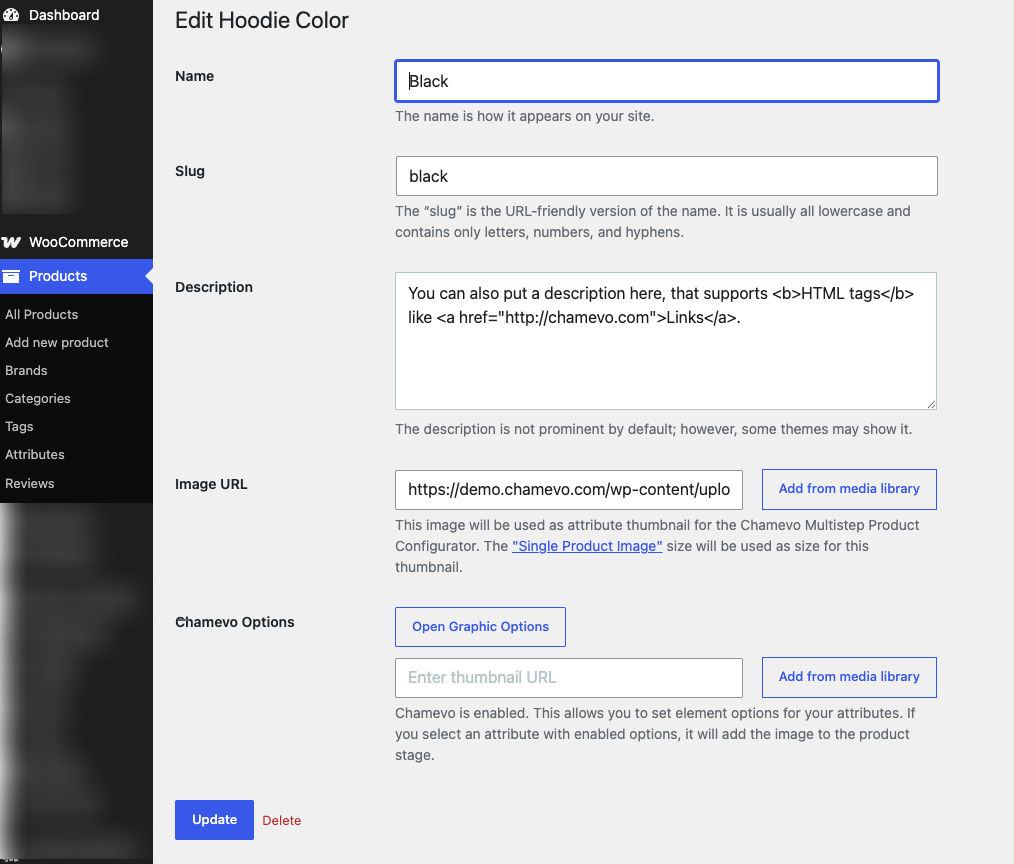
Add Chamevo customizer modules to the Multistep Product Configurator
Insert Chamevo customizer modules as steps in the configurator and add option images straight to the customizer canvas.
When both the Multistep Product Configurator and the Chamevo plugin are active, the configurator gains design tools. Customers can pick a variation and then design in the same guided flow — for example, choose a shirt color, choose a size, then add text and a logo.
This article covers the Chamevo-only features. For the base setup, first read set up the Multistep Product Configurator.
Two things unlock when Chamevo is active:
- A Chamevo Modules section that inserts customizer panels as extra steps.
- Two extra placement positions and per-option Chamevo Options that push an image onto the customizer canvas.
Before you start
- The Multistep Product Configurator is already set up and enabled on a variable product.
- The Chamevo plugin is installed and active.
- A Chamevo customizer (product) is assigned to the product, so the canvas loads on the product page.
Insert customizer modules as steps
The Chamevo Modules section appears in the Chamevo MSPC tab only when Chamevo is active.
- Edit the product and open the Chamevo MSPC tab.
- Scroll to Chamevo Modules.
- In Module Type, pick a panel: Products, Images, Text, Graphics, Designs, Manage Layers, Text Layers, Layouts, My Designs, Save / Load, or Names & Numbers.
- Click Add. The module appears in the list below.
- Drag modules in the list to set where each step appears among the attribute steps.
- Click Update to save.
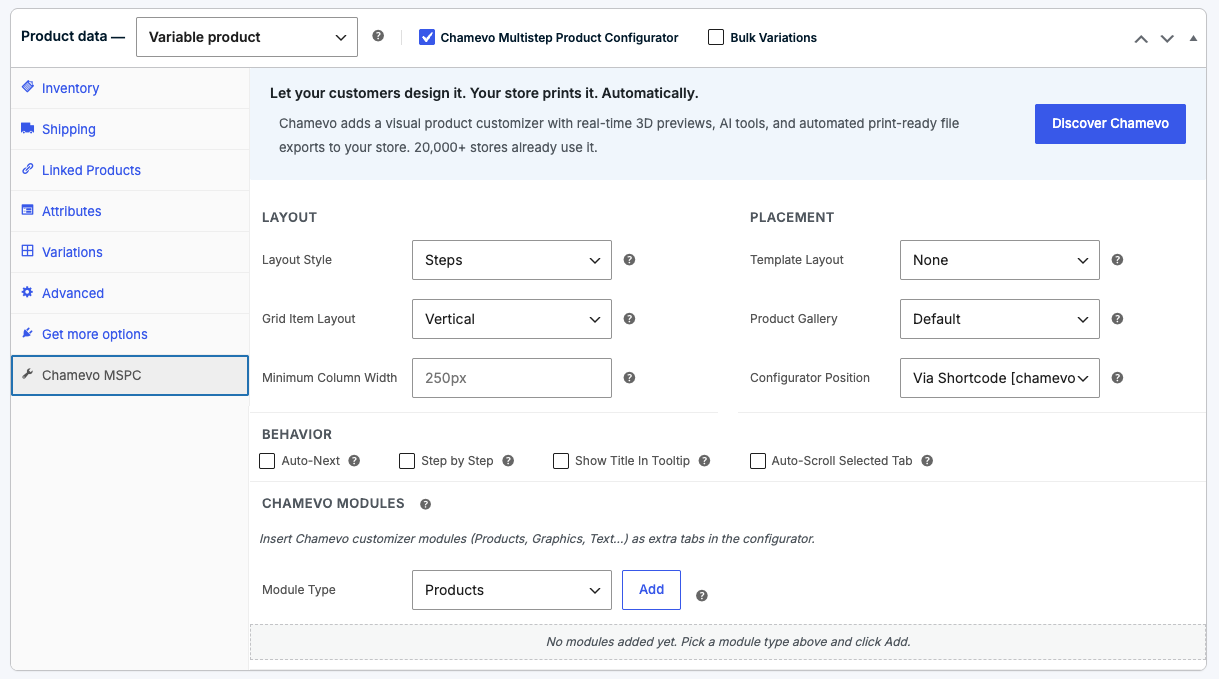
Each added module becomes its own tab, accordion panel, or step — matching the Layout Style you chose. For example, with Color (step 1), Size (step 2), and a Text module added after them, the flow becomes: Color → Size → Text → Add to Cart.
Place the configurator around the customizer
When Chamevo is active, Configurator Position gains two options in the Placement section:
- Before Chamevo Designer — the configurator renders above the customizer canvas.
- After Chamevo Designer — the configurator renders below it.