Set up the Multistep Product Configurator
Turn WooCommerce product variations into a guided, step-by-step selector with image swatches — no Chamevo customizer required.
The Chamevo Multistep Product Configurator (MSPC) replaces standard WooCommerce variation dropdowns with a visual, step-by-step selector. Customers pick attributes like color, size, and model through image swatches and clear labels instead of plain menus.
MSPC works on its own. You only need WooCommerce — the Chamevo customizer is optional. This article covers the standalone setup. To add design tools on top, see add Chamevo customizer modules to the configurator.
A good fit: a phone case where the customer first picks their phone model (each shown with a photo), then a case style, then a color — one clear step at a time.
Before you start
- WooCommerce 6.0 or higher, installed and active.
- WordPress 5.6 or higher and PHP 7.4 or higher.
- The Chamevo Multistep Product Configurator plugin, installed and active.
- A WooCommerce variable product with attributes and variations. MSPC does not work on simple products.
- Attributes created under Products → Attributes (global attributes), set to Visible on the product page.
Steps
1. Install the plugin
- Get the Chamevo Multistep Product Configurator plugin ZIP from your account.
- Go to Plugins → Add New → Upload Plugin.
- Upload the ZIP and click Install Now.
- Click Activate.
2. Enable the configurator on a product
- Go to Products and edit a variable product.
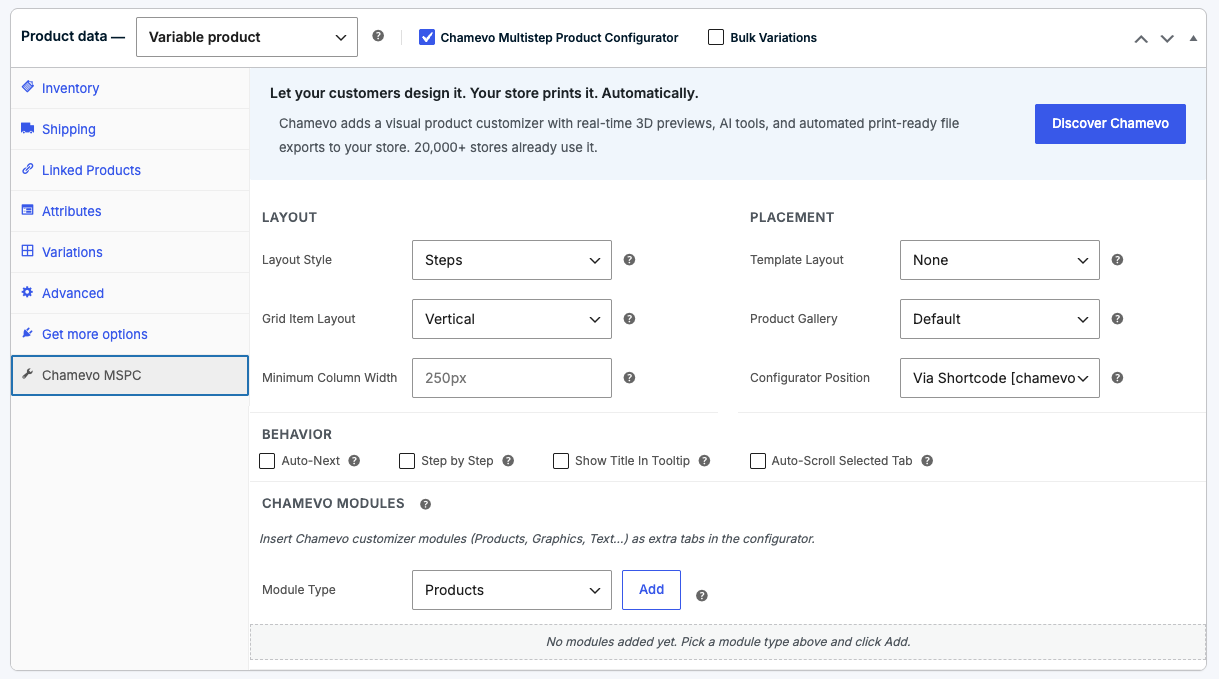
- In the Product data box, check Chamevo Multistep Product Configurator (it sits next to Virtual and Downloadable).
- Open the Chamevo MSPC tab in the Product data panel.
- Set your options (see below).
- Click Update to save the product.
3. Choose a layout
In the Chamevo MSPC tab, the Layout section controls how the steps look:
- Layout Style — Tabs, Accordion, Steps, or Steps Vertical.
- Grid Item Layout — stack each option's image and label Vertical or Horizontal.