Connect Chamevo with Gravity Forms
Use Gravity Forms instead of WooCommerce to collect customized product orders, with email notifications and print-ready file delivery.
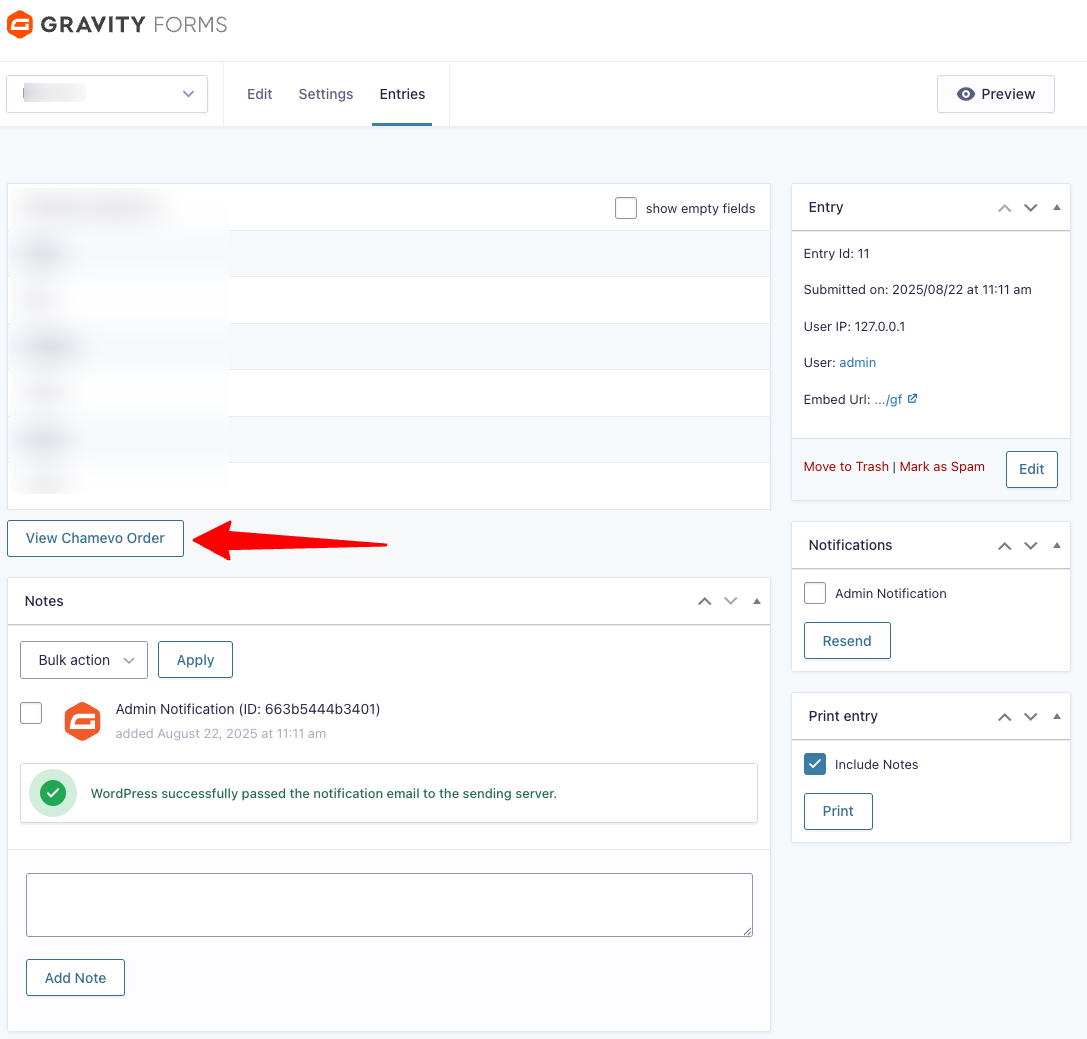
The Gravity Forms integration lets you collect customized product orders through Gravity Forms instead of (or alongside) WooCommerce. Customers design their product in the Chamevo customizer, then submit the design through a form. The form entry captures the full design data, and you receive it as a Gravity Forms entry with an order viewer.
This is useful when you do not need a full e-commerce cart flow — for example, quote requests, corporate orders, or products priced outside WooCommerce.
Before you start
- Gravity Forms must be installed and active (any license tier).
- You need a Chamevo product created in the Product Builder.
- You need access to both the Gravity Forms form editor and the WordPress admin.
Step 1: Create a Gravity Forms form
- Go to Forms → New Form in your WordPress admin.
- Add any fields you need for the order (name, email, address, etc.).
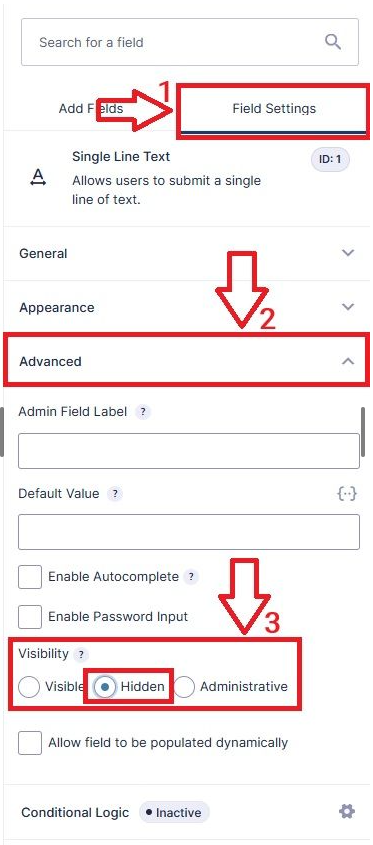
- Add a Hidden field to the form.
- In the field settings, set the CSS Class Name to
fpd-order. - Save the form.
The hidden field with the fpd-order CSS class is where Chamevo stores the design data when the customer submits the form. Without this field, the integration does not capture the design.
Step 2: Embed the customizer with the form
Use the [chamevo_gf] shortcode to display the Chamevo customizer alongside your Gravity Form. Place both the form shortcode and the customizer shortcode on the same page.
[chamevo_gf]
[gravityform id="1" title="true" description="false"]
Replace id="1" with your form's ID.
The [chamevo_gf] shortcode loads the product customizer using the same product assignment as the [chamevo] shortcode. The product must be assigned to the page through the Chamevo meta box on the post/page editor.