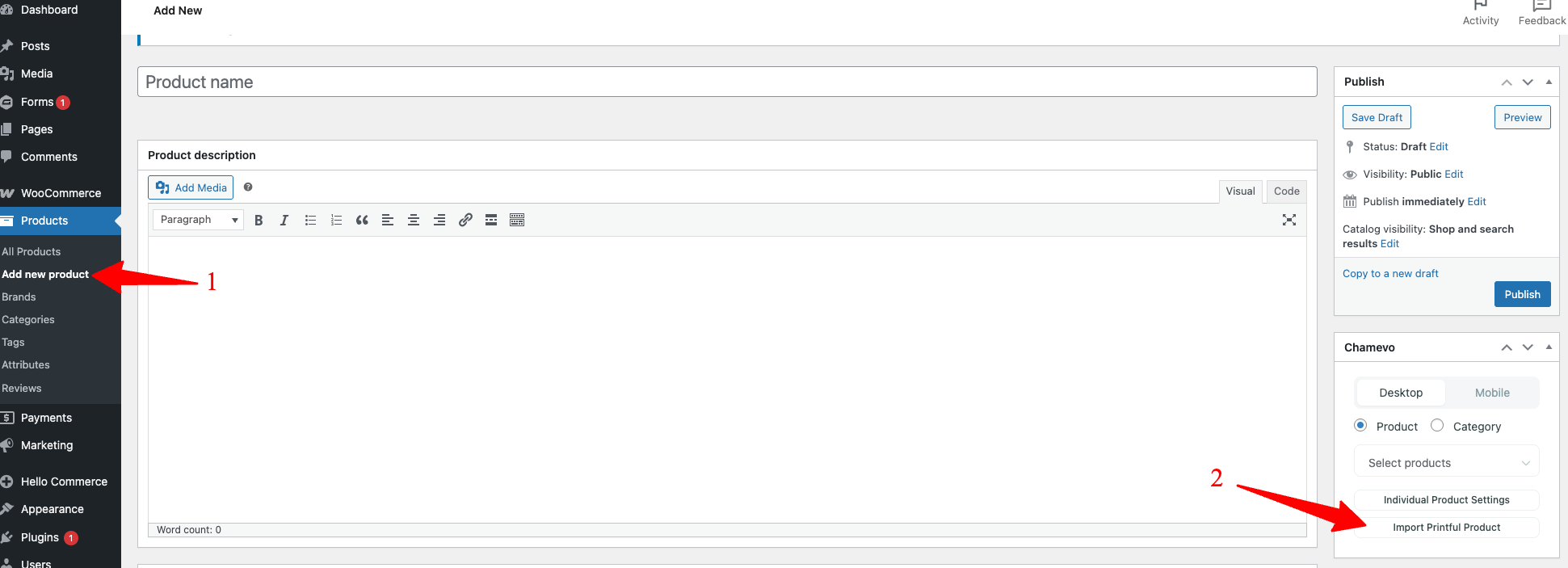
Set up Printful for print-on-demand
Connect your Printful account to Chamevo so customized product orders are automatically sent to Printful for production and fulfillment.
Updated April 28, 20265 min read
The Printful integration connects your WooCommerce store to Printful's print-on-demand service. When a customer places an order for a customized product, Chamevo generates the print-ready file and sends it directly to Printful for production and shipping. No manual file handling needed.
The integration covers three things: importing Printful product catalogs as WooCommerce variable products, generating print files in the correct format, and creating Printful orders automatically when a WooCommerce order is paid.
Before you start
- You need a Printful account with at least one product in your catalog.
- WooCommerce must be installed and active.
- Your Chamevo plan must be Growth or higher. The Printful settings are not available on the Starter plan.
- You need your Printful API token. Find it in your Printful dashboard under Settings → API.
Step 1: Enter your Printful API token
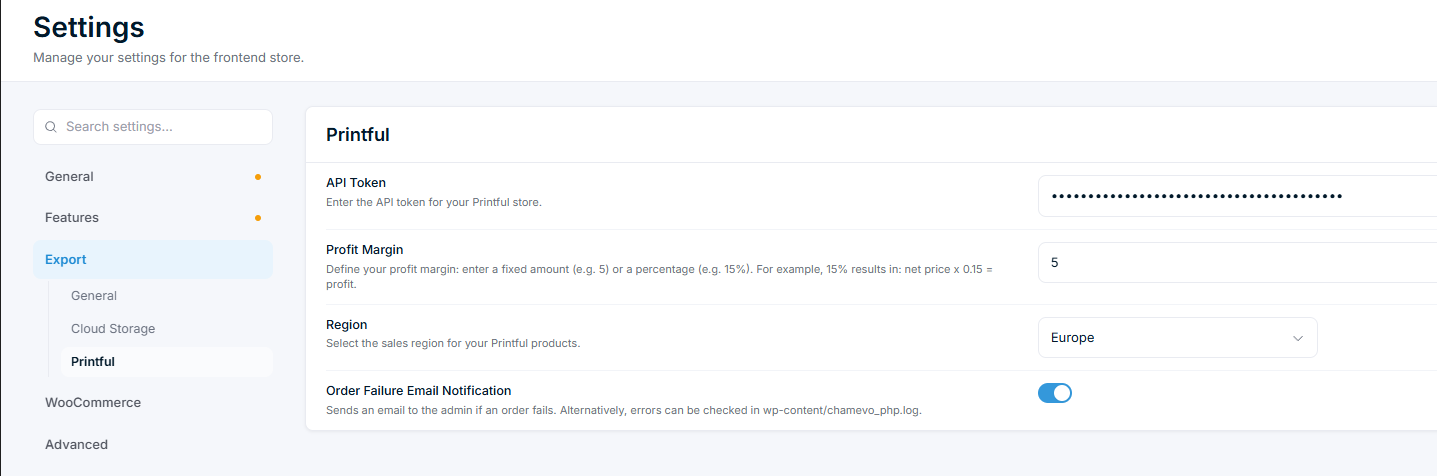
- Go to Chamevo → Settings in your WordPress admin.
- Open the Export tab.
- Click the Printful section.
- Paste your Printful API token in the API Token field.
- Save settings.
Step 2: Configure Printful settings
Three additional settings are available in the Printful section:
| Setting | What it does | Default |
|---|---|---|
| Profit Margin | Adds your profit on top of Printful's base price. Enter a fixed amount (e.g., 5) or a percentage (e.g., 15%). A 15% margin means: Printful price × 1.15 = your selling price |
Related articles
Add Chamevo customizer modules to the Multistep Product ConfiguratorInsert Chamevo customizer modules as steps in the configurator and add option images straight to the customizer canvas.Connect Chamevo with Gravity FormsUse Gravity Forms instead of WooCommerce to collect customized product orders, with email notifications and print-ready file delivery.Set up the Multistep Product ConfiguratorTurn WooCommerce product variations into a guided, step-by-step selector with image swatches — no Chamevo customizer required.Let vendors sell customizable products with DokanConfigure the Dokan marketplace plugin so vendors can create and manage their own customizable products with Chamevo.