Wir bereiten die neuesten Anleitungen, Releases und Feature-Updates vor.
Anleitungen werden geladen
Wir bereiten die passenden Inhalte der Wissensdatenbank für diese Plattform vor.
Druckfertige Dateien an Cloud-Speicher liefern | Chamevo Support Center
Druckfertige Dateien an Cloud-Speicher liefern
Verbinden Sie Dropbox oder AWS S3, um druckfertige Dateien nach Abschluss der Bestellung automatisch zu speichern.
Aktualisiert am 28. April 20265 Min. Lesezeit
Chamevo kann druckfertige Dateien nach Abschluss einer Bestellung automatisch in Dropbox oder AWS S3 hochladen. So entfallen manuelle Downloads, und Ihre Produktionsdateien bleiben an einem Ort organisiert.
Die Zustellung an Cloud-Speicher erfordert einen Growth-Plan oder höher.
Bevor Sie beginnen
Sie haben einen Growth-Plan oder höher.
Ihre Export-Einstellungen sind unter Chamevo > Settings > Export konfiguriert.
Für Dropbox: Sie haben ein Dropbox-Konto und können in der Dropbox App Console eine App erstellen.
Für AWS S3: Sie haben ein AWS-Konto mit einem S3-Bucket und IAM-Anmeldedaten.
Wählen Sie App folder als Zugriffsebene (empfohlen) oder Full Dropbox.
Benennen Sie Ihre App (zum Beispiel „Chamevo Print Files").
Klicken Sie auf Create.
App-Berechtigungen konfigurieren
Öffnen Sie in den Einstellungen Ihrer Dropbox-App den Tab Permissions.
Aktivieren Sie diese vier Berechtigungen:
files.metadata.write
files.metadata.read
files.content.write
files.content.read
Klicken Sie auf Submit.
Dropbox in Chamevo verbinden
Kopieren Sie Ihren App Key und Ihr App Secret aus den Dropbox-App-Einstellungen.
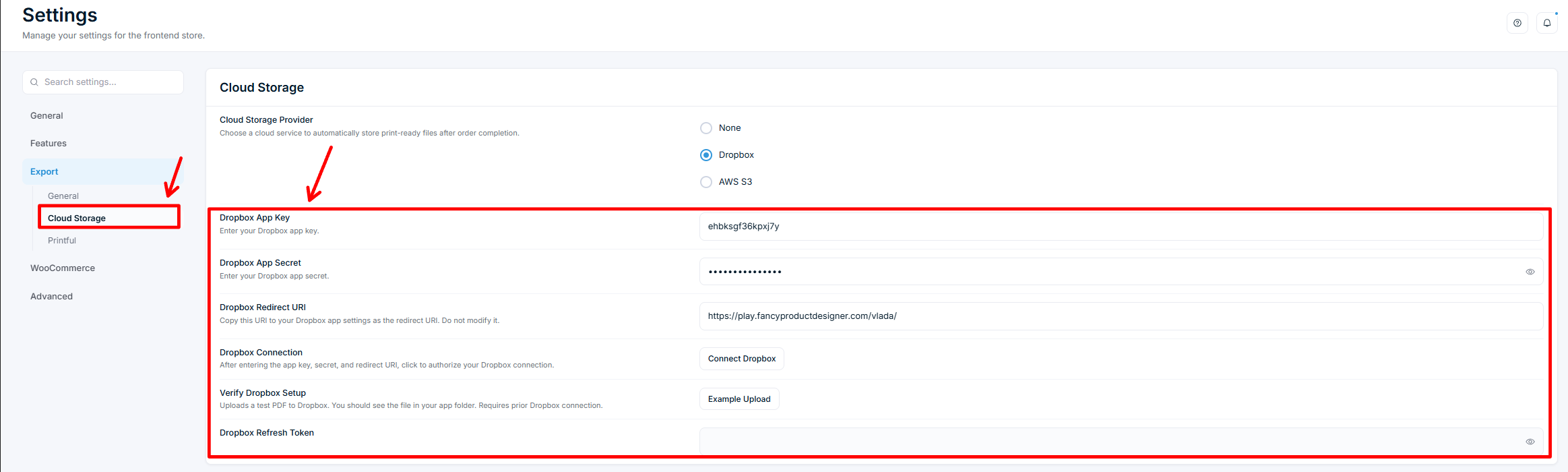
Gehen Sie in Ihrem WordPress-Adminbereich zu Chamevo > Settings > Export > Cloud Storage (der Cloud-Storage-Untertab erscheint bei Growth-Plänen und höher).
Setzen Sie Cloud Storage Provider auf Dropbox.
Fügen Sie Ihren Dropbox App Key und Ihr Dropbox App Secret ein.
Kopieren Sie die Dropbox Redirect URI und fügen Sie sie unter Redirect URIs in der Dropbox App Console zu Ihrer Dropbox-App hinzu. Das Feld ist schreibgeschützt — Chamevo bildet es aus Ihrer Website-URL, es gibt also nichts einzutippen oder zu korrigieren.
Eine Dropbox-Autorisierungsseite öffnet sich. Melden Sie sich an und klicken Sie auf Allow.
Sie werden zurück in Ihren WordPress-Adminbereich geleitet. Die Verbindung ist nun aktiv.
Klicken Sie auf Save Changes.
Zur Redirect URI
Die Redirect URI ist immer die Adresse Ihrer eigenen Website. Dropbox sendet den Autorisierungscode dorthin zurück, und Ihr Browser erlaubt Chamevo das Auslesen dieses Codes nur, wenn die Seite im selben Origin wie Ihr WordPress-Adminbereich landet. Jeder andere Host kann die Verbindung nie abschließen — deshalb ist das Feld nicht mehr bearbeitbar.
Shops, die von Fancy Product Designer umgestiegen sind, trugen oft eine alte Redirect-Adresse, die den Verbindungsvorgang stillschweigend blockierte. Chamevo ersetzt diesen Wert nun automatisch, es muss also nichts von Hand bereinigt werden.
Wenn Sie Ihre Website auf eine neue Domain umziehen, aktualisiert sich das Feld selbst. Kopieren Sie den neuen Wert in die Dropbox App Console und stellen Sie die Verbindung erneut her. Siehe Chamevo auf eine neue Domain umziehen.
Die Dropbox-Verbindung überprüfen
Klicken Sie auf Example Upload (unter Verify Dropbox Setup).
Öffnen Sie Ihren Dropbox-App-Ordner.
Bestätigen Sie, dass eine Test-PDF-Datei erscheint.
Option 2: AWS S3 verbinden
Einen IAM-Benutzer und S3-Bucket erstellen
Melden Sie sich bei der AWS Management Console an.
Gehen Sie zu IAM > Users und klicken Sie auf Add User.
Geben Sie einen Benutzernamen ein (zum Beispiel „chamevo-print-files").
Wählen Sie Programmatic access (oder erstellen Sie einen Access Key).
Weisen Sie eine IAM-Richtlinie zu, die S3-Lese-/Schreibzugriff gewährt. Eine minimale Richtlinie:
s3:PutObject
s3:GetObject
s3:ListBucket
Schließen Sie die Benutzererstellung ab. Speichern Sie die Access Key ID und den Secret Access Key.
Falls Sie noch keinen Bucket haben, gehen Sie zu S3 und erstellen Sie einen in Ihrer bevorzugten Region.
S3 in Chamevo verbinden
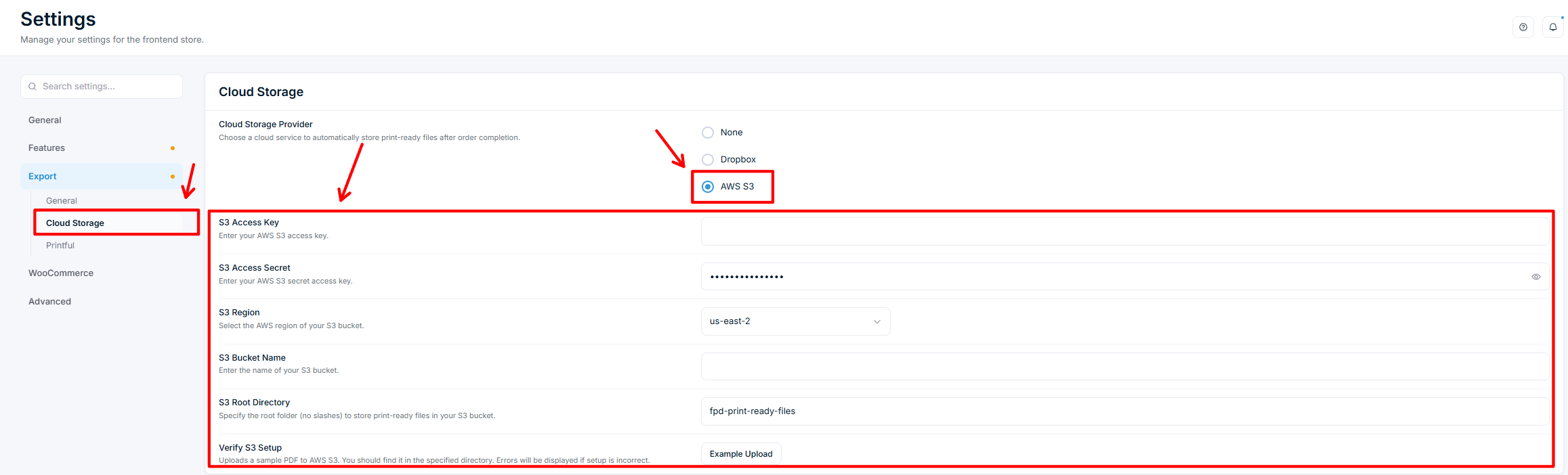
Gehen Sie zu Chamevo > Settings > Export > Cloud Storage.
Setzen Sie Cloud Storage Provider auf AWS S3.
Geben Sie Ihren S3 Access Key und Ihr S3 Access Secret ein.
Wählen Sie die S3 Region, die zu Ihrem Bucket passt.
Geben Sie den S3 Bucket Name ein.
Geben Sie das S3 Root Directory ein — den Ordnernamen, in dem Dateien gespeichert werden (Standard: chamevo-print-ready-files). Keine führenden oder abschließenden Schrägstriche.
Klicken Sie auf Save Changes.
Die S3-Verbindung überprüfen
Klicken Sie auf Example Upload (unter Verify S3 Setup).
Öffnen Sie Ihren S3-Bucket in der AWS Console.
Navigieren Sie zu dem von Ihnen angegebenen Root Directory.
Bestätigen Sie, dass eine Test-PDF-Datei erscheint.
Wenn der Upload fehlschlägt, erklärt eine Fehlermeldung das Problem (falsche Anmeldedaten, fehlende Berechtigungen, Bucket nicht gefunden).
Wie Dateien organisiert werden
Nach Abschluss einer Bestellung lädt Chamevo die druckfertige Datei in Ihren Cloud-Speicher hoch. Dateien werden nach Bestellnummer, Produktname und Zeitstempel organisiert.
Sowohl Dropbox als auch S3 speichern Dateien im Root Directory, das Sie konfigurieren. Jede Bestellung erstellt eine Ordnerstruktur, die Dateien identifizierbar und sortiert hält.
Überprüfen Sie Ihr Setup
Bestätigen Sie, dass der Cloud-Speicheranbieter verbunden ist (Dropbox oder S3).
Führen Sie den Überprüfungstest Example Upload aus.
Geben Sie eine Testbestellung mit einem individualisierten Produkt auf.
Prüfen Sie nach Abschluss der Bestellung Ihren Cloud-Speicher auf die druckfertige Datei.
Fehlerbehebung
Die Dropbox-Verbindung schlägt fehl. Überprüfen Sie, ob App Key und App Secret zu Ihrer Dropbox-App passen. Bestätigen Sie, dass die Redirect URI in den Einstellungen Ihrer Dropbox-App zeichengenau mit der übereinstimmt, die Chamevo anzeigt. Prüfen Sie, ob alle vier Berechtigungen aktiviert und übermittelt (Submit) wurden.
Der S3-Upload schlägt mit „Access Denied" fehl. Überprüfen Sie, ob der IAM-Benutzer die Berechtigung s3:PutObject für den richtigen Bucket hat. Bestätigen Sie, dass Bucket-Name und Region korrekt sind.
Dateien erscheinen nach Abschluss der Bestellung nicht. Der Cloud-Speicher-Upload erfolgt, nachdem die Bestellung als bezahlt oder abgeschlossen markiert wurde. Prüfen Sie den Bestellstatus in WooCommerce. Bei Shortcode- und Gravity-Forms-Bestellungen werden Dateien sofort bei der Bestellerstellung hochgeladen.
Das Dropbox-Autorisierungsfenster öffnet sich, wird aber nie fertig. Die in der Dropbox App Console hinterlegte Redirect URI passt nicht zu Ihrer Website. Kopieren Sie den Wert erneut aus dem Chamevo-Feld und tragen Sie ihn in Dropbox neu ein. Das ist das typische Symptom nach einem Domainwechsel oder einem Umstieg von Fancy Product Designer.
F: Kann ich Dropbox und S3 gleichzeitig verwenden?
A: Nein. Sie können jeweils nur einen Cloud-Speicheranbieter auswählen. Wählen Sie den, der zu Ihrem Produktionsworkflow passt.
F: Werden druckfertige Dateien bei Verwendung von Cloud-Speicher weiterhin auf meinem Server gespeichert?
A: Ja. Cloud-Speicher ist eine zusätzliche Zustellmethode. Die Dateien bleiben auf Ihrem Server und sind über Chamevo > Orders zugänglich.
F: Funktioniert die Zustellung an Cloud-Speicher mit allen Bestellquellen?
A: Ja. Dateien werden für Bestellungen aus WooCommerce, Shortcode-Formularen und Gravity Forms in den Cloud-Speicher hochgeladen.
F: Was passiert, wenn der Cloud-Upload fehlschlägt?
A: Die druckfertige Datei wird trotzdem erzeugt und auf Ihrem Server gespeichert. Der fehlgeschlagene Cloud-Upload wird protokolliert. Sie können wp-content/chamevo_php.log auf Fehlerdetails prüfen und die Datei manuell über Chamevo > Orders herunterladen.