Preparing the latest guides, releases, and feature request updates.
Loading guides
Preparing the right Knowledge Base content for this platform.
Set up print profiles for your production workflow | Chamevo Support Center
Set up print profiles for your production workflow
Create print profiles to control file uploads, element behavior, color options, and module availability across products, views, and print areas.
Updated April 28, 20265 min read
Print profiles control what customers can do in the product customizer: which file types they upload, how elements behave, which colors are available, and which modules appear. Create different profiles for different product types and assign them at the product, view, or print area level.
Before you start
You have access to your WordPress admin.
You have at least one product created in Chamevo > Products.
How print profiles work
Every Chamevo installation has a Master Print Profile. This profile sets the default behavior for all products. You cannot delete the Master Print Profile.
You can create additional profiles to override the Master for specific products. Settings cascade through four levels:
Master Print Profile — default for all products
Product — overrides the Master for that product
View — overrides the product-level profile for that view (front, back, etc.)
Print area — overrides the view-level profile for that print area
A setting at a lower level always overrides the same setting at a higher level. If you set Minimum DPI to 150 in the Master and 300 in a product-level profile, that product uses 300 DPI.
Steps
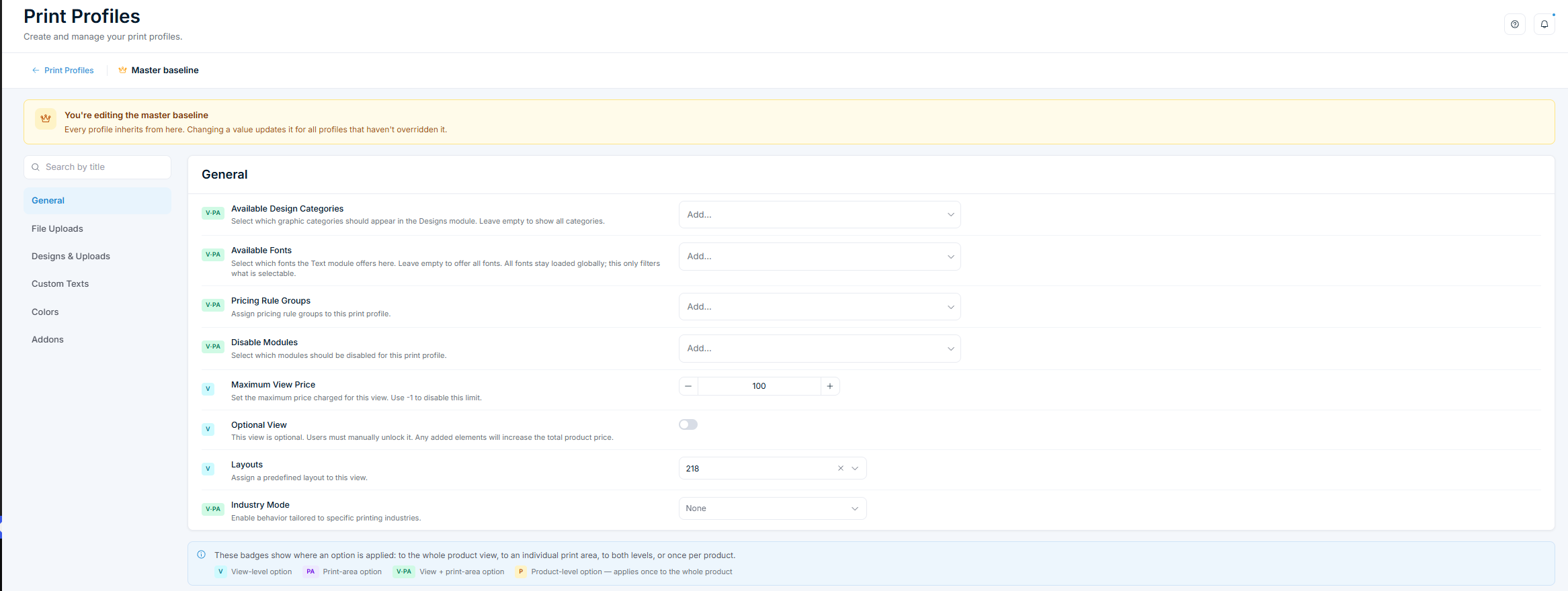
Edit the Master baseline
Go to Chamevo > Print Profiles.
Click Edit master.
Configure settings across the six tabs (see below).
Click Save Changes.
The Master baseline includes some settings that only appear at the Master level: All images colors, All texts colors and stroke colors, and Patterns in the Colors tab. These are marked "master only".
Create a new print profile
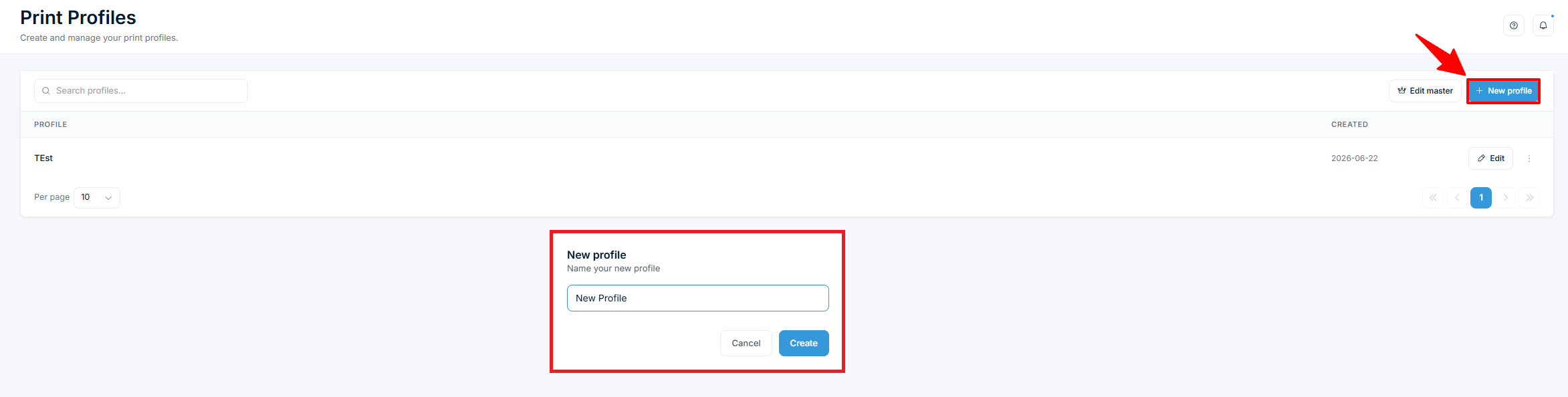
Go to Chamevo > Print Profiles.
Click New profile.
Enter a name (for example, "Apparel" or "Business Cards").
You only need to change the settings that differ from the Master. Everything else inherits automatically.
Assign a print profile to a product
The product-level profile is set in the product's settings, not the Product Builder:
Go to Chamevo > Products.
Click Settings on the product.
In the Product Settings panel, choose a profile from the Print Profile dropdown.
Click Save Changes.
Assign a print profile to a view or print area
View-level and print-area profiles are set in the Product Builder:
Expand the product by its views count and click Edit in Product Builder on a view.
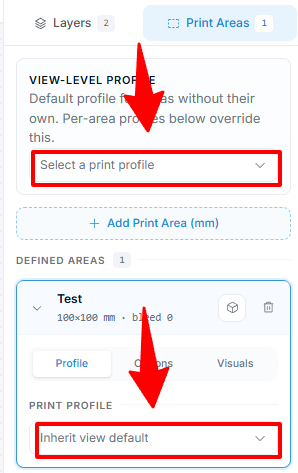
Open the Print areas tab in the sidebar.
For the whole view, choose a profile under View-level profile ("Select a print profile").
For a single print area, select it, open its Profile tab, and choose a profile in the Print Profile dropdown (it defaults to "Inherit view default").
Print area profiles override the view-level profile, which overrides the product-level profile.
Print profile tabs
Each profile has six configuration tabs:
General
Setting
What it does
Available Design Categories
Select which graphic categories appear in the Designs module. Leave empty to show all
Available Fonts
Limit which fonts the Text module offers. Leave empty to offer all
Pricing Rule Groups
Assign pricing rule groups to this profile
Disable Modules
Hide specific modules (Uploads, Texts, Graphics)
Maximum View Price
Cap the maximum price for a view. Use -1 to disable
Optional View
Make a view optional — customers unlock it manually
Layouts
Assign a predefined layout to a view
Industry Mode
Enable industry-specific behavior (Engraving)
(Note: Customization Required is a global setting in Chamevo > Settings > General > Display, not a print-profile field.)
When Industry Mode is set to Engraving, additional settings appear: Engraving Opacity (default 0.5), Engraving Filter (an image filter such as Threshold Negative), and Invert Transparency.
File Uploads
Controls file upload behavior. Has two sections:
Restrictions
Setting
Default
What it does
Allowed File Types
JPEG, PNG, SVG, PDF
File types customers can upload
Minimum DPI
72
DPI below which a JPG/PNG upload shows a warning (not a hard block)
Image Quality Low DPI
—
DPI threshold for the first quality star
Image Quality Mid DPI
—
DPI threshold for the second quality star
Image Quality High DPI
—
DPI threshold for the third quality star
The maximum upload file size is a separate global setting — Chamevo > Settings > Features > Uploads > Maximum Image Size (MB) (default 10) — not a print-profile field.
Transformations
Setting
Default
What it does
Scale To Width
0
Scale uploaded images by width. Accepts pixels or percentage (e.g. 80%)
Scale To Height
0
Scale uploaded images by height. Accepts pixels or percentage
Designs & Uploads
Controls how uploaded images and designs behave on the canvas.
Positioning: Auto-Center (on by default), Layer Order, Replace, Replace In All Views, Stay On Top.
Interactions: Draggable, Rotatable, Resizable (all on by default), Allow Layer Reordering, Auto-Select, Allow Free Scaling, Duplicatable.
Advanced: Price per element, Minimum Scale Limit.
Custom Texts
Controls how customer-added text behaves.
Positioning: Auto-Center (on by default), Layer Order, Replace, Replace In All Views, Stay On Top.
Interactions: Draggable, Rotatable, Resizable (all on by default), Allow Layer Reordering, Auto-Select, Allow Free Scaling.
Styles & Content: Font Size (default 18), Minimum/Maximum Font Size, Font Size To Width, Font Family, Alignment (Left/Center/Right), Maximum Characters, Maximum Lines, and Text Link Group.
Text Curving: Curvable, Reverse, Spacing, and Radius.
Advanced: Price per text element.
Colors
Controls color options across four sections:
Section
What it controls
Master only?
Customer images
Fill colors, default color, and color link group for customer-uploaded images
No
All images
Fill colors, color link group, and patterns for all graphics
Master only
Customer texts
Fill colors and color link group for customer-added text
No
All texts
Fill colors, stroke colors, and patterns for all text elements
Master only
Each section has a Color Selection dropdown (None / All Colors (Color Picker) / Color Palette). Leave it at "Not set (use legacy color fields)" to keep using the older Fill Colors field. See Set default colors and color options in print profiles.
Addons
Configures optional module settings:
Dynamic Views — Price per cm², predefined formats, min/max width and height
Names & Numbers — Dropdown values, item price per entry
Bulk Variations — Available options in Size=M|L;Color=Red|Blue format
View and print area indicators
Settings marked with a blue dot can be overridden at the view level. Settings marked with a purple dot can be overridden at the print area level. The profile editor shows these indicators next to each applicable setting.
Check your setup
Go to Chamevo > Print Profiles. Confirm the Master Print Profile has your default settings.
Open a product in the Product Builder. Confirm a print profile is assigned.
Launch the product customizer on your store. Verify that modules, file types, and color options match your profile configuration.
Troubleshooting
Changes do not appear in the product customizer. Confirm you clicked Save Changes in the profile editor and Save View in the Product Builder. Clear your browser cache.
A setting appears in the Master but not in a custom profile. Some settings (the All images and All texts colors, stroke colors, and patterns) are marked "master only" and exist only in the Master baseline. These apply globally and cannot be overridden per profile.
Custom profile does not override the Master. Confirm the profile is assigned to the product (in Products > Settings) or to the view/print area (in the Product Builder's Print areas tab).
Q: What is the difference between the Master Print Profile and a custom profile?
A: The Master sets defaults for all products. A custom profile overrides specific settings for assigned products, views, or print areas. Some color and pattern settings exist only in the Master.
Q: Can I assign different profiles to different views of the same product?
A: Yes. In the Product Builder, open Print Settings and select a profile for each view or print area independently.
Q: Do I need to configure every setting in a custom profile?
A: No. Only change the settings you want to override. Everything else inherits from the Master Print Profile.
Q: How many print profiles can I create?
A: There is no limit. Create as many profiles as your product types require.