Set default colors and color options in print profiles
Use the Color Selection mode and Color Palette picker in the Colors tab to control which colors customers can apply to images and text.
Updated April 28, 20265 min read
The Colors tab in a print profile controls which colors customers can apply to images and text. Each section now starts with a Color Selection setting — you choose whether customers get the full color picker, a fixed Color Palette, or no color control at all.
Palettes come from your shared color library on the Colors page, so you build a palette once and reuse it across profiles.
Before you start
- You have access to your WordPress admin.
- If you plan to use a fixed palette, create it first on the Colors page, on the Palettes tab.
- You understand the difference between the Master Print Profile and custom profiles.
The four color sections
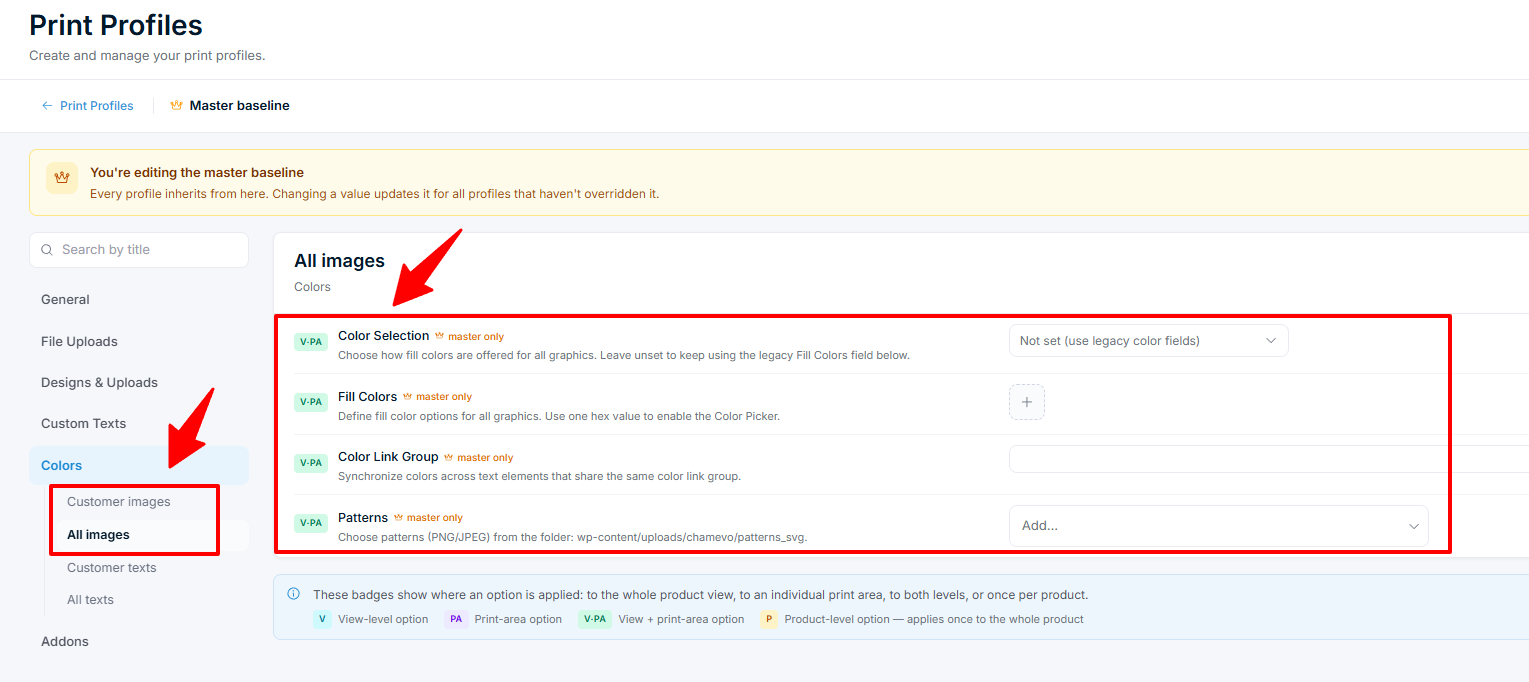
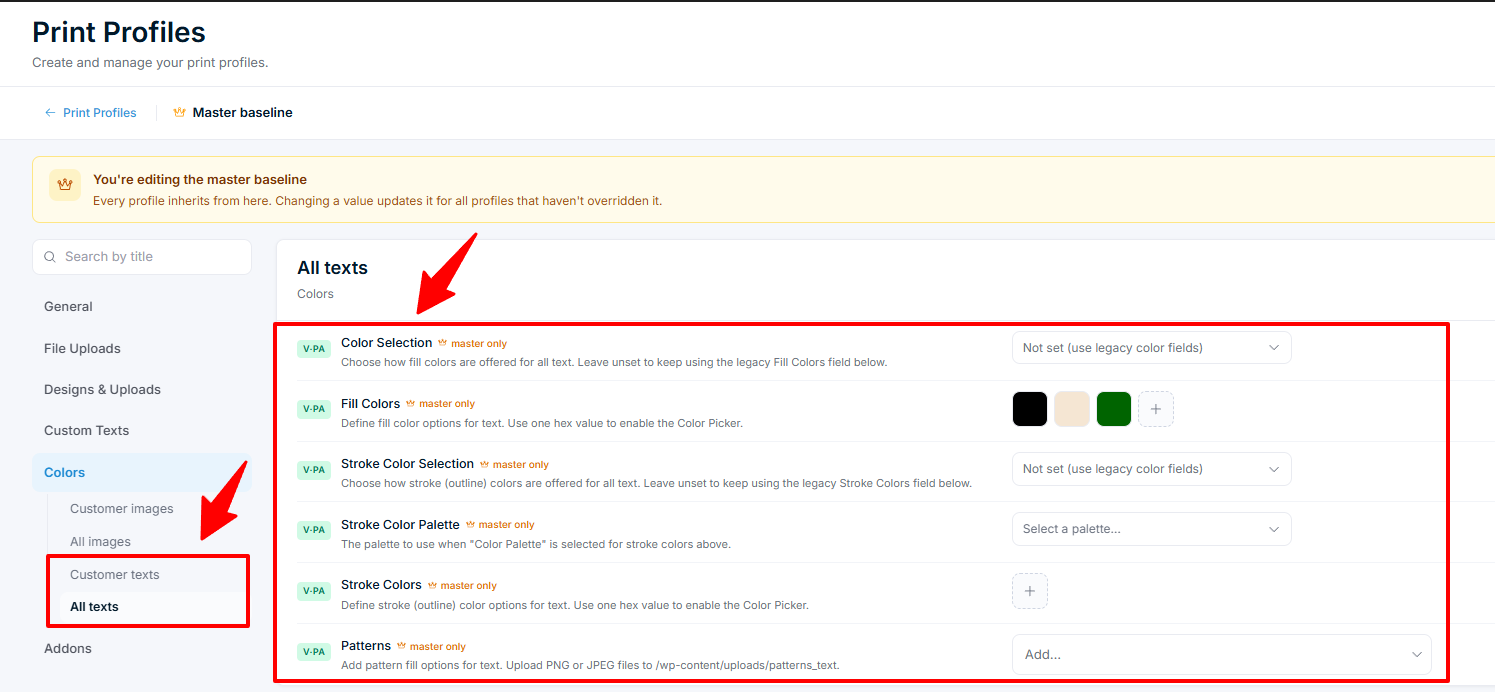
Open the Colors tab in any print profile. It has four sections:
| Section | What it controls | Available in |
|---|---|---|
| Customer images | Colors for customer-uploaded images and library graphics | All profiles |
| All images | Colors for every image element | Master Print Profile only |
| Customer texts | Colors and default color for customer-added text | All profiles |
| All texts | Fill colors, stroke colors, and patterns for every text element | Master Print Profile only |
Related articles
Print-Ready Exports overviewUnderstand how Chamevo generates print-ready files from customer designs, which formats are available, and how files reach your production workflow.Set up print profiles for your production workflowCreate print profiles to control file uploads, element behavior, color options, and module availability across products, views, and print areas.Configure bleed zones and output dimensionsSet up print areas with exact dimensions in millimeters, add bleed zones for trimming, and apply SVG masks for custom shapes.Prepare your setup for print-ready file generationVerify server requirements, fonts, file upload settings, and colorization before generating your first print-ready files.