
Create text templates
Build preset text snippets with fonts, sizes, and alignment that customers can add to their designs with one click.
Updated April 28, 20265 min read
Text templates are preset text snippets with pre-configured fonts, sizes, and alignment. Customers add them to the canvas with one click instead of typing from scratch. Use them for common phrases ("Happy Birthday," "Thank You"), styled headlines, or text blocks that match your brand.
Before you start
- You have access to your WordPress admin.
- You have fonts added to your font collection. Text templates use fonts from your Font Manager.
Steps
Create a text template
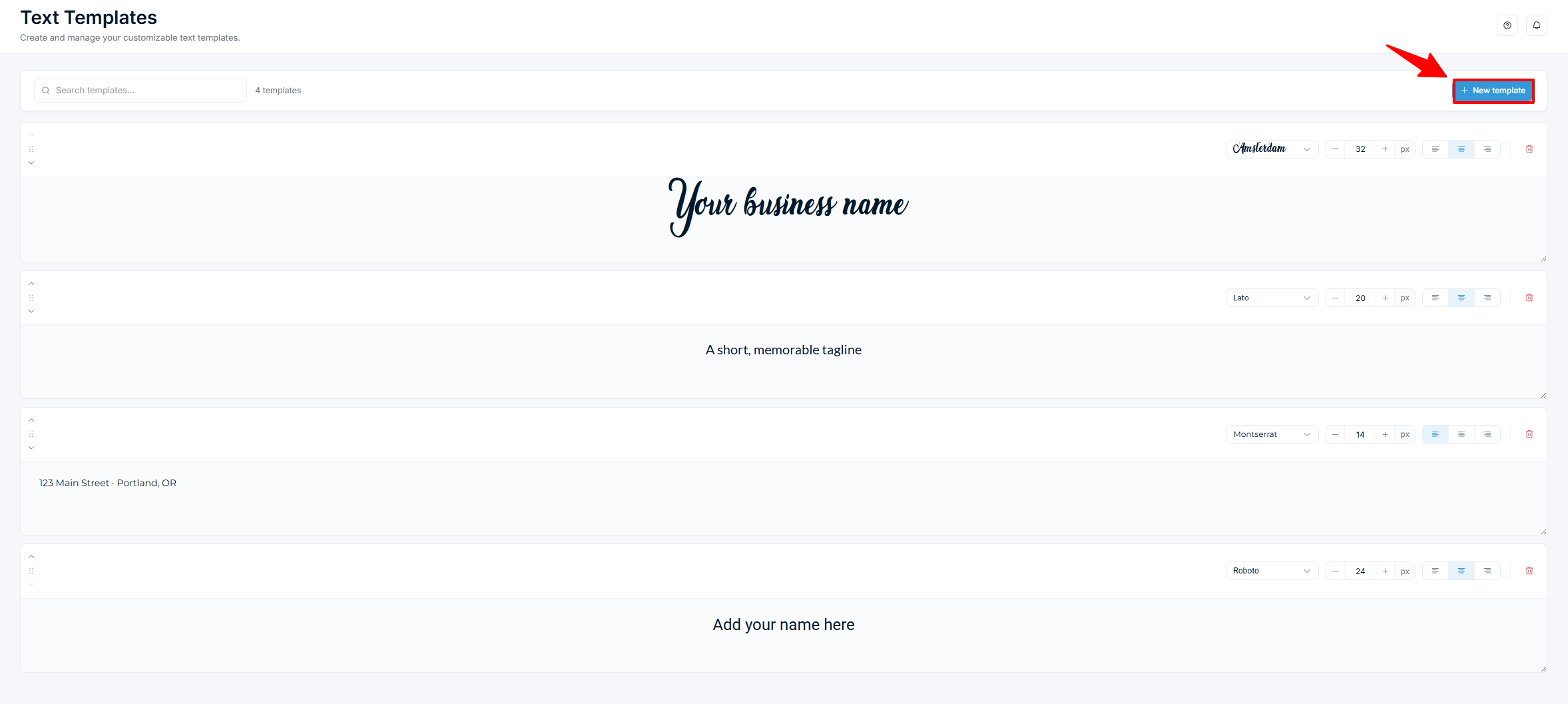
- Go to Chamevo > Text Templates in your WordPress admin.
- Click New template.
- A new template card appears with default text ("Enter your text").
- Configure the template:
- Font — select a font from the dropdown. The dropdown shows fonts from your Font Manager, each rendered in its own typeface.
- Font size — set the text size in pixels.
- Alignment — choose Left, Center, or Right.
- Text Content — type the template text in the text area. The preview updates live in the font and size you selected.
- Click Save Changes.
Create multiple templates
Repeat the steps above for each template you want. Add as many as you need — there is no limit. Each template gets its own card.
Edit a template
- Go to Chamevo > Text Templates.
- Change the font, size, alignment, or text content on any template card.
- Click Save Changes.
Delete a template
- Click the trash icon on the template card you want to remove.
- Click Save Changes.
How templates appear in the product customizer
Related articles
Manage your fonts collectionAdd Google Fonts or upload custom TTF fonts so customers can use them in the product customizer.Create and manage graphic bundlesGroup graphic categories into dedicated modules that appear as separate panels in the product customizer.Browse and organize your graphics libraryCreate graphic categories, upload images, browse the built-in library, and configure per-graphic options.Manage your color library and palettesDefine colors once with names and surcharges, group them into palettes, and set the storefront color picker presets on the Chamevo Colors page.