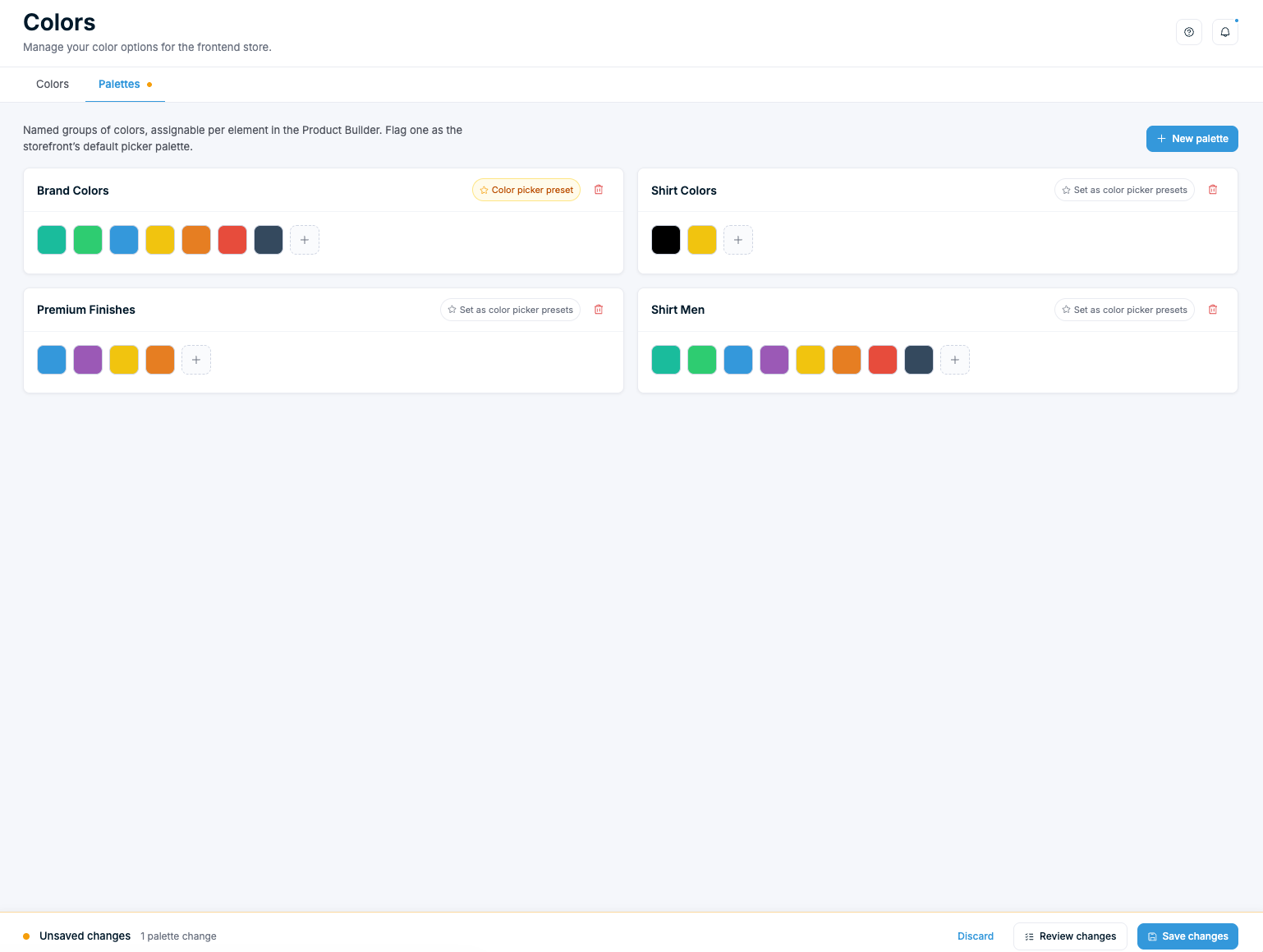
Manage your color library and palettes
Define colors once with names and surcharges, group them into palettes, and set the storefront color picker presets on the Chamevo Colors page.
The Colors page is your single color library. You define each color once — its hex value, an optional name, and an optional surcharge — then group colors into palettes that the Product Builder and print profiles can reuse. These settings apply globally to every product that uses colors in the product customizer.
For per-element and per-product color settings, see Colorization methods and setup.
Before you start
- You have access to your WordPress admin.
- You know which hex color codes you want to offer (for example,
#FF0000for red,#001F3Ffor navy).
The Colors page
Go to Chamevo → Colors in your WordPress admin. The page has two tabs:
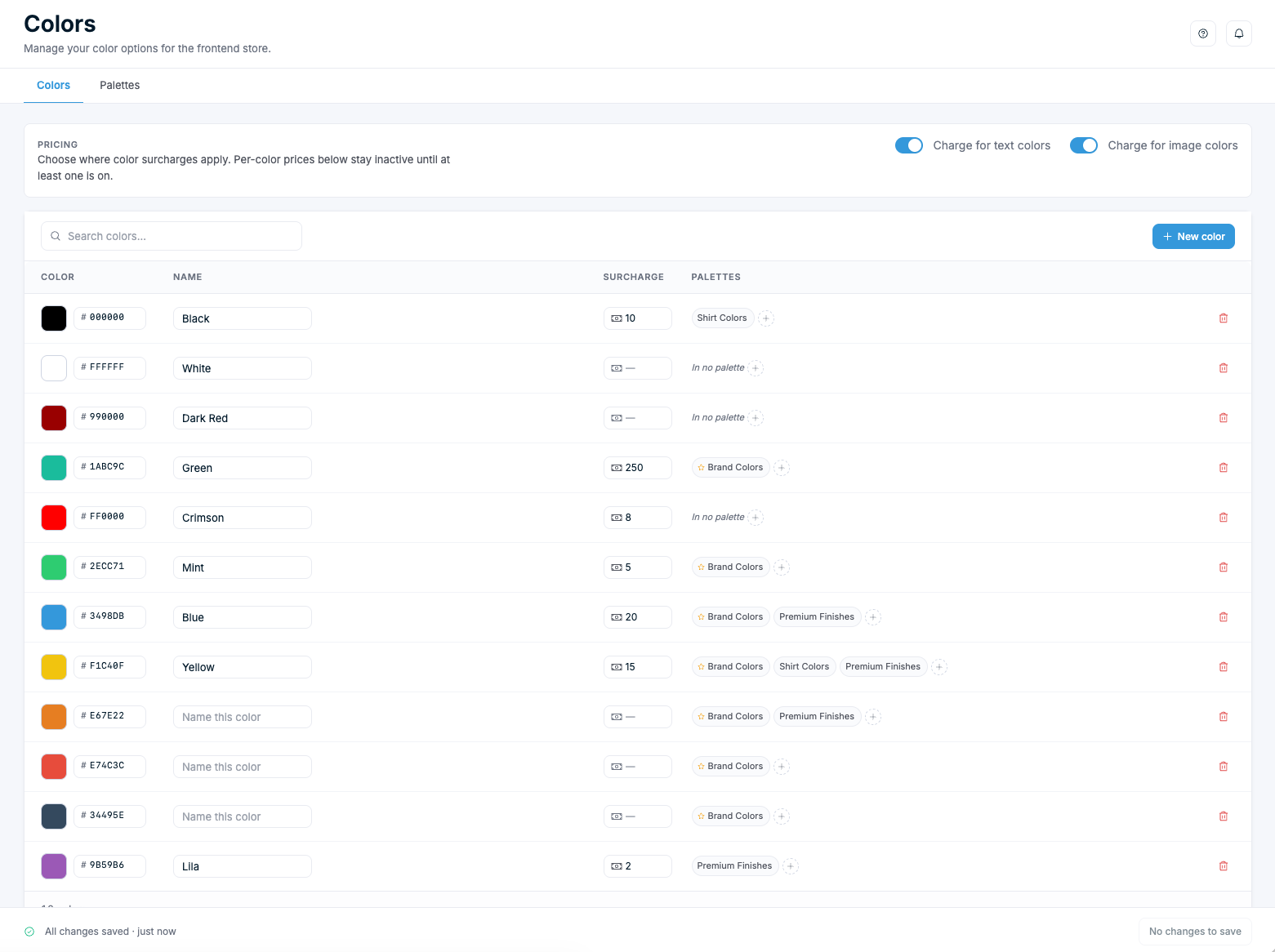
- Colors — your full color library. Each color holds a hex value, an optional name, an optional surcharge, and the palettes it belongs to.
- Palettes — named groups of colors you assign to elements and print profiles. One palette can also act as the storefront color picker presets.
Edits are staged as you work. The Save changes button in the bottom-right stays disabled ("No changes to save") until you make a change, then becomes active. Click it to apply your edits. The bar on the bottom-left shows the current state — "Unsaved changes", "Saving…", or "All changes saved".
Build your color library
The Colors tab lists every color in one table. Each row has four columns: Color (swatch and hex), Name, Surcharge, and Palettes.
Add a color
- Go to Chamevo → Colors and open the Colors tab.
- Click New color.
- Set the hex value in the Color column — click the swatch to use the picker, or type the hex code.
- Type a label in the Name column (for example, "Navy Blue"). Naming is optional.
- Click Save changes.
Named colors show a readable label instead of a raw hex code in the product customizer. Customers see "Navy Blue" instead of "#001F3F." Leave the name blank to show the hex value.