Replace and swap elements on the canvas
Use replace rules to control how elements swap when customers add new images or graphics to the canvas.
Updated April 28, 20265 min read
The replace feature controls how elements swap on the canvas. When a customer adds a new element that shares a replace name with an existing one, the old element is automatically removed. This keeps designs clean and prevents customers from stacking too many elements.
Before you start
- You have created a product with at least one view.
- You have access to the Product Builder (Chamevo > Products in your WordPress admin).
How replace works
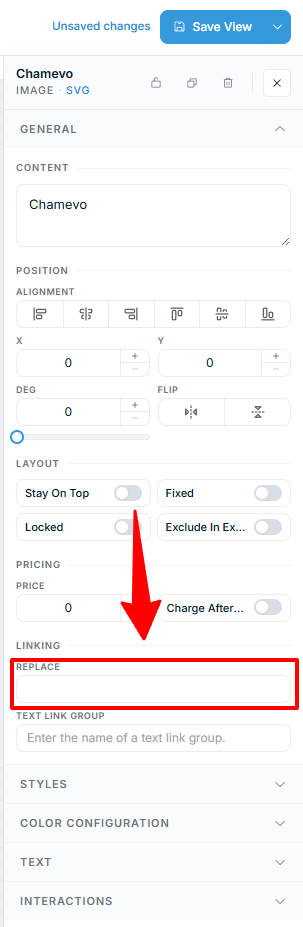
Every element has a Replace field in its properties. Enter a text label you define. When a customer adds a new element with the same replace label, it replaces the existing one. Only one element per replace label can exist at a time.
Common use cases:
- Logo placeholder — place a logo image with a replace name like "logo". When the customer uploads their own logo, it replaces yours.
- Single design from a category — set the same replace name on a graphics category. Customers can browse and pick one design. Adding a second one swaps out the first.
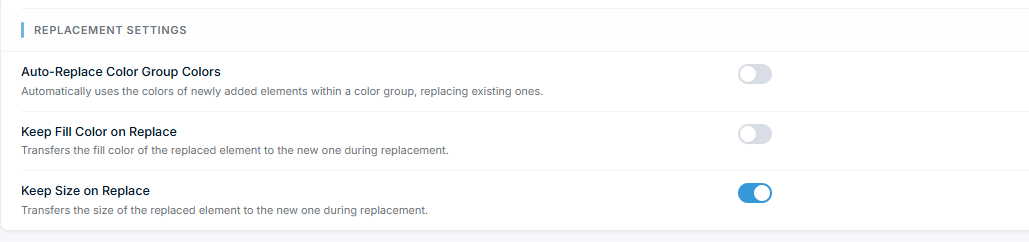
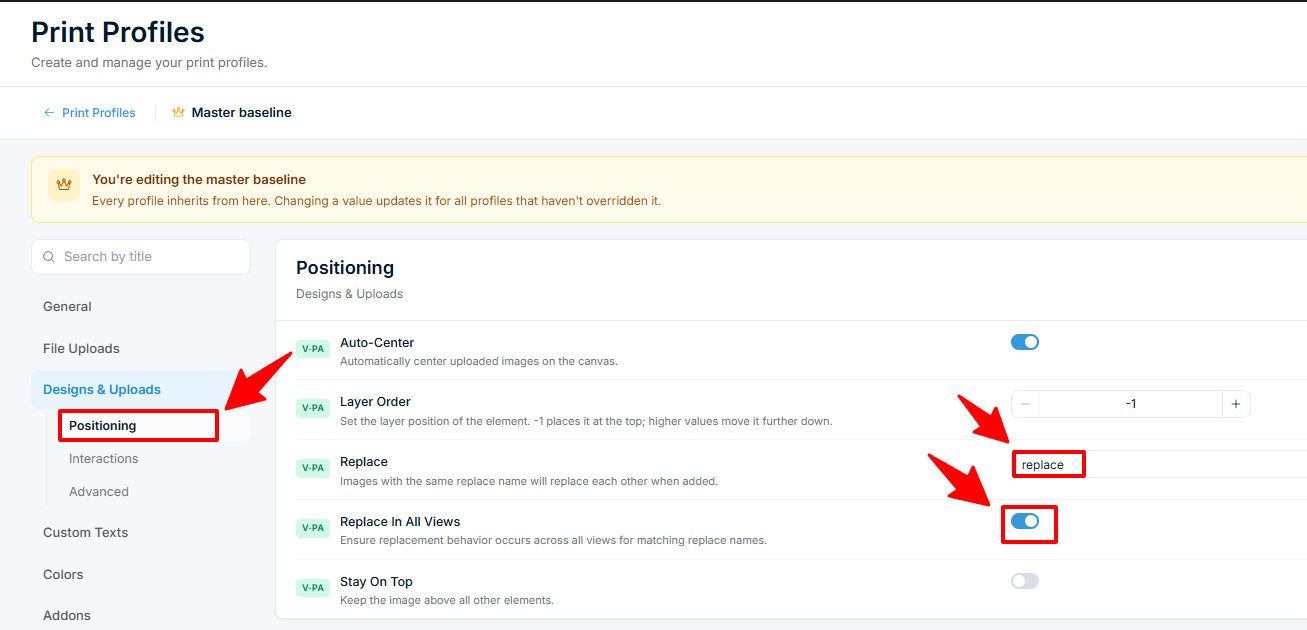
- Multi-view consistency — set Replace In All Views (in a graphics category's options or in the print profile) so that replacing an element on the front also replaces the matching element on the back.
Steps
Set up a replaceable element
- Open your product in the Product Builder (Chamevo > Products).
- Select the element you want to make replaceable (an image, graphic, or text element).
- In the properties panel, find the Replace field under the Linking area of the General section.
- Enter a unique replace name (for example, "logo" or "design").
- Click Save view.
Any new element added with the same replace name now swaps out this one.
Set replace on a graphics category
Related articles
Connect a catalog product to a product templateLink a catalog product to a reusable product template so the template's design elements load inside the catalog product's customizer.Create your first customizable productCreate a Chamevo product, add views, configure elements in the Product Builder, and preview the product customizer.Set up product views (front, back, sides)Add, configure, and order product views to represent each customizable surface of your product.Use the Product Builder to design customization areasLearn the Product Builder interface — canvas, modules panel, Element Options, print areas, and keyboard shortcuts for building customizable products.