
Upscale low-resolution images with AI
Enable AI image upscaling to automatically warn customers about low-resolution uploads and offer one-click quality enhancement.
Updated April 28, 20265 min read
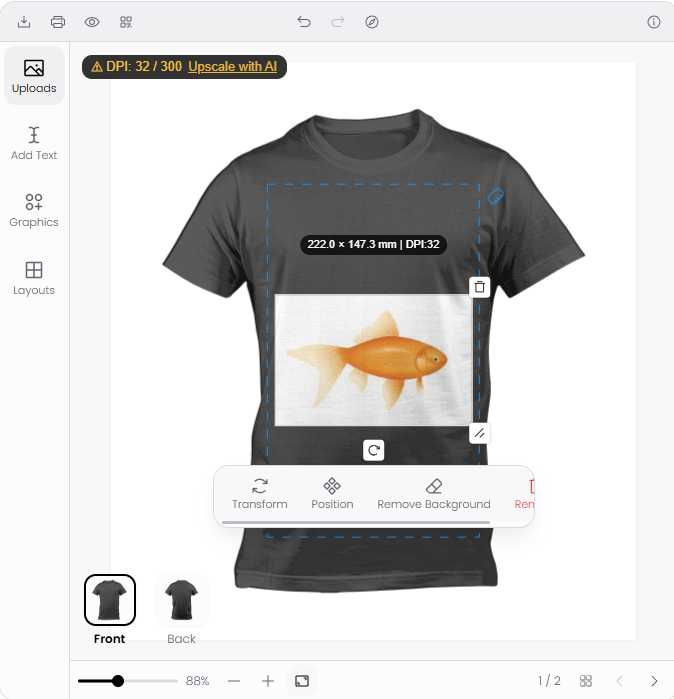
AI Image Upscaling detects when a customer uploads an image that is too low-resolution for print production. When the image's DPI falls below your minimum threshold, the customizer shows a warning with an option to upscale the image automatically. This prevents poor print quality without requiring customers to understand resolution or DPI.
Before you start
- Your subscription must include AI credits. Upscaling costs 2 credits per image.
- You should have a minimum DPI requirement set for your print areas. Without a DPI threshold, the upscaling warning will not trigger.
- You need access to Chamevo → Settings in your WordPress admin.
Enable image upscaling
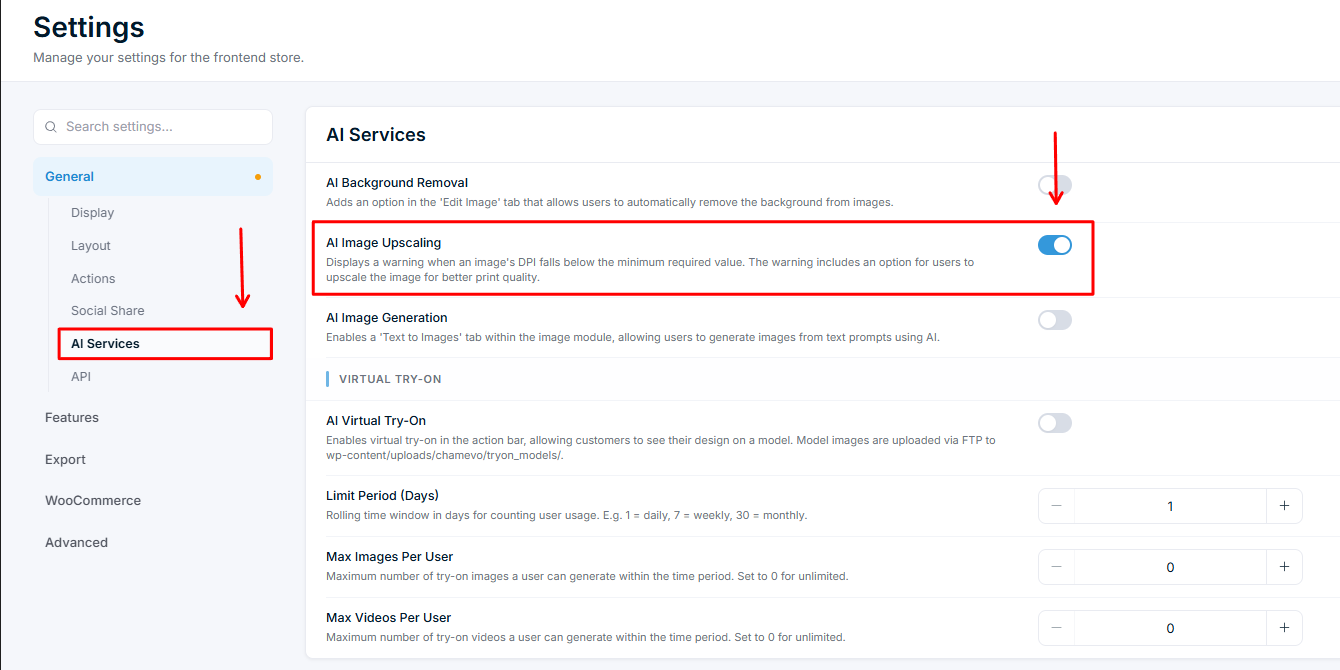
- Go to Chamevo → Settings in your WordPress admin.
- Navigate to the General tab, then the AI Services section.
- Toggle on AI Image Upscaling.
- Save your settings.
How it works
The upscaling flow is automatic — you do not need to configure anything beyond enabling the feature:
- The customer uploads or places an image on the canvas.
- The customizer calculates the image's effective DPI based on the image pixel dimensions and the print area size.
- If the DPI is below the minimum threshold, a warning notification appears on the canvas.
- The notification explains that the image resolution is too low for quality printing and offers an Upscale button.
- The customer clicks Upscale. The AI processes the image (typically 3–8 seconds).
- The upscaled image replaces the original on the canvas with higher resolution.
DPI quality ratings
The customizer uses three quality levels based on the image's effective DPI:
| Quality level | DPI range | What the customer sees |
|---|
Related articles
AI Tools overview and credit usageUnderstand the four AI-powered features in Chamevo — background removal, upscaling, text-to-image, and Virtual Try-On — and how AI credits work.Remove image backgrounds with AIEnable AI background removal so customers can remove backgrounds from uploaded images directly in the product customizer.Generate images from text promptsEnable AI text-to-image generation so customers can create images from text descriptions directly in the product customizer.Set up Virtual Try-On for your productsEnable Virtual Try-On so customers can see their customized design on a model wearing the product, with image and video generation.