Turn customer photos into art with AI Photo Styles
Create your own AI Photo Styles, such as cartoon, watercolor, or line portrait, so customers can restyle their photo in the product customizer or have every upload restyled automatically.
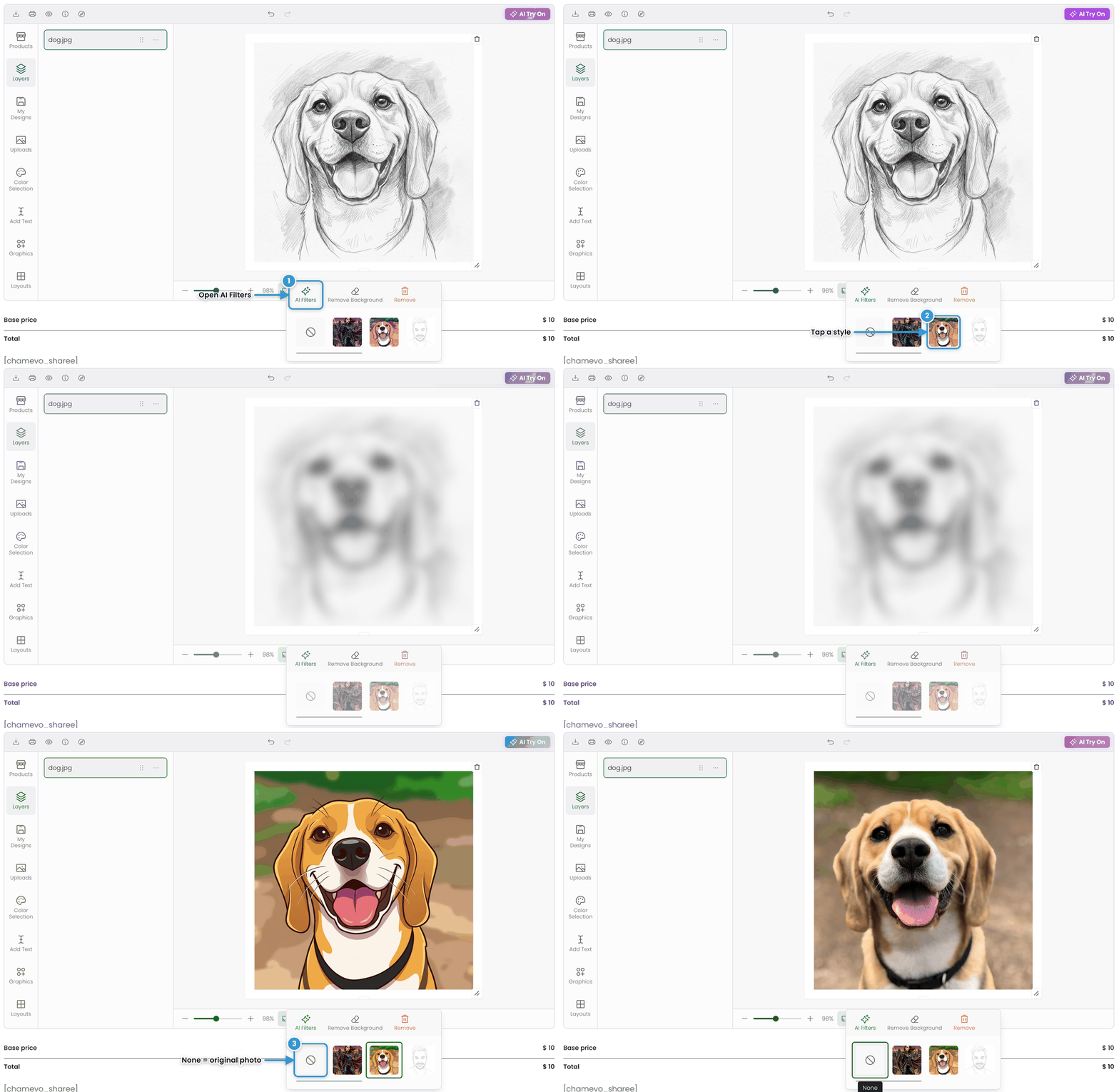
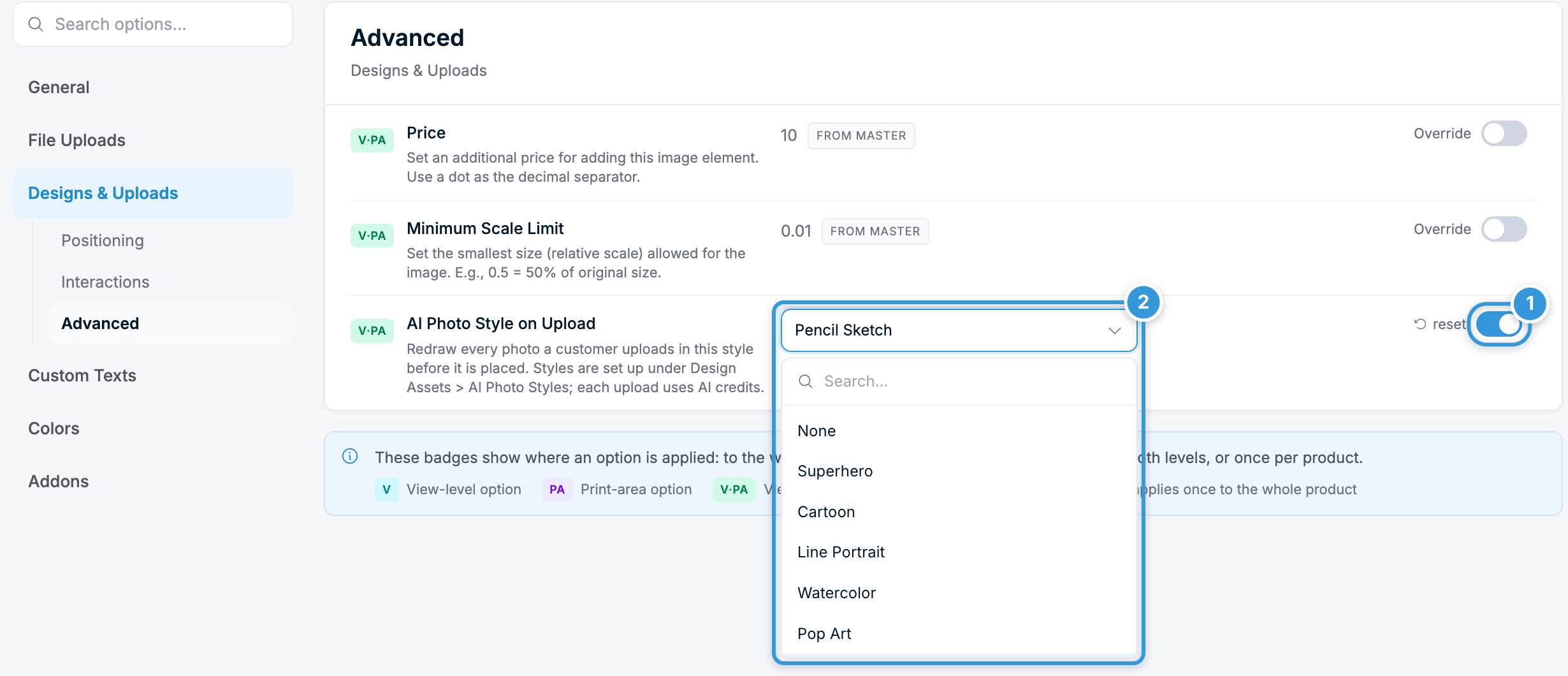
AI Photo Styles turn a customer's own photo into art — a cartoon, a watercolor painting, a pencil sketch, or any look you describe. Customers apply a style with one tap in the product customizer. You can also apply a style to every upload automatically.
This works well for personalized gifts: pet portraits, cartoon mugs, sketch-style canvases, or family portraits on t-shirts. Customers get a finished look without design skills, and you skip manual photo editing.
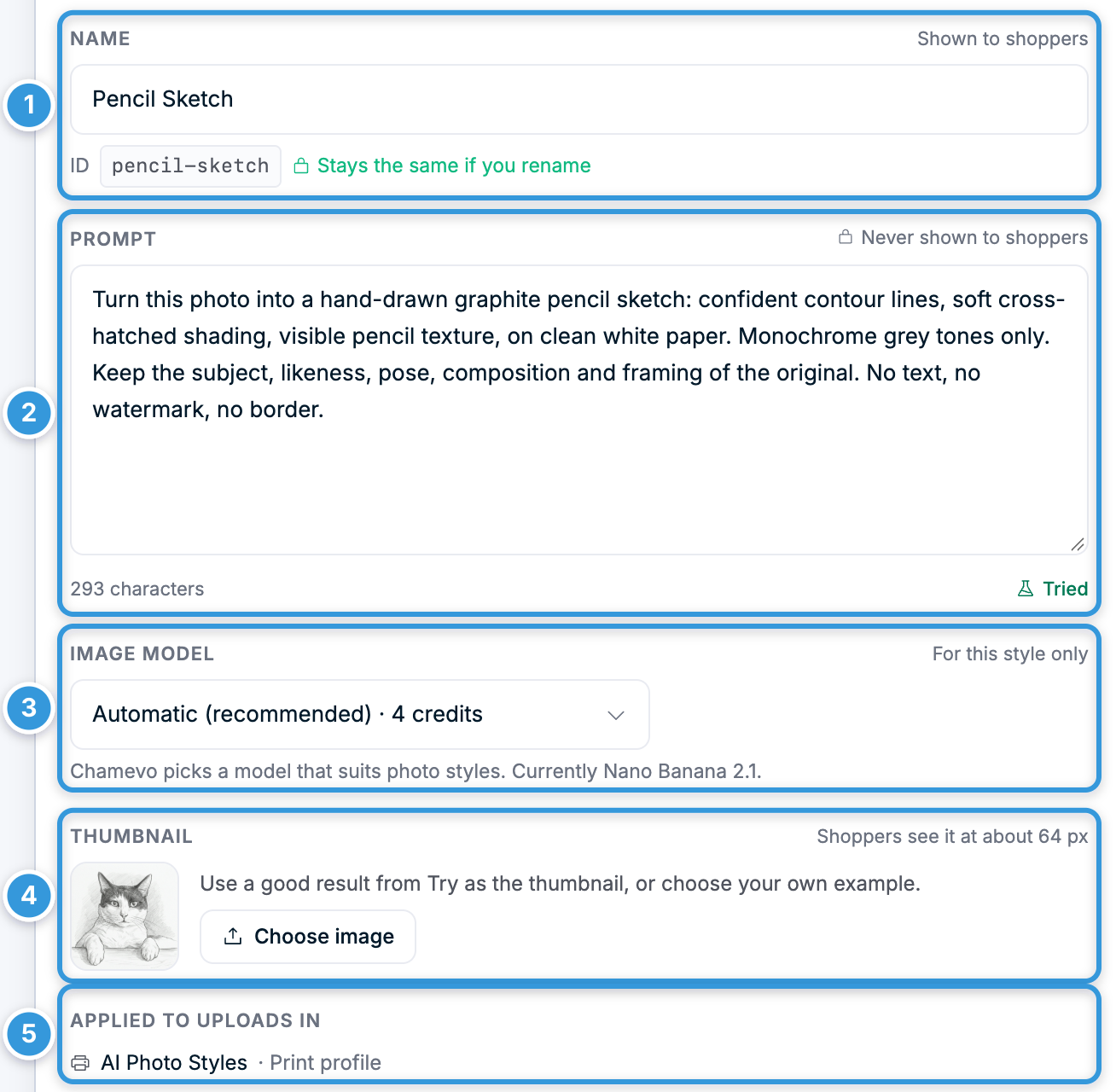
You write the prompt behind each style. Prompts stay on your server — customers only see the style name and thumbnail.
AI Photo Styles are available from Chamevo 2.8.1.
Before you start
- Your Chamevo license is connected, and your plan has AI credits. Each styled photo uses credits.
- You have access to Chamevo → Settings and Chamevo → AI Photo Styles in your WordPress admin.
- Your product accepts customer uploads. See Configure allowed file types and DPI restrictions.
Steps
1. Enable AI Photo Styles
- Go to Chamevo → Settings.
- Open the General tab, then the AI Services section.
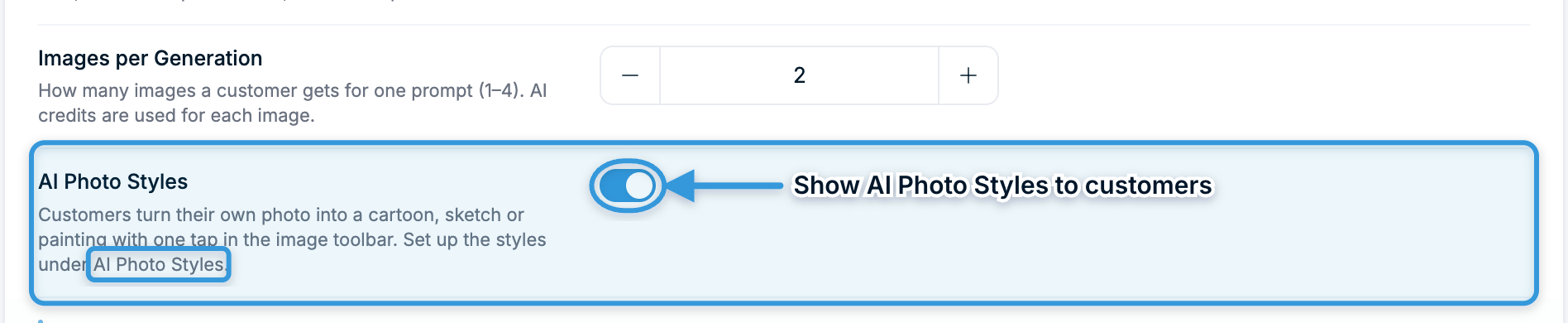
- Tick AI Photo Styles.
- Save your settings.
Customers only see styles while this setting is on. You can create and try styles before you switch it on.
2. Open the AI Photo Styles screen
Go to Chamevo → AI Photo Styles. You find it in the Design Assets group, next to Graphics, Fonts, and Colors.
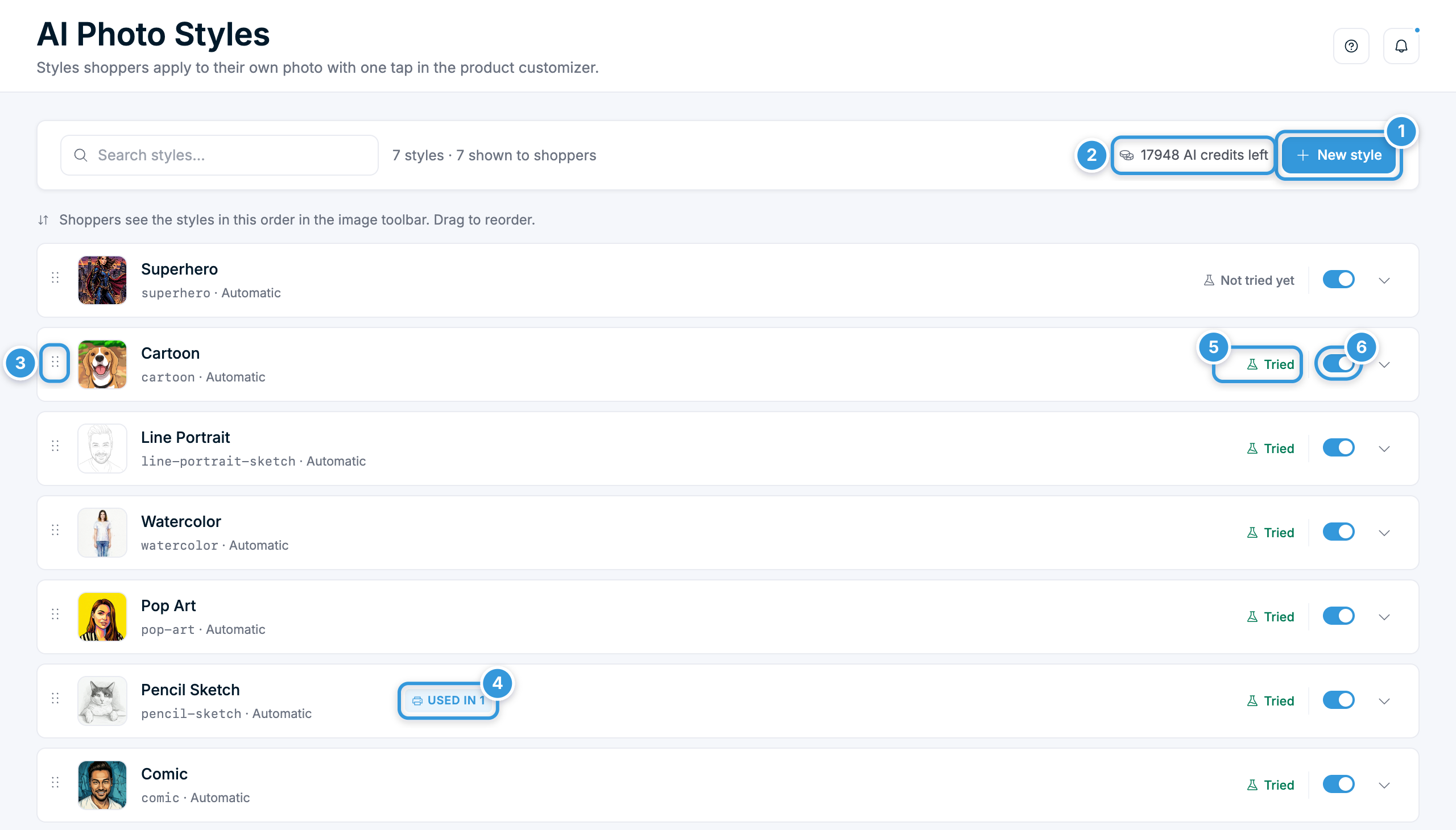
The header shows how many AI credits you have left.
If you have no styles yet, Chamevo offers six starter styles: Cartoon, Line Portrait, Watercolor, Pencil Sketch, Comic, and Pop Art.
- Click Add these 6 styles to start with the starters. Adjust the wording later to suit your shop.
- Click Write my own to start from an empty style.
Nothing is saved until you click Save changes.
Once you have styles, the screen lists them in the order customers see them: