
Enable quote mode to hide pricing
Hide product pricing and replace the Add to Cart button with a "Get a Quote" button so customers submit their customized design for a quote instead of purchasing directly.
Hide product pricing and replace the "Add to Cart" button with a "Get a Quote" button. Customers submit their customized design for a price quote instead of purchasing directly. This is useful for custom-priced items where the final cost depends on the design.
Before you start
- Chamevo and WooCommerce are active and connected. See Connect your WooCommerce store to Chamevo.
- You have at least one WooCommerce product with a Chamevo product assigned.
How quote mode works
When quote mode is enabled:
- The product page hides all pricing from the product customizer
- The "Add to Cart" button text changes to "Get a Quote"
- The cart shows a dash (
-) instead of a price for the customized product - The main shop page hides the product price for that product (note: product category and tag archive pages are not affected — the price still shows there)
- The product is still added to the WooCommerce cart, and the order processes normally — but with a $0 price
You can then review the customized design in Chamevo → Orders, calculate the real cost, and contact the customer with the final quote.
Steps
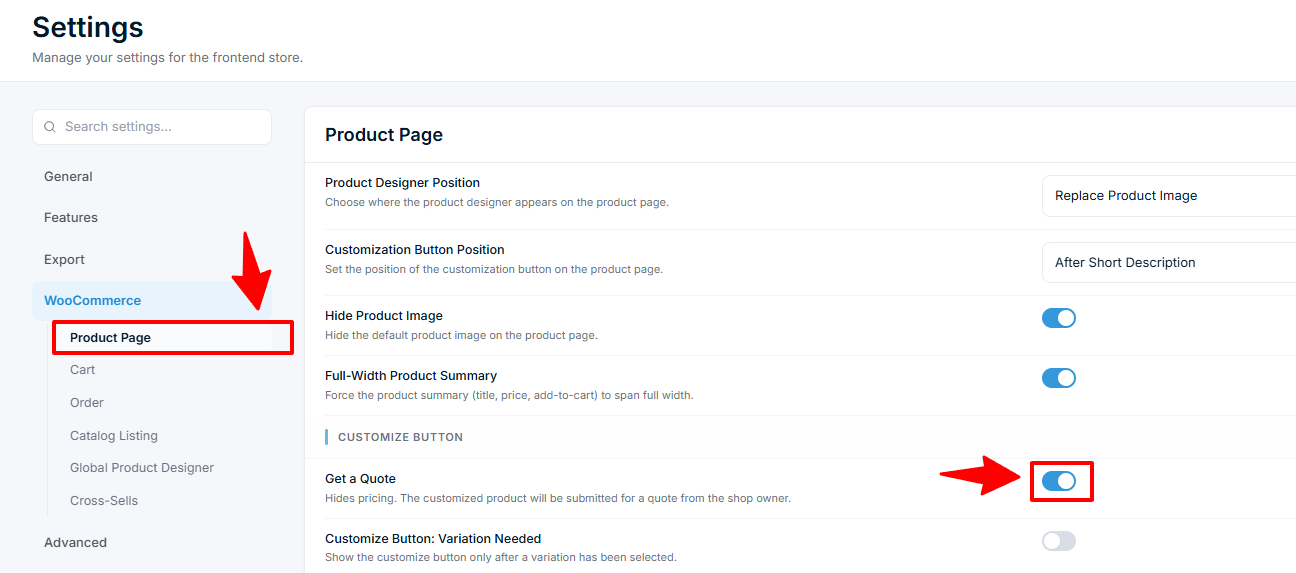
1. Enable quote mode globally
To enable quote mode for all Chamevo products:
- Go to Chamevo → Settings → WooCommerce → Product Page.
- Enable Get a Quote.
- Save.
2. Enable quote mode per product (alternative)
To enable quote mode for specific products only:
- Go to Products (WooCommerce) in your WordPress admin.
- Open the WooCommerce product.
- In the Chamevo meta box, find the individual product settings.
- Enable the Get a Quote option.
- Save.
Per-product settings override the global setting.
3. Customize the button text (optional)
The "Get a Quote" button text is configurable:
- Go to Chamevo → Translations.