
Sync text across views with Text Link Groups
Connect text elements across views so editing one automatically updates the others.
Text Link Groups connect text elements across views. When a customer edits text in one linked element, all other elements in the same group update automatically. This is useful for products where the same text appears on multiple sides — like a name on the front and back of a t-shirt.
Before you start
- You have created a product with at least two views (for example, front and back).
- Each view has a text element that should display the same content.
- You have access to the Product Builder (Chamevo > Products in your WordPress admin).
How it works
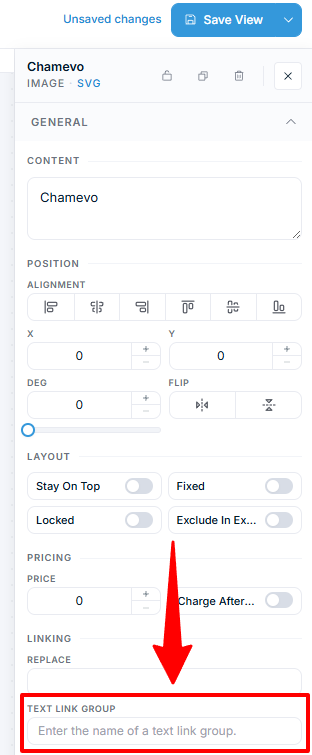
Each text element has a Text Link Group field in its properties. Set it to a group name — any text string you choose. All text elements with the same group name stay in sync.
When a customer types in one element, Chamevo copies the text to every other element in the group. By default, only the text content syncs. Formatting properties (font family, font size, and so on) sync only when you select them in the Text Link Group Properties setting described below.
Steps
Link text elements across views
- Open your product in the Product Builder (Chamevo > Products).
- Select the text element on the first view (for example, the front).
- In the properties panel, find the Text Link Group field under the Linking area of the General section.
- Enter a group name (for example, "name").
- Switch to the next view (for example, the back).
- Select the matching text element.
- Enter the same group name ("name") in the Text Link Group field.
- Save all views.
Now when a customer edits the text on the front, the back text updates to match.
Choose which properties sync
By default, Text Link Groups sync only the text content. To also sync formatting properties, select which ones: