Preparing the latest guides, releases, and feature request updates.
Loading guides
Preparing the right Knowledge Base content for this platform.
Configure allowed file types and DPI restrictions | Chamevo Support Center
Configure allowed file types and DPI restrictions
Control which image formats customers can upload and set DPI thresholds for upload quality ratings.
Updated April 28, 20265 min read
The File Uploads tab in a print profile controls which image formats customers can upload and how upload quality is assessed. Use these settings to ensure customers provide files that meet your production standards.
Before you start
You have access to your WordPress admin.
You know your printer's file format and DPI requirements.
Supported file types
Chamevo supports four upload formats:
Format
Best for
Notes
JPEG
Photos, full-color images
Requires minimum DPI for print quality. No transparency support
PNG
Logos, designs with transparency
Recommended for apparel and products with transparent backgrounds
SVG
Vector graphics, logos, line art
Scalable at any size. Supports per-path coloring
PDF
Print-ready documents
High-quality output. Good for professional print submissions
Edit the profile you want to configure (Master or custom).
Open the File Uploads tab.
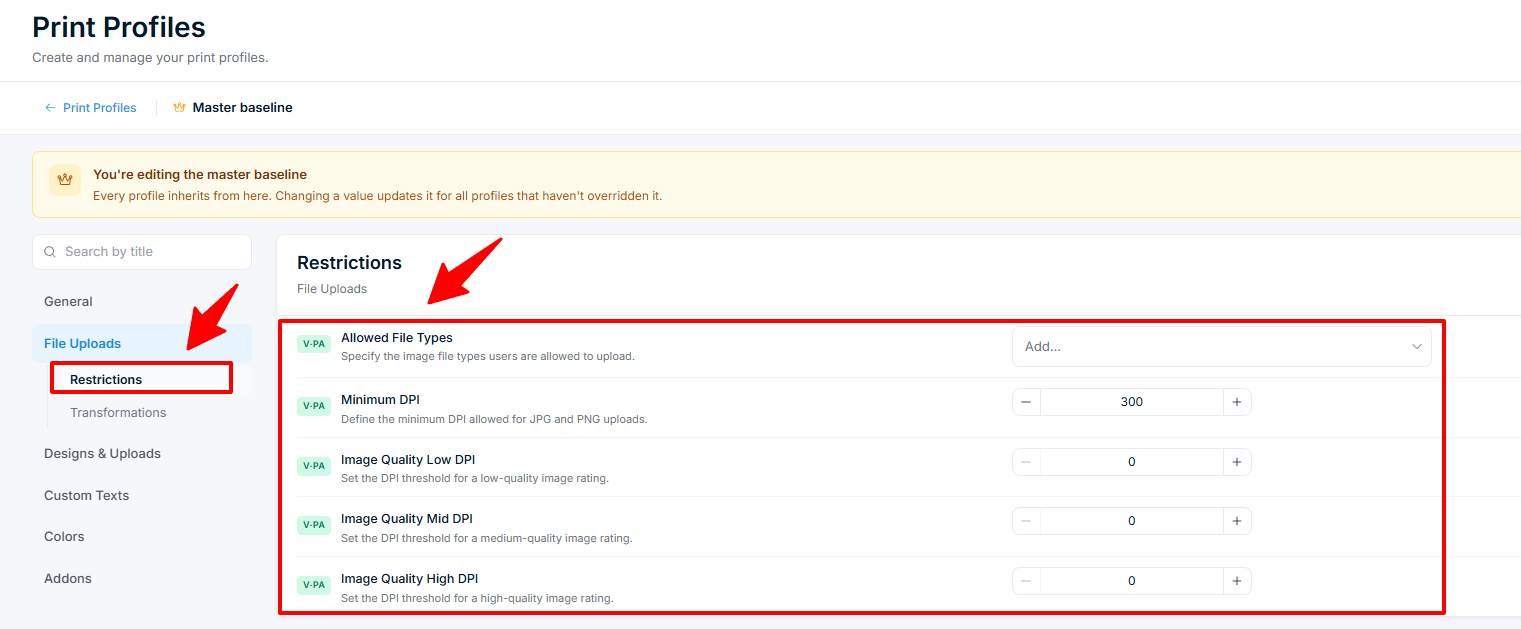
Under Restrictions, find Allowed File Types.
Select or deselect formats: JPEG, PNG, SVG, PDF.
Click Save Changes.
Customers can only upload files in the formats you enable. If a customer tries to upload a disabled format, the upload is rejected.
Set minimum DPI
In the File Uploads tab under Restrictions, find Minimum DPI.
Enter the minimum DPI value (for example, 300).
Click Save Changes.
Uploads below this DPI show a warning (with an AI upscale option when AI Tools are enabled), but they are not rejected — the customer can still use the image. The minimum DPI check applies to JPEG and PNG uploads only — SVG and PDF are not raster formats and do not have a meaningful DPI value.
Configure image quality ratings
Quality ratings give customers visual feedback about their upload quality before they finalize the design. The rating shows as three cumulative stars, driven by three DPI thresholds:
Set Image Quality Low DPI — uploads at or above this DPI earn the first star.
Set Image Quality Mid DPI — uploads at or above this DPI earn the second star.
Set Image Quality High DPI — uploads at or above this DPI earn the third star.
Example for standard print production:
Setting
Value
Minimum DPI
150
Image Quality Low DPI
200
Image Quality Mid DPI
300
Image Quality High DPI
600
With these settings, an upload below 200 DPI shows zero stars, 200–299 shows one star, 300–599 shows two stars, and 600+ shows all three stars. Uploads below the 150 DPI minimum still show a warning but are not blocked.
Leave the quality fields empty to disable the rating indicator.
Set maximum file size
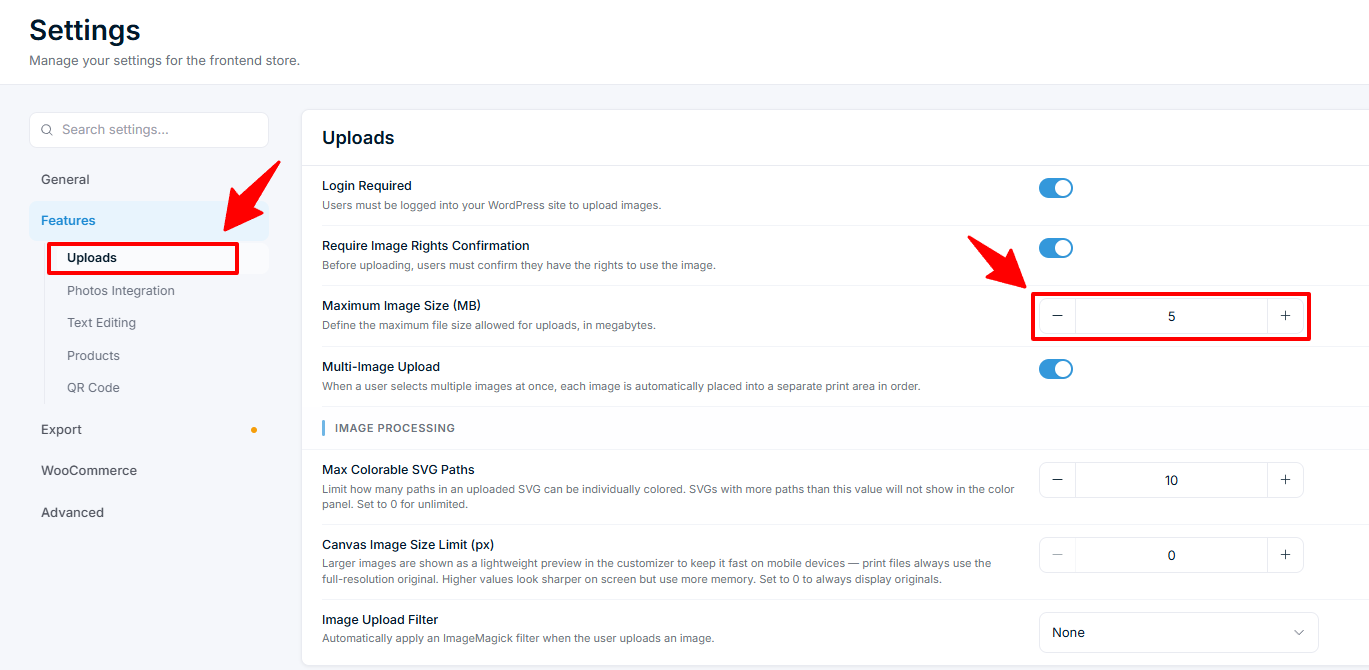
The maximum file size is a global setting in Chamevo → Settings → Features → Uploads → Maximum Image Size (MB) (default 10). This limit applies to every upload — set it to a value that matches your product resolution requirements and your server's PHP upload_max_filesize and post_max_size limits.
Large files slow down the upload process and can cause server timeouts. A lower limit also rejects accidental uploads of phone-sized photos before they consume bandwidth.
Configure image transformations
Under the Transformations section in the File Uploads tab, you can control how uploaded images are processed:
Setting
Default
What it does
Scale To Width
0 (disabled)
Resize images by width when width > height. Accepts pixels (e.g. 400) or percentage (e.g. 80%)
Scale To Height
0 (disabled)
Resize images by height when height > width. Accepts pixels or percentage
(The Minimum Scale Limit — smallest resize factor customers can apply, default 0.01 — is on the Designs & Uploads tab under Advanced, not File Uploads.)
To apply a filter to every upload, use the global Image Upload Filter in Chamevo → Settings → Features → Uploads. See process customer image uploads.
Scale To Width/Height automatically resize uploads to fit your canvas. Use percentage values (e.g. 80%) to scale relative to the canvas dimensions, or pixel values for absolute sizing.
DPI recommendations by product type
Product type
Minimum DPI
Recommended DPI
T-shirts / apparel
150
300
Business cards
300
300
Posters / large format
150
300
Photo products (mugs, cases)
200
300
Stickers / labels
300
600
Engraving
300
600+
For large-format products, customers often upload very large photos. These can slow the customizer on mobile.
The Canvas Image Size Limit (px) setting in Chamevo → Settings → Features → Uploads → Image Processing controls how large an uploaded image renders on screen. It is a customizer display setting only. It does not change your export or print quality — print-ready files always use the full-resolution original.
The default is 0, which always shows full-resolution images. If large uploads slow the customizer, set a limit such as 1600–2000.
Check your setup
Open a product on your store that uses the configured print profile.
Launch the product customizer.
Upload a JPEG below the minimum DPI. Confirm the low-DPI warning appears (the upload is not blocked).
Upload a PNG at mid-range DPI. Confirm the quality-star indicator shows the correct rating.
Try to upload a disabled file type. Confirm it is rejected.
Upload a file larger than the maximum size (set in Settings > Features > Uploads). Confirm it is rejected.
Troubleshooting
The low-DPI warning does not appear. Minimum DPI only applies to JPEG and PNG files — SVG and PDF are not checked. Verify the profile is assigned to the product. (Note: a low-DPI upload shows a warning; it is never rejected.)
Quality rating does not appear. All three quality DPI fields (Low, Mid, High) must have values. Leave them all empty to disable the feature, or fill in all three to enable it.
Uploads fail with no error message. Check the Maximum Image Size (MB) setting. Also verify your server's upload_max_filesize and post_max_size PHP settings — they may be lower than the Chamevo limit.
Q: What is the difference between Minimum DPI and Image Quality DPI thresholds?
A: Both are informational, not blocks. Minimum DPI shows a warning (with an optional AI upscale) when an upload is below the threshold, but the customer can still use it. Image Quality DPI thresholds drive the three-star quality rating. Neither rejects an upload — only file type and file size do.
Q: Does the DPI setting in File Uploads affect the export DPI?
A: No. File Upload DPI settings control upload quality (input). Export DPI is set separately in Chamevo > Settings > Export under Image DPI and controls the output file resolution.
Q: Can I allow different file types for different products?
A: Yes. Create a custom print profile with the file types you want and assign it to the product. The custom profile overrides the Master Print Profile's file type settings.
Q: Why should I disable JPEG for apparel?
A: JPEG does not support transparency. For apparel, PNG is preferred because the transparent background allows the garment color to show through. Disabling JPEG encourages customers to upload PNG or SVG files.