
Export an order as a print-ready file
View orders, generate print-ready files, and download or deliver them for production.
Updated April 28, 20265 min read
After a customer completes checkout, Chamevo generates a print-ready file for each customized product. This article covers how to view orders, check file status, regenerate files, and download them.
Before you start
- You have at least one completed order with a customized product.
- Your export settings are configured in Chamevo > Settings > Export. See Prepare your setup for print-ready file generation.
Steps
View orders
- Go to Chamevo > Orders in your WordPress admin.
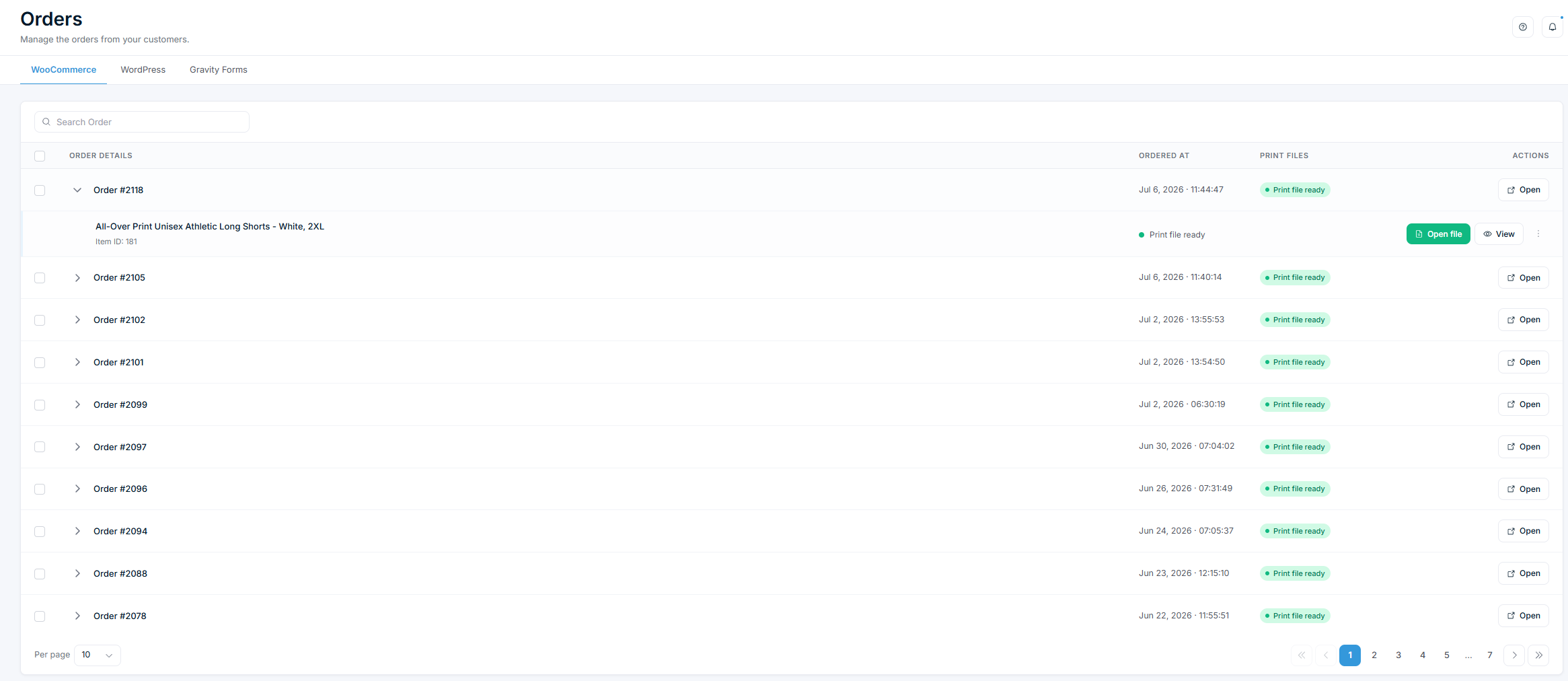
- The order list shows all orders with customized products.
- Filter orders by source: WooCommerce, Shortcode, or Gravity Form.
- Each row shows the order number, items, date, and print file status.
Print file status indicators:
- Green (1/1) — all files generated and ready.
- Yellow (0/1) — one or more files are pending or failed.
Open an order and download files
- Click Open in the Actions column for the order.
- The order detail view shows each customized item with its design preview.
- Click View to open the design in the Order Viewer and inspect the customer's customization.
- If the print-ready file is generated, click the download link to save it.
Generate or regenerate a print-ready file
If a file was not generated automatically (status shows yellow), or you need to regenerate it:
- Open the order.
- Click Create Print File on the item that needs a file.
- Chamevo generates the file using the current print profile and export settings.
- The status updates to green when generation is complete.
You can regenerate files as many times as needed. Each regeneration uses the current settings, so changes to print profiles or export settings apply to the new file.
Related articles
Print-Ready Exports overviewUnderstand how Chamevo generates print-ready files from customer designs, which formats are available, and how files reach your production workflow.Set up print profiles for your production workflowCreate print profiles to control file uploads, element behavior, color options, and module availability across products, views, and print areas.Configure bleed zones and output dimensionsSet up print areas with exact dimensions in millimeters, add bleed zones for trimming, and apply SVG masks for custom shapes.Prepare your setup for print-ready file generationVerify server requirements, fonts, file upload settings, and colorization before generating your first print-ready files.