
Use Pixabay for stock images in the product customizer
Enable and configure the Pixabay integration so customers can search and use free stock photos from Pixabay in their designs.
Updated April 28, 20265 min read
The Pixabay integration adds a stock photo search tab to the Images module. Customers can search for images by keyword and place them directly on their design — no upload needed. All Pixabay images are free for commercial use.
Before you start
- You need a free Pixabay API key. Get one at pixabay.com/api/docs.
- You need access to Chamevo → Settings in your WordPress admin.
Enable Pixabay
- Go to Chamevo → Settings in your WordPress admin.
- Open the Features tab and select Photos Integration.
- In the Pixabay Photos section, enter your key in the API Key field.
- Save settings.
The Pixabay tab now appears in the Images module on all products.
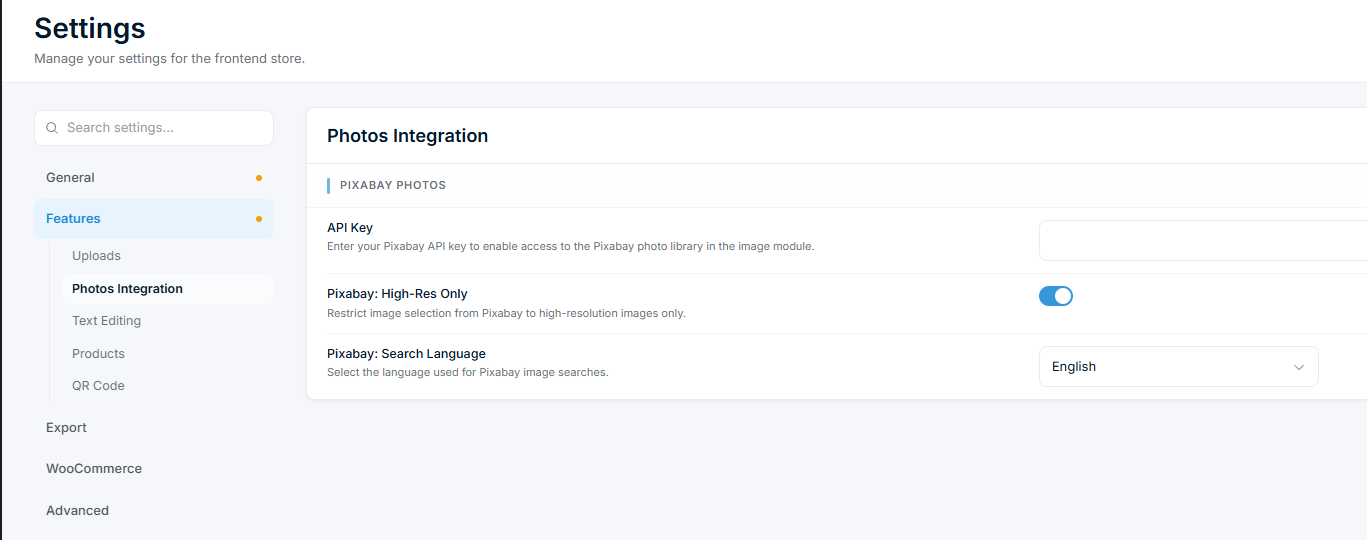
Configure Pixabay options
Two additional settings are available:
| Setting | What it does | Default |
|---|---|---|
| Pixabay: High-Res Only | Restricts results to high-resolution images only. Useful for print-quality products | Off |
| Pixabay: Search Language | Sets the language for search queries. Affects which keywords match which images | English |
How customers use Pixabay
- The customer opens the Images module and clicks the Pixabay tab (identified by the Pixabay logo).
- Popular images load automatically.
Related articles
Work with text elementsHow customers add and configure text elements in the product customizer, including text templates, character limits, and pricing.Work with image elementsHow the Images module works, including uploads, Pixabay, AI image generation, QR codes, and image pricing.Use the layers panel to manage element orderHow the Layers module lets customers view, reorder, edit, lock, hide, change colors, and delete design elements.Use Names & Numbers for group and team ordersSet up the Names & Numbers module so customers can submit a list of names and jersey numbers for group orders like sports teams or events.