Preparing the latest guides, releases, and feature request updates.
Loading guides
Preparing the right Knowledge Base content for this platform.
Use Chamevo with Elementor | Chamevo Support Center
Use Chamevo with Elementor
Drag and drop Chamevo widgets in Elementor to position the product customizer, modules, action buttons, and other components visually.
Updated April 28, 20265 min read
Chamevo registers a set of Elementor widgets that let you drag and drop customizer components directly in the Elementor editor. Instead of writing shortcodes, you select widgets from the Chamevo category and position them visually on your page.
Before you start
Elementor (free or Pro) must be installed and active.
Chamevo must be installed and active.
You need at least one Chamevo product created in the Product Builder.
The page must have a Chamevo product assigned through the Chamevo meta box.
Available widgets
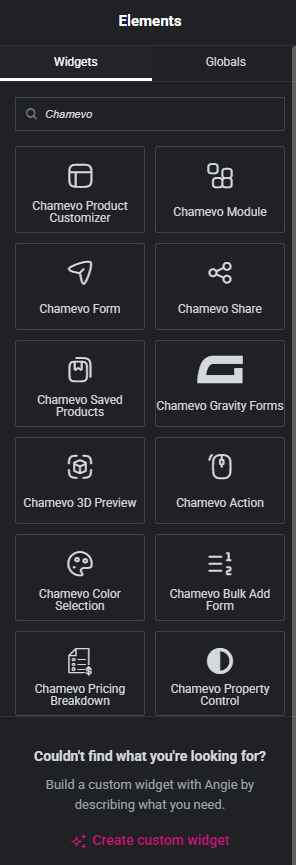
All Chamevo widgets appear under the Chamevo category in the Elementor widget panel.
Share button that generates a link to the current design
[chamevo_share]
Chamevo Saved Products
Grid of saved designs for the logged-in customer
[chamevo_saved_products]
Chamevo Pricing Breakdown
Live itemized pricing summary driven by Dynamic Pricing rules
[chamevo_pricing_breakdown]
Chamevo Property Control
Interactive control for a single element property (fill, font, text, etc.)
[chamevo_property_control]
Chamevo Gravity Forms
Customizer with Gravity Forms integration
[chamevo_gf]
Chamevo 3D Preview
3D model preview panel
—
Chamevo Color Selection
Color selection panel
[chamevo_cs]
Chamevo Bulk Add Form
Bulk Variations quantity form
[chamevo_bulk_add_form]
Step 1: Build a page with Chamevo widgets
Create or edit a page in Elementor.
Search for "Chamevo" in the widget panel or scroll to the Chamevo category.
Drag the Chamevo Product Customizer widget onto your page layout.
Add other Chamevo widgets (Module, Action, etc.) as needed.
Arrange them using Elementor's column and section controls.
In the Elementor editor, Chamevo widgets display placeholder boxes with the widget name. The actual customizer and components render on the frontend.
Step 2: Configure widget settings
Chamevo Product Customizer widget
Offers border and border-radius style controls to customize the customizer wrapper appearance. No content controls are needed — the widget renders the assigned product automatically.
Chamevo Module widget
Select which module to display from a dropdown. The module types match the shortcode options: Products, Images, Text, Graphics, Designs, Manage Layers, Text Layers, Layouts, My Designs, Save Load, Names Numbers.
For the Graphics/Designs module, you can filter by specific graphic category IDs.
Chamevo Action widget
Configure two settings:
Action Type — select from: Print, Reset Product, Undo, Redo, Info, Download, Preview Lightbox, Previous View, Next View, Guided Tour, QR Code, AI Try-On.
Layout — choose how the button appears: Icon Tooltip, Icon Text, or Text.
The Elementor editor shows a preview of the selected action with the chosen layout.
Chamevo Property Control widget
Configure the element and property to control:
Element Title — the title of the element in the Product Builder. Must match exactly, including capitalization.
Property — which property to expose: Fill Color, Neon Color, Font Family, Font Size, or Text.
Label — optional label shown above the control.
Options — comma-separated list of allowed values. For Fill Color, list hex values to restrict swatches. For Font Family, list font names to limit the picker.
Min / Max / Step — range bounds and step size. Applies to Font Size only.
Columns — number of columns for swatch layouts (Fill Color).
CSS — inline CSS applied to the control wrapper for width or spacing adjustments.
No content controls. The widget renders the live pricing summary automatically, driven by your Dynamic Pricing rules. At least one active pricing rule must be configured for the breakdown to show line items.
Q: Do I need Elementor Pro for Chamevo widgets?
A: No. Chamevo widgets work with the free version of Elementor. Elementor Pro is not required.
Q: Can I use Chamevo shortcodes inside Elementor?
A: Yes. You can use the Elementor Shortcode widget to place Chamevo shortcodes if you prefer. The dedicated Chamevo widgets offer the same functionality with a more visual editing experience.
Q: Can I style Chamevo widgets with Elementor's design controls?
A: The Product Customizer widget supports border and border-radius styling. For more detailed customization, use custom CSS through Elementor's Advanced tab or the Chamevo CSS settings.
Q: Why do widgets show placeholders in the editor?
A: The customizer requires frontend JavaScript to initialize. In the Elementor editor, widgets display descriptive placeholders. Preview the page on the frontend to see the live customizer.